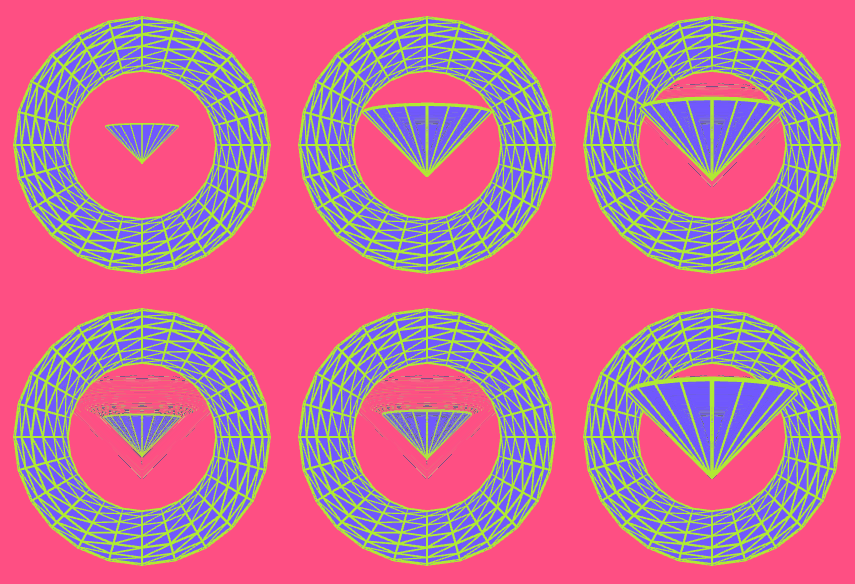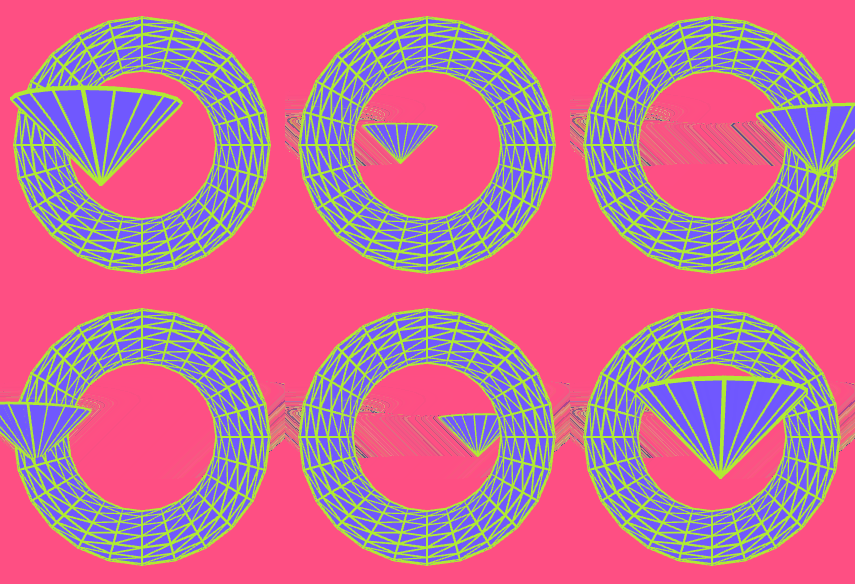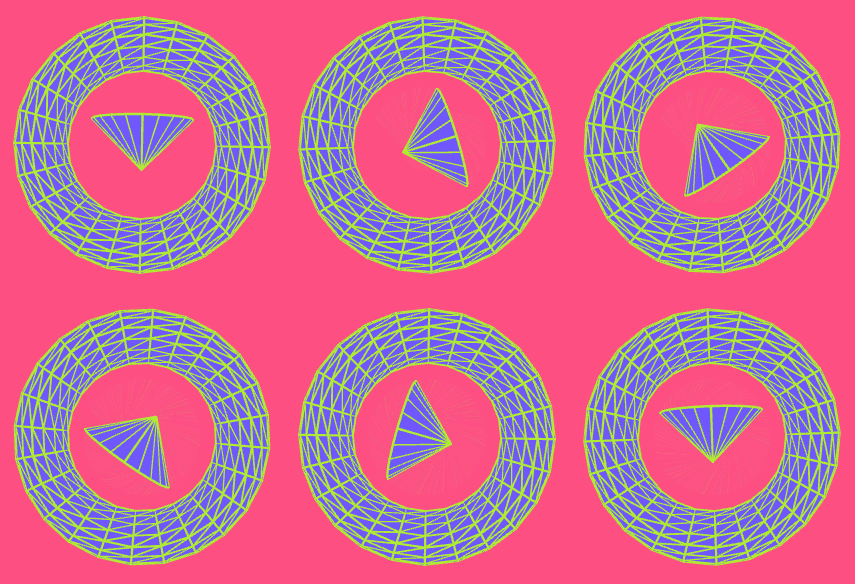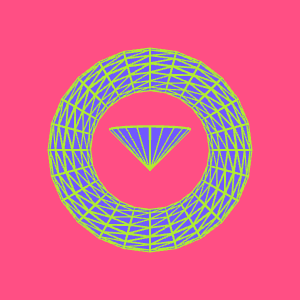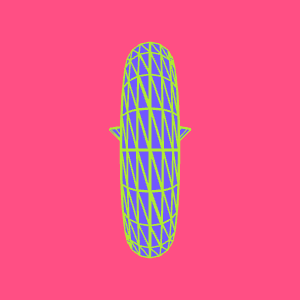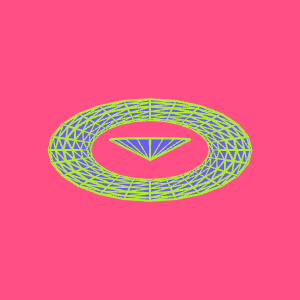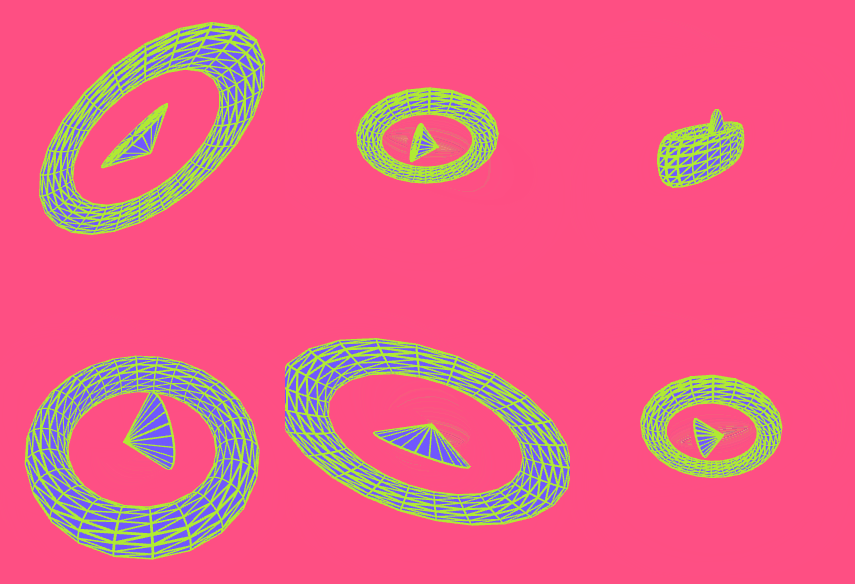
# Getting Started

How to get up and running with p5-python-web

To get started, go to [code.strivemath.com](https://code.strivemath.com/).&#x20;

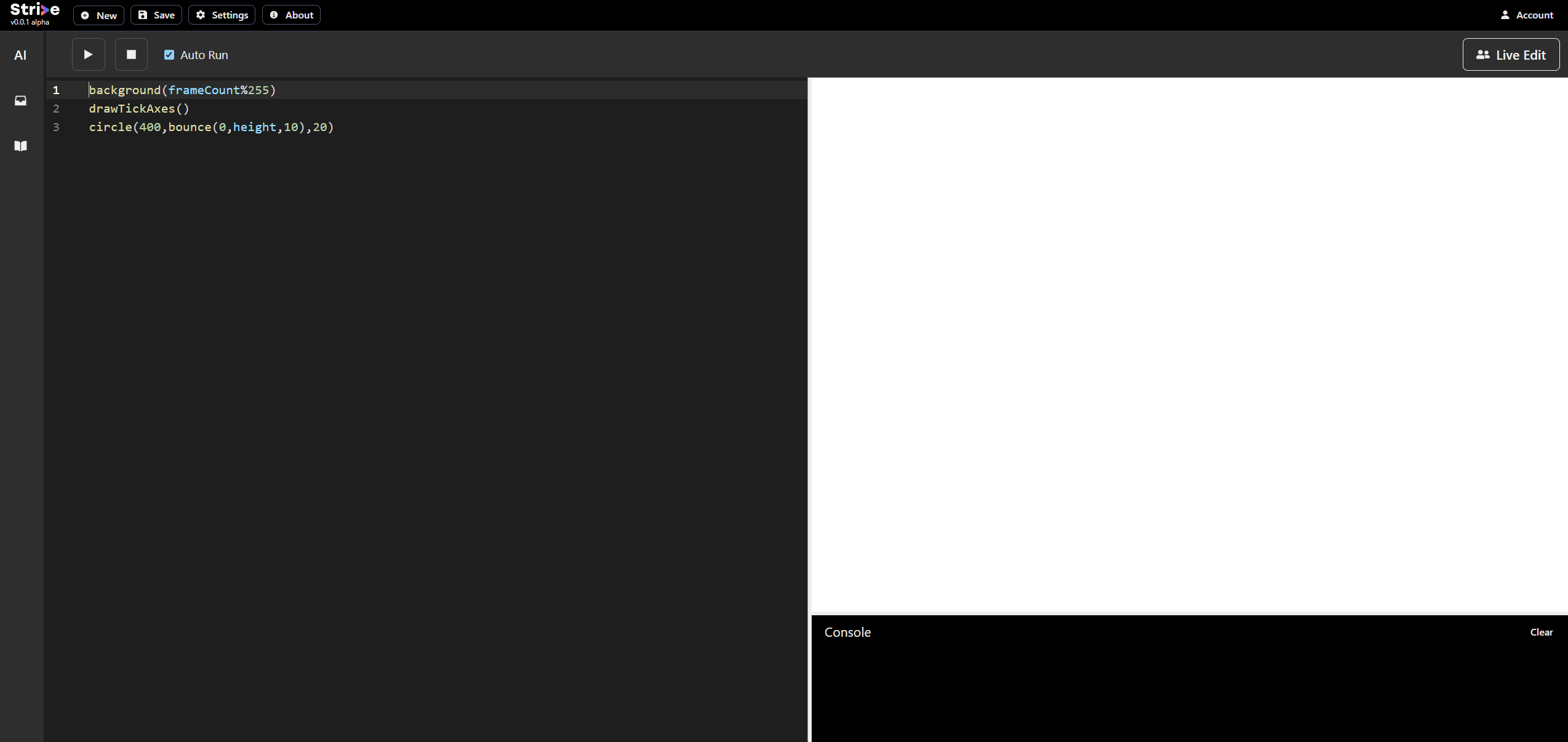
<figure><img src="https://768248463-files.gitbook.io/~/files/v0/b/gitbook-x-prod.appspot.com/o/spaces%2Fqbs7pgU3AVBY06Rl9M31%2Fuploads%2FCGB9kC2M7KJucVA3lSGk%2Fimage.png?alt=media&amp;token=c6ae2b31-9ae8-44fd-8936-950ebc5f8154" alt=""><figcaption></figcaption></figure>

⬆ This is the basic starter template - you can begin coding right away and don't need an account to start

{% code overflow="wrap" lineNumbers="true" %}

```python
def setup():
  createCanvas(400,400)

def draw():
  background("red")
  drawTickAxes() 
```

{% endcode %}

* Code put into setup() will execute once, when the canvas initializes.&#x20;
* Code put into draw() will execute repeatedly, 60 times per second. Each execution is called a frame.
* Try out putting some code - for example from the Shapes section - into the setup() and draw() functions and see what happens! Happy Coding 😁

{% hint style="info" %}
Find these documents helpful? Let the people who made them help your child learn to code at [**Strivemath**](https://www.strivemath.com/)<mark style="color:blue;">**!**</mark>

We'd love to hear your Feedback/Comments [here](https://docs.google.com/forms/d/e/1FAIpQLSeqorBAGTya-YBRI-VFjJxtgQtCz3ucGDI96K96sNyuaGuvdw/viewform?usp=sf_link).
{% endhint %}


# Simple mode

Use the p5 Python starter template, but without the hassle of starting with setup(), or worrying about the difference between setup() and draw()

<figure><img src="https://768248463-files.gitbook.io/~/files/v0/b/gitbook-x-prod.appspot.com/o/spaces%2Fqbs7pgU3AVBY06Rl9M31%2Fuploads%2F73c7Gjr0Qp4YK7uvv4as%2Fsimplemode.png?alt=media&amp;token=ce8f96a6-c97f-449f-97eb-13370d47d8f5" alt=""><figcaption></figcaption></figure>

## Example

![](https://768248463-files.gitbook.io/~/files/v0/b/gitbook-x-prod.appspot.com/o/spaces%2Fqbs7pgU3AVBY06Rl9M31%2Fuploads%2Fhe374wntMmaIqSpPMDvj%2Ftest.gif?alt=media\&token=ad265548-f2d4-49d3-9b58-24df4a7257e1)

```python
background(frameCount%255)
drawTickAxes()
circle(400,bounce(0,height,10),20)
```

## Description

Allows the user to use p5 in the draw function only. This eliminates a lot of the confusion to do with setting up the canvas, or scope of variables.

Of course, this has its downsides - the inability to create tailored dynamic variables or change the size of the canvas are two that come to mind.


# Shapes

the fundamental feature of p5 is that drawing shapes is easy! 2D and 3D shapes are available

<table data-view="cards"><thead><tr><th></th><th></th><th></th><th data-hidden data-card-target data-type="content-ref"></th><th data-hidden data-card-cover data-type="files"></th></tr></thead><tbody><tr><td>2D</td><td></td><td></td><td><a href="/p5-python-web/reference/shapes/2d">2D</a></td><td><a href="https://768248463-files.gitbook.io/~/files/v0/b/gitbook-x-prod.appspot.com/o/spaces%2Fqbs7pgU3AVBY06Rl9M31%2Fuploads%2F3ZyB9tqXG8RvZm3KCFzE%2FbeginShape.PNG?alt=media&amp;token=2174b650-4c4d-43c2-bd27-ea2abc03b86d">beginShape.PNG</a></td></tr><tr><td>3D</td><td></td><td></td><td><a href="/p5-python-web/reference/shapes/3d">3D</a></td><td><a href="https://768248463-files.gitbook.io/~/files/v0/b/gitbook-x-prod.appspot.com/o/spaces%2Fqbs7pgU3AVBY06Rl9M31%2Fuploads%2FUjbwRubKv3xqf8Z2hcVF%2Ftorus%20full.gif?alt=media&amp;token=14df4ec0-dc80-4b90-97ad-ce5308866727">torus full.gif</a></td></tr></tbody></table>

{% hint style="info" %}
Find these documents helpful? Let the people who made them help your child learn to code at [**Strivemath**](https://www.strivemath.com/)<mark style="color:blue;">**!**</mark>

We'd love to hear your Feedback/Comments [here](https://docs.google.com/forms/d/e/1FAIpQLSeqorBAGTya-YBRI-VFjJxtgQtCz3ucGDI96K96sNyuaGuvdw/viewform?usp=sf_link).
{% endhint %}


# 2D

These pages explain how to use the 2D primitives in the library

<table data-view="cards"><thead><tr><th></th><th></th><th></th><th data-hidden data-card-target data-type="content-ref"></th><th data-hidden data-card-cover data-type="files"></th></tr></thead><tbody><tr><td>rect() - Rectangle</td><td></td><td></td><td><a href="/p5-python-web/reference/shapes/2d/rect">rect()</a></td><td><a href="https://768248463-files.gitbook.io/~/files/v0/b/gitbook-x-prod.appspot.com/o/spaces%2Fqbs7pgU3AVBY06Rl9M31%2Fuploads%2FdgUTNcrk8JB6sajoAMoO%2Frectangle.PNG?alt=media&amp;token=e1c33765-e01f-4b72-9907-b44b54428798">rectangle.PNG</a></td></tr><tr><td>triangle() - Triangle</td><td></td><td></td><td><a href="/p5-python-web/reference/shapes/2d/triangle">triangle()</a></td><td><a href="https://768248463-files.gitbook.io/~/files/v0/b/gitbook-x-prod.appspot.com/o/spaces%2Fqbs7pgU3AVBY06Rl9M31%2Fuploads%2F5yuaeddw87RbwVznWthW%2Ftriangle.PNG?alt=media&amp;token=e5798d87-4ff5-4d2e-a76e-b4100770e0cd">triangle.PNG</a></td></tr><tr><td>point() - Point</td><td></td><td></td><td><a href="/p5-python-web/reference/shapes/2d/point">point()</a></td><td><a href="https://768248463-files.gitbook.io/~/files/v0/b/gitbook-x-prod.appspot.com/o/spaces%2Fqbs7pgU3AVBY06Rl9M31%2Fuploads%2F7fWQG5VWb2sdTkO0Rhlc%2Fpoint.PNG?alt=media&amp;token=51947dc2-084b-4f20-b9df-286d1e95884e">point.PNG</a></td></tr><tr><td>line() - Line</td><td></td><td></td><td><a href="/p5-python-web/reference/shapes/2d/line">line()</a></td><td><a href="https://768248463-files.gitbook.io/~/files/v0/b/gitbook-x-prod.appspot.com/o/spaces%2Fqbs7pgU3AVBY06Rl9M31%2Fuploads%2FQcFK7PKsKv3LabfnqSrd%2Flline.PNG?alt=media&amp;token=04d6480c-1534-4f8b-9978-6e2662d23b49">lline.PNG</a></td></tr><tr><td>ellipse() - Ellipse</td><td></td><td></td><td><a href="/p5-python-web/reference/shapes/2d/ellipse">ellipse()</a></td><td><a href="https://768248463-files.gitbook.io/~/files/v0/b/gitbook-x-prod.appspot.com/o/spaces%2Fqbs7pgU3AVBY06Rl9M31%2Fuploads%2Fr9aUU5xGe2WwwUaSzGBM%2Fellipse.PNG?alt=media&amp;token=19a782b4-5235-4dc9-aa25-fd39388f05be">ellipse.PNG</a></td></tr><tr><td>circle() - Circle</td><td></td><td></td><td><a href="/p5-python-web/reference/shapes/2d/circle">circle()</a></td><td><a href="https://768248463-files.gitbook.io/~/files/v0/b/gitbook-x-prod.appspot.com/o/spaces%2Fqbs7pgU3AVBY06Rl9M31%2Fuploads%2FWXovDXWpS99i29TtgcRo%2Fcircle.PNG?alt=media&amp;token=648f9882-1e45-4c09-8adf-278fed21653c">circle.PNG</a></td></tr><tr><td>arc() - Arc</td><td></td><td></td><td><a href="/p5-python-web/reference/shapes/2d/arc">arc()</a></td><td><a href="https://768248463-files.gitbook.io/~/files/v0/b/gitbook-x-prod.appspot.com/o/spaces%2Fqbs7pgU3AVBY06Rl9M31%2Fuploads%2FqkL7aXp7U6InuSwzn8rs%2Farc.PNG?alt=media&amp;token=99827795-449b-474e-8871-f1a95f9977b1">arc.PNG</a></td></tr><tr><td>quad() - Quadrilateral</td><td></td><td></td><td><a href="/p5-python-web/reference/shapes/2d/quad">quad()</a></td><td><a href="https://768248463-files.gitbook.io/~/files/v0/b/gitbook-x-prod.appspot.com/o/spaces%2Fqbs7pgU3AVBY06Rl9M31%2Fuploads%2F2cX41XGefN8YRojuCFBm%2Fquad.PNG?alt=media&amp;token=b01bb22b-f557-45d2-9021-3c1180d1d81e">quad.PNG</a></td></tr><tr><td>beginShape() - General Polygon</td><td></td><td></td><td></td><td><a href="https://768248463-files.gitbook.io/~/files/v0/b/gitbook-x-prod.appspot.com/o/spaces%2Fqbs7pgU3AVBY06Rl9M31%2Fuploads%2F3ZyB9tqXG8RvZm3KCFzE%2FbeginShape.PNG?alt=media&amp;token=2174b650-4c4d-43c2-bd27-ea2abc03b86d">beginShape.PNG</a></td></tr></tbody></table>

## How are 2D Shapes drawn?

In 2D mode, shapes are defined by a sequence of **vertices** that are then **connected into edges** to form a **closed region**.

<div><figure><img src="https://768248463-files.gitbook.io/~/files/v0/b/gitbook-x-prod.appspot.com/o/spaces%2Fqbs7pgU3AVBY06Rl9M31%2Fuploads%2F7ianyZKv654Ju5RUFqSP%2Fpoints.PNG?alt=media&amp;token=5d949928-1cdc-4035-9ef8-e35849be941b" alt=""><figcaption></figcaption></figure> <figure><img src="https://768248463-files.gitbook.io/~/files/v0/b/gitbook-x-prod.appspot.com/o/spaces%2Fqbs7pgU3AVBY06Rl9M31%2Fuploads%2FmZsSJbdnCDarXrWJo1vr%2Flines.png?alt=media&amp;token=1a2795ed-f2f9-45cc-b9f4-be3352b089e5" alt=""><figcaption></figcaption></figure></div>

<div><figure><img src="https://768248463-files.gitbook.io/~/files/v0/b/gitbook-x-prod.appspot.com/o/spaces%2Fqbs7pgU3AVBY06Rl9M31%2Fuploads%2FzblRJamnXm13CSW7Hd4K%2Fregion.png?alt=media&amp;token=666c9daa-429d-40f5-805a-488f0ae6ac8a" alt=""><figcaption></figcaption></figure> <figure><img src="https://768248463-files.gitbook.io/~/files/v0/b/gitbook-x-prod.appspot.com/o/spaces%2Fqbs7pgU3AVBY06Rl9M31%2Fuploads%2FxQDXlW2UCGXWkEw4C4Rh%2Fusual.png?alt=media&amp;token=fb27418b-9a3f-49ce-be48-6c3d1410d084" alt=""><figcaption><p>This is what the final shape looks like</p></figcaption></figure></div>

The region can be filled with any color using [fill()](/p5-python-web/reference/colour-and-outline/fill), and the edges can be colored using [stroke()](/p5-python-web/reference/colour-and-outline/stroke).

### Shortcut to common shapes

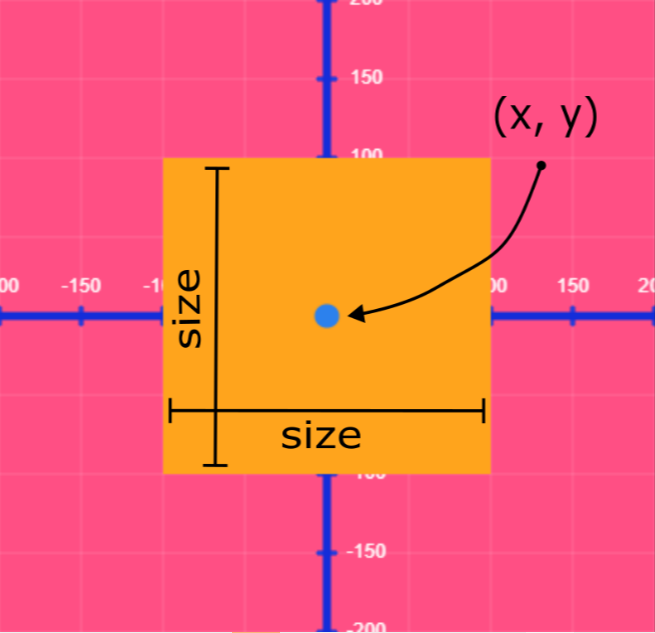
Some shapes have a **known configuration of vertices** (for example, we all know what the vertices of a square look like), and this gives us an **advantage to use other simpler information** (like the center of the square, and the length of its sides), and from that, we can calculate all the other vertices.

Shapes like [circle()](/p5-python-web/reference/shapes/2d/circle), [ellipse()](/p5-python-web/reference/shapes/2d/ellipse), [arc()](/p5-python-web/reference/shapes/2d/arc), [square()](/p5-python-web/reference/shapes/2d/square), [rect()](/p5-python-web/reference/shapes/2d/rect) offer that shortcut. You can always resort to using [beginShape()](/p5-python-web/reference/shapes/2d/beginshape), [triangle()](/p5-python-web/reference/shapes/2d/triangle), or [quad()](/p5-python-web/reference/shapes/2d/quad).

#### Vertices

<figure><img src="https://768248463-files.gitbook.io/~/files/v0/b/gitbook-x-prod.appspot.com/o/spaces%2Fqbs7pgU3AVBY06Rl9M31%2Fuploads%2FE57EI1cpd8R8Ih402Lbc%2Fbitmap_%D8%B7%D8%A8%D9%82%D8%A9%201_trial.png?alt=media&amp;token=638d8d85-edd4-4f51-b830-f159e37080a5" alt=""><figcaption></figcaption></figure>

```
quad(x1, y1, x2, y2, x3, y3, x4, y4)
```

#### Shortcut

<figure><img src="https://768248463-files.gitbook.io/~/files/v0/b/gitbook-x-prod.appspot.com/o/spaces%2Fqbs7pgU3AVBY06Rl9M31%2Fuploads%2FZ4Bp2hFK8jwKtkpGwD8D%2Fanother.PNG?alt=media&amp;token=93d2e17f-f212-47f3-8944-967c3cfb557a" alt=""><figcaption></figcaption></figure>

```
rect(x, y, size, size)
```

{% hint style="info" %}
Find these documents helpful? Let the people who made them help your child learn to code at [**Strivemath**](https://www.strivemath.com/)<mark style="color:blue;">**!**</mark>

We'd love to hear your Feedback/Comments [here](https://docs.google.com/forms/d/e/1FAIpQLSeqorBAGTya-YBRI-VFjJxtgQtCz3ucGDI96K96sNyuaGuvdw/viewform?usp=sf_link).
{% endhint %}


# point()

Point - Draws a point with the given inputs

### Example

![](https://768248463-files.gitbook.io/~/files/v0/b/gitbook-x-prod.appspot.com/o/spaces%2Fqbs7pgU3AVBY06Rl9M31%2Fuploads%2Fx3oasD4KGcYQ9ha9iCrv%2Fpoint.png?alt=media\&token=db2eef7c-23a3-425f-91ac-3210a4705684)

```python
point(200,200)
```

### Syntax

```python
point(x, y)
```

<table><thead><tr><th width="167">Input</th><th>Description</th></tr></thead><tbody><tr><td>x</td><td>x co-ordinate of the point</td></tr><tr><td>y</td><td>y co-ordinate of the point</td></tr></tbody></table>

<figure><img src="https://768248463-files.gitbook.io/~/files/v0/b/gitbook-x-prod.appspot.com/o/spaces%2Fqbs7pgU3AVBY06Rl9M31%2Fuploads%2FuBOUgkejx2Fa1Gbnn4Fa%2Fimage.png?alt=media&amp;token=96c5301e-8e57-48bc-9830-0c65dd032762" alt=""><figcaption></figcaption></figure>

### Description

**point()** draws a point on the canvas, using the inputs to determine the **x** and **y** coordinates of its position.

{% hint style="info" %}
Find these documents helpful? Let the people who made them help your child learn to code at [**Strivemath**](https://www.strivemath.com/)<mark style="color:blue;">**!**</mark>

We'd love to hear your Feedback/Comments [here](https://docs.google.com/forms/d/e/1FAIpQLSeqorBAGTya-YBRI-VFjJxtgQtCz3ucGDI96K96sNyuaGuvdw/viewform?usp=sf_link).
{% endhint %}


# line()

Line - Draws a line segment with the given inputs

### Example

![](https://768248463-files.gitbook.io/~/files/v0/b/gitbook-x-prod.appspot.com/o/spaces%2Fqbs7pgU3AVBY06Rl9M31%2Fuploads%2FXQNbqxMt6GJMMqpYMUcI%2Fline.png?alt=media\&token=eb2cae76-077f-4e57-baa4-9139a510b7d6)

```python
line(100,100,300,300)
```

### Syntax

```python
line(x1, y1, x2, y2)
```

<table><thead><tr><th width="167">Input</th><th>Description</th></tr></thead><tbody><tr><td>x1</td><td>x co-ordinate of the first endpoint of the line</td></tr><tr><td>y1</td><td>y co-ordinate of the first endpoint of the line</td></tr><tr><td>x2</td><td>x co-ordinate of the second endpoint of the line</td></tr><tr><td>y2</td><td>y co-ordinate of the second endpoint of the line</td></tr></tbody></table>

<figure><img src="https://768248463-files.gitbook.io/~/files/v0/b/gitbook-x-prod.appspot.com/o/spaces%2Fqbs7pgU3AVBY06Rl9M31%2Fuploads%2FJx4XHzNAG5AtOG0NlmzI%2Fspaces_qbs7pgU3AVBY06Rl9M31_uploads_EZNsEiHZfCJGKsMfXu38_image.png?alt=media&amp;token=f9273a77-c655-4196-93c4-3973d589b57f" alt=""><figcaption></figcaption></figure>

### Description

**line()** draws a line on the canvas, using the inputs to determine the position of the 2 endpoints (the points on either end of the line segment.)

{% hint style="info" %}
Find these documents helpful? Let the people who made them help your child learn to code at [**Strivemath**](https://www.strivemath.com/)<mark style="color:blue;">**!**</mark>

We'd love to hear your Feedback/Comments [here](https://docs.google.com/forms/d/e/1FAIpQLSeqorBAGTya-YBRI-VFjJxtgQtCz3ucGDI96K96sNyuaGuvdw/viewform?usp=sf_link).
{% endhint %}


# rect()

Rectangle - Draws a rectangle with the given inputs

### Example

![](https://768248463-files.gitbook.io/~/files/v0/b/gitbook-x-prod.appspot.com/o/spaces%2Fqbs7pgU3AVBY06Rl9M31%2Fuploads%2FkVi1mrlT1AgD96ZsqhpD%2Funtitled%20\(9\)%20\(1\).png?alt=media\&token=e6d3fe90-f143-4b82-999e-45d420a78678)

```python
rect(100, 150, 200, 100)
```

### Syntax

#### Basic Inputs

```python
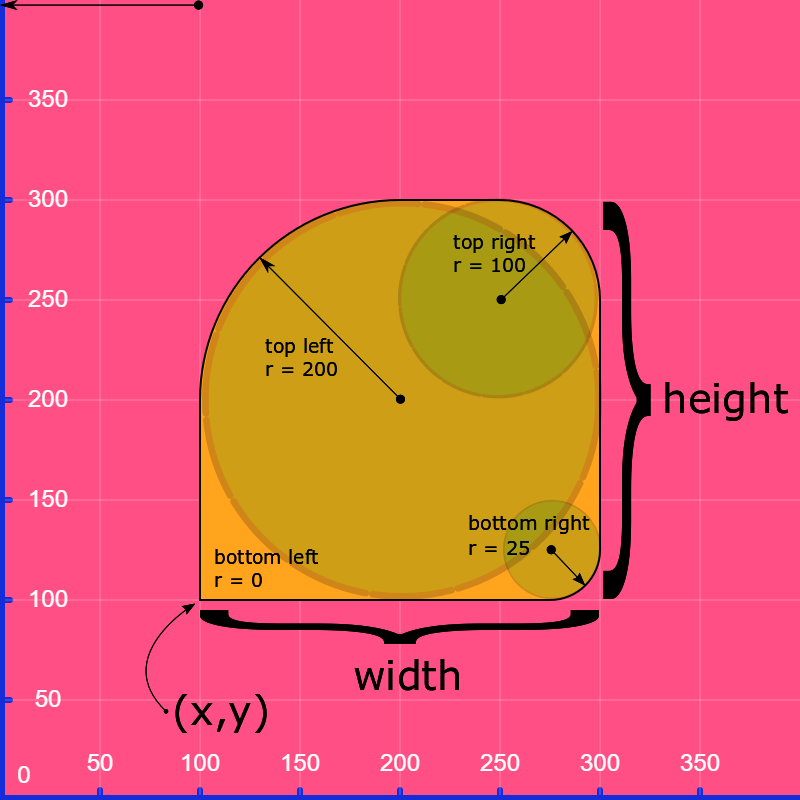
rect(x, y, width, height)
```

<table><thead><tr><th width="167">Input</th><th>Description</th></tr></thead><tbody><tr><td>x</td><td>x co-ordinate of the bottom left corner</td></tr><tr><td>y</td><td>y co-ordinate of the bottom left corner</td></tr><tr><td>width</td><td>width of the rectangle (length in x direction)</td></tr><tr><td>height</td><td>height of the rectangle (length in y direction)</td></tr></tbody></table>

<figure><img src="https://768248463-files.gitbook.io/~/files/v0/b/gitbook-x-prod.appspot.com/o/spaces%2Fqbs7pgU3AVBY06Rl9M31%2Fuploads%2FbBLzPuOqULaEFfJKbMfR%2Fimage.png?alt=media&amp;token=077d7915-4c46-456e-b285-3e6cb8c22066" alt=""><figcaption></figcaption></figure>

#### Curved Corners Optional Inputs

```
rect(x, y, width, height, topleft, topright, bottomright, bottomleft)
```

<table><thead><tr><th width="167">Input</th><th>Description</th></tr></thead><tbody><tr><td>x</td><td>x co-ordinate of the bottom left corner</td></tr><tr><td>y</td><td>y co-ordinate of the bottom left corner</td></tr><tr><td>width</td><td>width of the rectangle (length in x direction)</td></tr><tr><td>height</td><td>height of the rectangle (length in y direction)</td></tr><tr><td>bottomleft</td><td>radius of circle of curvature for the bottom left corner</td></tr><tr><td>bottomright</td><td>radius of circle of curvature for the bottom right corner</td></tr><tr><td>topright</td><td>radius of circle of curvature for the top right corner</td></tr><tr><td>topleft</td><td>radius of circle of curvature for the top left corner</td></tr></tbody></table>

<figure><img src="https://768248463-files.gitbook.io/~/files/v0/b/gitbook-x-prod.appspot.com/o/spaces%2Fqbs7pgU3AVBY06Rl9M31%2Fuploads%2FFm92x7xkIpvUI52xV3aB%2Fimage.png?alt=media&amp;token=99a08de0-4b35-4df5-a9bd-a09e462126ff" alt=""><figcaption></figcaption></figure>

### Description

**rect()** draws a rectangle on the canvas, using the inputs to determine the position and dimension of the shape. The corners can be given a curvature in order to draw a **'rounded rectangle'**, but the base and height of the rectangle must always be parallel to the x-axis and y-axis respectively - this can only be changed separately with a rotation.

## Modes <a href="#modes" id="modes"></a>

By default, the **x** and **y** inputs refer to the bottom left corner of the rectangle.

This can be changed using `rectMode()`, with an input of **CORNER**, **CORNERS**, **RADIUS** or **CENTER.**

#### rectMode(CORNER)

This is the default mode. The code:

```python
rect(x, y, width, height)
```

will use **(x,y)** as the bottom left corner coordinates and **width** and **height** as the dimensions.

![](https://768248463-files.gitbook.io/~/files/v0/b/gitbook-x-prod.appspot.com/o/spaces%2Fqbs7pgU3AVBY06Rl9M31%2Fuploads%2FH7jnWwV1HrCuiLhMKYZf%2Fimage.png?alt=media\&token=d359c24f-f9ba-48ae-ae2d-e40186b83c0a)

#### rectMode(CORNERS)

This mode is for specifying the coordinates of opposite corners. The code:

```python
rect(x1, y2, x2, y2)
```

will use **(x1,y1)** as the bottom left corner coordinates and **(x2,y2)** as the top right (diagonally opposite) corner coordinates.

![](https://768248463-files.gitbook.io/~/files/v0/b/gitbook-x-prod.appspot.com/o/spaces%2Fqbs7pgU3AVBY06Rl9M31%2Fuploads%2Ff8nM5e2QGvkKSTqcBCv6%2Fimage%20\(1\).png?alt=media\&token=7f95123f-0849-4db6-8d2e-d2fa50ed0f50)

#### rectMode(CENTER)

This mode is for specifying the **center** of the rectangle together with the **width** and **height**. The code:

```python
rect(x, y, width, height)
```

will use **(x,y)** as the center coordinates and **width** and **height** as the dimensions.

![](https://768248463-files.gitbook.io/~/files/v0/b/gitbook-x-prod.appspot.com/o/spaces%2Fqbs7pgU3AVBY06Rl9M31%2Fuploads%2FJ1FmcfCIdaaSCnFmX8NF%2Fimage%20\(2\).png?alt=media\&token=bbe1c159-f4ce-44fb-b885-aecb3ca9500f)

#### rectMode(RADIUS)

This mode is for specifying the **center** of the rectangle together with **half the width** and **half the height**. The code:

```python
rect(x, y, wRadius, hRadius)
```

will use **(x,y)** as the center coordinates and **wRadius \* 2** and **hRadius \* 2** as the dimensions.

![](https://768248463-files.gitbook.io/~/files/v0/b/gitbook-x-prod.appspot.com/o/spaces%2Fqbs7pgU3AVBY06Rl9M31%2Fuploads%2FGC1q5mTekbZbdSklMi8e%2Fimage%20\(3\).png?alt=media\&token=40ccbbe5-d6db-4c23-90ea-4edb9834f00a)

{% hint style="info" %}
Find these documents helpful? Let the people who made them help your child learn to code at [**Strivemath**](https://www.strivemath.com/)<mark style="color:blue;">**!**</mark>

We'd love to hear your Feedback/Comments [here](https://docs.google.com/forms/d/e/1FAIpQLSeqorBAGTya-YBRI-VFjJxtgQtCz3ucGDI96K96sNyuaGuvdw/viewform?usp=sf_link).
{% endhint %}


# square()

Square - Draws a square with the given inputs

### Example

![](https://768248463-files.gitbook.io/~/files/v0/b/gitbook-x-prod.appspot.com/o/spaces%2Fqbs7pgU3AVBY06Rl9M31%2Fuploads%2FhUrs6DIaJBC0VLWTquqU%2Fsquare%20plain.png?alt=media\&token=82d8e73e-7ba5-4d3a-be73-fdedc7e7062a)

```python
square(100, 100, 200)
```

### Syntax

```python
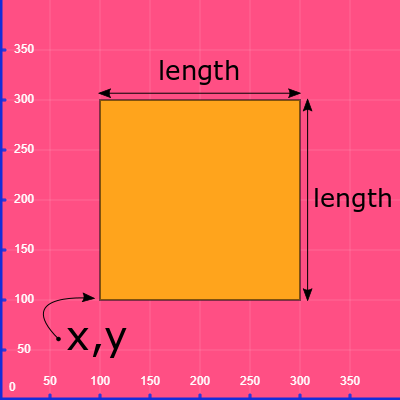
square(x, y, length)
```

<table><thead><tr><th width="167">Input</th><th>Description</th></tr></thead><tbody><tr><td>x</td><td>x co-ordinate of the bottom left corner</td></tr><tr><td>y</td><td>y co-ordinate of the bottom left corner</td></tr><tr><td>length</td><td>length of the square (length in x direction and y direction)</td></tr></tbody></table>

<figure><img src="https://768248463-files.gitbook.io/~/files/v0/b/gitbook-x-prod.appspot.com/o/spaces%2Fqbs7pgU3AVBY06Rl9M31%2Fuploads%2FgAUR2BT3JmFFbYd0OG9m%2Fsquare%20plain.png?alt=media&amp;token=3e11b8bc-5a71-4c1c-858c-733e96bb19bd" alt=""><figcaption></figcaption></figure>

### Description

**square()** draws a square on the canvas, using the inputs to determine the position and dimension of the shape. The corners can be given a curvature in order to draw a 'rounded square', but the length and height of the square must always be equal to one another. Also, the length and height need to be parallel to the x-axis and y-axis respectively - this can only be changed separately with a rotation.

{% hint style="info" %}
Find these documents helpful? Let the people who made them help your child learn to code at [**Strivemath**](https://www.strivemath.com/)<mark style="color:blue;">**!**</mark>

We'd love to hear your Feedback/Comments [here](https://docs.google.com/forms/d/e/1FAIpQLSeqorBAGTya-YBRI-VFjJxtgQtCz3ucGDI96K96sNyuaGuvdw/viewform?usp=sf_link).
{% endhint %}


# triangle()

Triangle - Draws a triangle with the given inputs

### Example

![](https://768248463-files.gitbook.io/~/files/v0/b/gitbook-x-prod.appspot.com/o/spaces%2Fqbs7pgU3AVBY06Rl9M31%2Fuploads%2F9U3pB9v8zK6p2AXkjmAM%2Fspaces_qbs7pgU3AVBY06Rl9M31_uploads_Ggln3ASl0agPEHKqHvd1_triangle.png?alt=media\&token=02eaf7b8-9ffa-4185-ae67-6e183b88af55)

```python
triangle(100, 100, 200, 300,300,100)
```

### Syntax

```python
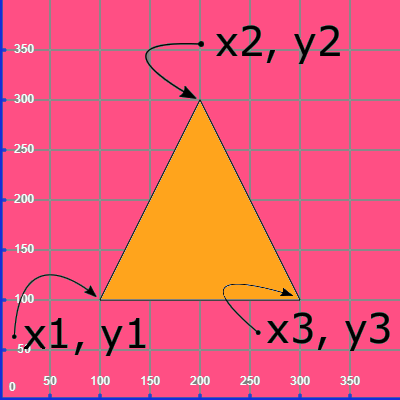
triangle(x1, y1, x2, y2, x3, y3)
```

<table><thead><tr><th width="167">Input</th><th>Description</th></tr></thead><tbody><tr><td>x1</td><td>x co-ordinate of the left corner</td></tr><tr><td>y1</td><td>y co-ordinate of the left corner</td></tr><tr><td>x2</td><td>x co-ordinate of the middle corner</td></tr><tr><td>y2</td><td>y co-ordinate of the middle corner</td></tr><tr><td>x3</td><td>x co-ordinate of the right corner</td></tr><tr><td>y3</td><td>y co-ordinate of the right corner</td></tr></tbody></table>

<figure><img src="https://768248463-files.gitbook.io/~/files/v0/b/gitbook-x-prod.appspot.com/o/spaces%2Fqbs7pgU3AVBY06Rl9M31%2Fuploads%2Fpy5ASmE4EgrCQyirxOou%2Fspaces_qbs7pgU3AVBY06Rl9M31_uploads_JA12QZHoFVqSJSSyfeY3_image.png?alt=media&amp;token=6e805d0b-d4c4-4fdf-a7b7-bbff1d718c23" alt=""><figcaption></figcaption></figure>

### Description

**triangle()** draws a triangle on the canvas, using the inputs to determine the positions of the 3 corners. Even though this is the simplest 2D shape, it takes the most complicated form of input, since total freedom to specify the shape is given.

{% hint style="info" %}
Find these documents helpful? Let the people who made them help your child learn to code at [**Strivemath**](https://www.strivemath.com/)<mark style="color:blue;">**!**</mark>

We'd love to hear your Feedback/Comments [here](https://docs.google.com/forms/d/e/1FAIpQLSeqorBAGTya-YBRI-VFjJxtgQtCz3ucGDI96K96sNyuaGuvdw/viewform?usp=sf_link).
{% endhint %}


# circle()

Circle - Draws a Circle with the given inputs

### Example

![](https://768248463-files.gitbook.io/~/files/v0/b/gitbook-x-prod.appspot.com/o/spaces%2Fqbs7pgU3AVBY06Rl9M31%2Fuploads%2FDhGZaznqp1LEsKUCV79t%2Fcircle.png?alt=media\&token=b1196a5b-6c9e-4b76-8c97-022a23fbc5d5)

```python
circle(200, 200, 150)
```

### Syntax

```python
circle(x, y, diameter)
```

<table><thead><tr><th width="167">Input</th><th>Description</th></tr></thead><tbody><tr><td>x</td><td>x co-ordinate of the center</td></tr><tr><td>y</td><td>y co-ordinate of the center</td></tr><tr><td>diameter</td><td>diameter of the circle</td></tr></tbody></table>

<figure><img src="https://768248463-files.gitbook.io/~/files/v0/b/gitbook-x-prod.appspot.com/o/spaces%2Fqbs7pgU3AVBY06Rl9M31%2Fuploads%2F7b9ujRAHcVUjrGSrFhVL%2Fimage%20(4).png?alt=media&amp;token=901f0c11-2596-44b3-a64f-f0be72a299bd" alt=""><figcaption></figcaption></figure>

### Description

**circle()** draws a circle on the canvas, using the inputs to determine the position and dimension of the shape.

{% hint style="info" %}
Find these documents helpful? Let the people who made them help your child learn to code at [**Strivemath**](https://www.strivemath.com/)<mark style="color:blue;">**!**</mark>

We'd love to hear your Feedback/Comments [here](https://docs.google.com/forms/d/e/1FAIpQLSeqorBAGTya-YBRI-VFjJxtgQtCz3ucGDI96K96sNyuaGuvdw/viewform?usp=sf_link).
{% endhint %}


# ellipse()

Ellipse - Draws an Ellipse with the given inputs

### Example

![](https://768248463-files.gitbook.io/~/files/v0/b/gitbook-x-prod.appspot.com/o/spaces%2Fqbs7pgU3AVBY06Rl9M31%2Fuploads%2F7GyPOnsfr09SIP2nvSXU%2Fspaces_qbs7pgU3AVBY06Rl9M31_uploads_LG2ir8ZKuxVt6rJ5R1qr_ellipse.png?alt=media\&token=d030596d-f5a8-495f-a074-7736ab6b653d)

```python
ellipse(200, 200, 300, 150)
```

### Syntax

```python
ellipse(x, y, width, height)
```

<table><thead><tr><th width="167">Input</th><th>Description</th></tr></thead><tbody><tr><td>x</td><td>x co-ordinate of the center</td></tr><tr><td>y</td><td>y co-ordinate of the center</td></tr><tr><td>width</td><td>width of the ellipse (length in x direction)</td></tr><tr><td>height</td><td>height of the ellipse (length in y direction)</td></tr></tbody></table>

<figure><img src="https://768248463-files.gitbook.io/~/files/v0/b/gitbook-x-prod.appspot.com/o/spaces%2Fqbs7pgU3AVBY06Rl9M31%2Fuploads%2FEB3H2QlGFI6hnNJ9HIGr%2Fimage.png?alt=media&amp;token=6204faa1-3ad5-477b-be37-bde2120536d6" alt=""><figcaption></figcaption></figure>

### Description

**ellipse()** draws an ellipse on the canvas, using the inputs to determine the position and dimension of the shape. The width and height of the ellipse must always be parallel to the x-axis and y-axis respectively - this can only be changed separately with a rotation.

## Modes <a href="#modes" id="modes"></a>

By default, the **x** and **y** inputs refer to the center of the ellipse.

This can be changed using `ellipseMode()`, with an input of **CENTER**, **CORNERS**, **CORNER**, or **RADIUS**.

#### ellipseMode(CENTER)

This is the default mode. The code:

```python
ellipse(x, y, width, height)
```

will use **(x,y)** as the center coordinates and **width** and **height** as the dimensions.

![](https://768248463-files.gitbook.io/~/files/v0/b/gitbook-x-prod.appspot.com/o/spaces%2Fqbs7pgU3AVBY06Rl9M31%2Fuploads%2F63welyH6mKdMX7szquxJ%2Fspaces_qbs7pgU3AVBY06Rl9M31_uploads_QlBjjeydULcgrVfjyiQd_image.png?alt=media\&token=5df566ae-ec92-41ac-9b20-cc98abb99cb9)

#### ellipseMode(CORNERS)

This mode is for specifying the coordinates of opposite corners of the ellipse's bounding box. The code:

```python
ellipse(x1, y2, x2, y2)
```

![](https://768248463-files.gitbook.io/~/files/v0/b/gitbook-x-prod.appspot.com/o/spaces%2Fqbs7pgU3AVBY06Rl9M31%2Fuploads%2FIE51W2lNUm7iIUjeOHyj%2Fimage.png?alt=media\&token=3ca8d785-d2fc-4cd1-84d7-b310c364adfe)

#### ellipseMode(CORNER)

This mode is for specifying the **corner** of the ellipse's bounding box together with the **width** and **height**. The code:

```python
ellipse(x, y, width, height)
```

will use **(x,y)** as the bottom left corner of the ellipse's bounding box and **width** and **height** as the dimensions.

![](https://768248463-files.gitbook.io/~/files/v0/b/gitbook-x-prod.appspot.com/o/spaces%2Fqbs7pgU3AVBY06Rl9M31%2Fuploads%2FgnKfQUhEVamsguTXMRuv%2Fimage%20\(1\).png?alt=media\&token=720ba19a-fa60-4854-b6db-4878f3a649bd)

#### ellipseMode(RADIUS)

This mode is for specifying the **center** of the ellipse together with **half the width** and **half the height**. The code:

```python
ellipse(x, y, wRadius, hRadius)
```

will use **(x,y)** as the center coordinates and **wRadius \* 2** and **hRadius \* 2** as the dimensions.

![](https://768248463-files.gitbook.io/~/files/v0/b/gitbook-x-prod.appspot.com/o/spaces%2Fqbs7pgU3AVBY06Rl9M31%2Fuploads%2FJx8kQKzQqPyvD5WqGErQ%2Fimage%20\(2\).png?alt=media\&token=e791c9ce-747c-4ba8-84b9-32b4942c3a38)

{% hint style="info" %}
Find these documents helpful? Let the people who made them help your child learn to code at [**Strivemath**](https://www.strivemath.com/)<mark style="color:blue;">**!**</mark>

We'd love to hear your Feedback/Comments [here](https://docs.google.com/forms/d/e/1FAIpQLSeqorBAGTya-YBRI-VFjJxtgQtCz3ucGDI96K96sNyuaGuvdw/viewform?usp=sf_link).
{% endhint %}


# arc()

Arc - Draws an Arc with the given inputs

### Example

![](https://768248463-files.gitbook.io/~/files/v0/b/gitbook-x-prod.appspot.com/o/spaces%2Fqbs7pgU3AVBY06Rl9M31%2Fuploads%2FHo52lA1oK5yMUZfDXCVf%2F90%20degree%20arc.png?alt=media\&token=5915f9e6-54c8-4fef-91ce-875d09efa83b)

```python
arc(200, 200, 300, 150, 0, 90)
```

### Syntax

```python
arc(x, y, width, height, Starting angle, Ending angle)
```

<table><thead><tr><th width="167">Input</th><th>Description</th></tr></thead><tbody><tr><td>x</td><td>x co-ordinate of the center</td></tr><tr><td>y</td><td>y co-ordinate of the center</td></tr><tr><td>width</td><td>width of the arc (length in x direction)</td></tr><tr><td>height</td><td>height of the arc (length in y direction)</td></tr><tr><td>starting angle</td><td>counter-clockwise angle of first arc arm from the positive x-axis</td></tr><tr><td>ending angle</td><td>counter-clockwise angle of second arc arm from the positive x-axis </td></tr></tbody></table>

### `(x, y, width, height...)`

<figure><img src="https://768248463-files.gitbook.io/~/files/v0/b/gitbook-x-prod.appspot.com/o/spaces%2Fqbs7pgU3AVBY06Rl9M31%2Fuploads%2Fgh9Eo6007Y5glNoLPIdm%2Fimage.png?alt=media&amp;token=a62e9ec7-10c1-46fb-92bd-5068ec079578" alt=""><figcaption></figcaption></figure>

### `(..., Starting angle, ...)`

<figure><img src="https://768248463-files.gitbook.io/~/files/v0/b/gitbook-x-prod.appspot.com/o/spaces%2Fqbs7pgU3AVBY06Rl9M31%2Fuploads%2F7YyepaidTzk1Um1LQe9i%2Fstarting%20angle%20gif.gif?alt=media&amp;token=09b80be7-97b8-427f-9acd-fb4e684c6cf2" alt=""><figcaption></figcaption></figure>

### `(..., Ending angle)`

<figure><img src="https://768248463-files.gitbook.io/~/files/v0/b/gitbook-x-prod.appspot.com/o/spaces%2Fqbs7pgU3AVBY06Rl9M31%2Fuploads%2Fhc7FoUaRdlAcxdtpFeIY%2Fending%20angle%20gif.gif?alt=media&amp;token=be97d7bf-55a9-4a58-aa8b-34ee5aae2ba0" alt=""><figcaption></figcaption></figure>

### Description

**arc()** draws an arc on the canvas, using the inputs to determine the position and dimension of the shape. The width and height of the arc must always be parallel to the x-axis and y-axis respectively - this can only be changed separately with a rotation. The starting and ending angle must always be given in a counter-clockwise direction starting from the positive x-axis.

{% hint style="info" %}
Find these documents helpful? Let the people who made them help your child learn to code at [**Strivemath**](https://www.strivemath.com/)<mark style="color:blue;">**!**</mark>

We'd love to hear your Feedback/Comments [here](https://docs.google.com/forms/d/e/1FAIpQLSeqorBAGTya-YBRI-VFjJxtgQtCz3ucGDI96K96sNyuaGuvdw/viewform?usp=sf_link).
{% endhint %}


# quad()

Quadrilateral - Draws a Quadrilateral with the given inputs

### Example

<figure><img src="https://768248463-files.gitbook.io/~/files/v0/b/gitbook-x-prod.appspot.com/o/spaces%2Fqbs7pgU3AVBY06Rl9M31%2Fuploads%2F2AkLTu5cgvvZfCDFyUzs%2Fquadplain.png?alt=media&amp;token=97bc3bca-4dc9-4f67-8679-be5f04f1ba68" alt=""><figcaption></figcaption></figure>

```python
quad(250,100,100,100,50,200,350,350)
```

### Syntax

```python
quad(x1, y1, x2, y2, x3, y3, x4, y4)
```

<table><thead><tr><th width="167">Input</th><th>Description</th></tr></thead><tbody><tr><td>x1</td><td>x co-ordinate of the first corner <strong>(vertex 1)</strong></td></tr><tr><td>y1</td><td>y co-ordinate of the first corner <strong>(vertex 1)</strong></td></tr><tr><td>x2</td><td>x co-ordinate of the second corner <strong>(vertex 2)</strong></td></tr><tr><td>y2</td><td>y co-ordinate of the second corner <strong>(vertex 2)</strong></td></tr><tr><td>x3</td><td>x co-ordinate of the third corner <strong>(vertex 3)</strong></td></tr><tr><td>y3</td><td>y co-ordinate of the third corner <strong>(vertex 3)</strong></td></tr><tr><td>x4</td><td>x co-ordinate of the fourth corner <strong>(vertex 4)</strong></td></tr><tr><td>y4</td><td>y co-ordinate of the fourth corner <strong>(vertex 4)</strong></td></tr></tbody></table>

### Description

Creates a quadrilateral with corners (vertices) at the given co-ordinates. Co-ordinates **must** be specified in clockwise or counter-clockwise direction, otherwise the resulting shape might not contain only one area.

{% hint style="info" %}
Find these documents helpful? Let the people who made them help your child learn to code at [**Strivemath**](https://www.strivemath.com/)<mark style="color:blue;">**!**</mark>

We'd love to hear your Feedback/Comments [here](https://docs.google.com/forms/d/e/1FAIpQLSeqorBAGTya-YBRI-VFjJxtgQtCz3ucGDI96K96sNyuaGuvdw/viewform?usp=sf_link).
{% endhint %}


# beginShape()

Draws a polygon with any number of given vertices.

### Example

<figure><img src="https://768248463-files.gitbook.io/~/files/v0/b/gitbook-x-prod.appspot.com/o/spaces%2Fqbs7pgU3AVBY06Rl9M31%2Fuploads%2FCYQm46gJ4tuWuKWL9eYm%2Fhexagon.png?alt=media&amp;token=d6e46bd6-b883-4e0b-81c3-1049d4747fe0" alt=""><figcaption></figcaption></figure>

```python
beginShape()
vertex(200, 100)
vertex(300, 150)
vertex(300, 250)
vertex(200, 300)
vertex(100, 250)
vertex(100, 150)
vertex(200, 100)
endShape()
```

### Syntax

```python
beginShape(FORMAT)
...
vertex(x1,y1)
vertex(x2,y2)
vertex(x3,y3)
etc.
...
endShape(MODE)
```

<table><thead><tr><th width="167">Input</th><th>Description</th></tr></thead><tbody><tr><td>beginShape()</td><td><strong>starts</strong> the list of co-ordinates</td></tr><tr><td>FORMAT</td><td>contains any of <strong>POINTS</strong>, <strong>LINES</strong>, <strong>TRIANGLES</strong>, <strong>QUADS, TESS</strong>, see Description</td></tr><tr><td>vertex(xi,yi)</td><td>The coordinates of the <strong>i-th vertex</strong> of the polygon</td></tr><tr><td>endShape()</td><td><strong>ends</strong> the list of co-ordinates</td></tr><tr><td>MODE</td><td><strong>CLOSE</strong> or nothing</td></tr></tbody></table>

<figure><img src="https://768248463-files.gitbook.io/~/files/v0/b/gitbook-x-prod.appspot.com/o/spaces%2Fqbs7pgU3AVBY06Rl9M31%2Fuploads%2FGJPnceu3pH7lF6BYGVlY%2Fhexagon.png?alt=media&amp;token=9f4645c8-4b14-4ee0-8fd4-802d45b87f47" alt=""><figcaption></figcaption></figure>

### Description

**beginShape()** and **endShape()** allow the drawing of shapes with many corners. After beginShape() is called, **corners** (vertices) should be listed, each on a separate line. After that, **endShape()** should be called to end the list. Corners are written in their x,y co-ordinates as **vertex(x,y)**

The inputs available for beginShape() are:

**TESS** Connects the edges and creates a closed region. This is the **default** behavior if nothing was given.

<figure><img src="https://768248463-files.gitbook.io/~/files/v0/b/gitbook-x-prod.appspot.com/o/spaces%2Fqbs7pgU3AVBY06Rl9M31%2Fuploads%2FdCWRGt0g1kWsZ0nEQOhT%2FTESS.png?alt=media&amp;token=9bc3320a-43a2-4710-9692-b3fcdf764126" alt=""><figcaption></figcaption></figure>

**POINTS** Draw a set of points

<figure><img src="https://768248463-files.gitbook.io/~/files/v0/b/gitbook-x-prod.appspot.com/o/spaces%2Fqbs7pgU3AVBY06Rl9M31%2Fuploads%2FKDy1CsWe7l8UAGl6HWn0%2FPOINTS.png?alt=media&amp;token=32bdf026-3872-49c8-bba8-3cd0ca48239f" alt=""><figcaption></figcaption></figure>

**LINES** Draw a set of unconnected line segments

<figure><img src="https://768248463-files.gitbook.io/~/files/v0/b/gitbook-x-prod.appspot.com/o/spaces%2Fqbs7pgU3AVBY06Rl9M31%2Fuploads%2FwIstHl94UdFlW8bJHGsn%2FLINES.png?alt=media&amp;token=ea876991-235b-41be-a8c5-e3de929129f3" alt=""><figcaption></figcaption></figure>

**TRIANGLES** Draw a set of triangles

<figure><img src="https://768248463-files.gitbook.io/~/files/v0/b/gitbook-x-prod.appspot.com/o/spaces%2Fqbs7pgU3AVBY06Rl9M31%2Fuploads%2Fs4UiMlvGJoYhlSsNZqnN%2FTRIANGLES.png?alt=media&amp;token=9e9855d1-fd61-445f-a36c-9fd6407be51f" alt=""><figcaption></figcaption></figure>

**QUADS** Draw a set of quadrilaterals

<figure><img src="https://768248463-files.gitbook.io/~/files/v0/b/gitbook-x-prod.appspot.com/o/spaces%2Fqbs7pgU3AVBY06Rl9M31%2Fuploads%2FzqAhDAV8lKeZYKp1czA8%2FQUADS.png?alt=media&amp;token=c50b0d55-316d-48a8-a6c8-b3007199bd25" alt=""><figcaption></figcaption></figure>

`endShape(CLOSE)` connects the last vertex to the first one

<figure><img src="https://768248463-files.gitbook.io/~/files/v0/b/gitbook-x-prod.appspot.com/o/spaces%2Fqbs7pgU3AVBY06Rl9M31%2Fuploads%2FFHI5OGnZPpTJoHKVSGbo%2FCLOSE.png?alt=media&amp;token=64a2e975-302c-4ad1-ba8d-1556f9ddfb67" alt=""><figcaption></figcaption></figure>

`endShape()`

<figure><img src="https://768248463-files.gitbook.io/~/files/v0/b/gitbook-x-prod.appspot.com/o/spaces%2Fqbs7pgU3AVBY06Rl9M31%2Fuploads%2FToWR8Q70EYwS4aB0p5ZE%2FNOTHING.png?alt=media&amp;token=a2cc2b3e-921b-4588-883c-0c1ff26739a6" alt=""><figcaption></figcaption></figure>

{% hint style="info" %}
Find these documents helpful? Let the people who made them help your child learn to code at [**Strivemath**](https://www.strivemath.com/)<mark style="color:blue;">**!**</mark>

We'd love to hear your Feedback/Comments [here](https://docs.google.com/forms/d/e/1FAIpQLSeqorBAGTya-YBRI-VFjJxtgQtCz3ucGDI96K96sNyuaGuvdw/viewform?usp=sf_link).
{% endhint %}


# 3D

These pages explain how to use the 3D primitives in the library

## Shapes

<table data-view="cards"><thead><tr><th></th><th></th><th></th><th data-hidden data-card-target data-type="content-ref"></th><th data-hidden data-card-cover data-type="files"></th></tr></thead><tbody><tr><td>plane() - Plane</td><td></td><td></td><td><a href="/p5-python-web/reference/shapes/3d/plane">plane()</a></td><td><a href="https://768248463-files.gitbook.io/~/files/v0/b/gitbook-x-prod.appspot.com/o/spaces%2Fqbs7pgU3AVBY06Rl9M31%2Fuploads%2Fpje1BB8HSfnMMhD9FlvF%2Fplane.PNG?alt=media&amp;token=068c25cc-0875-4c4f-a672-33ed49094896">plane.PNG</a></td></tr><tr><td>box() - box</td><td></td><td></td><td><a href="/p5-python-web/reference/shapes/3d/box">box()</a></td><td><a href="https://768248463-files.gitbook.io/~/files/v0/b/gitbook-x-prod.appspot.com/o/spaces%2Fqbs7pgU3AVBY06Rl9M31%2Fuploads%2F9MqhmPbrYEAdCxUYQRxw%2Fbox.PNG?alt=media&amp;token=4cbd6805-011a-4247-ab9a-581c4ab30867">box.PNG</a></td></tr><tr><td>sphere() - Sphere</td><td></td><td></td><td><a href="/p5-python-web/reference/shapes/3d/sphere">sphere()</a></td><td><a href="https://768248463-files.gitbook.io/~/files/v0/b/gitbook-x-prod.appspot.com/o/spaces%2Fqbs7pgU3AVBY06Rl9M31%2Fuploads%2FdExDi1nBQXaeM8D01lpw%2Fsphere.PNG?alt=media&amp;token=22a3e1df-ca99-49a0-9cd7-88f65d055096">sphere.PNG</a></td></tr><tr><td>cone() - Cone</td><td></td><td></td><td><a href="/p5-python-web/reference/shapes/3d/cone">cone()</a></td><td><a href="https://768248463-files.gitbook.io/~/files/v0/b/gitbook-x-prod.appspot.com/o/spaces%2Fqbs7pgU3AVBY06Rl9M31%2Fuploads%2FydorO28MJjaNBobCpUsK%2Fcone.PNG?alt=media&amp;token=f49e8bfe-989e-4b28-b02c-40f3ee17cfff">cone.PNG</a></td></tr><tr><td>cylinder() - Cylinder</td><td></td><td></td><td><a href="/p5-python-web/reference/shapes/3d/cylinder">cylinder()</a></td><td><a href="https://768248463-files.gitbook.io/~/files/v0/b/gitbook-x-prod.appspot.com/o/spaces%2Fqbs7pgU3AVBY06Rl9M31%2Fuploads%2FXILGUXrpP6Yibfuew3qi%2Fcylinder.PNG?alt=media&amp;token=9cff7ebf-0ee7-4a81-b33a-2f50a87a0b30">cylinder.PNG</a></td></tr><tr><td>ellipsoid() - Deformed Sphere</td><td></td><td></td><td><a href="/p5-python-web/reference/shapes/3d/ellipsoid">ellipsoid()</a></td><td><a href="https://768248463-files.gitbook.io/~/files/v0/b/gitbook-x-prod.appspot.com/o/spaces%2Fqbs7pgU3AVBY06Rl9M31%2Fuploads%2FFX9IbWYm9dCckTTwVsBs%2Fellipsoid.PNG?alt=media&amp;token=7e3e5be2-34d7-40db-93fc-662feded48aa">ellipsoid.PNG</a></td></tr><tr><td>torus() - Donut-like Shape</td><td></td><td></td><td><a href="/p5-python-web/reference/shapes/3d/torus">torus()</a></td><td><a href="https://768248463-files.gitbook.io/~/files/v0/b/gitbook-x-prod.appspot.com/o/spaces%2Fqbs7pgU3AVBY06Rl9M31%2Fuploads%2F7gAwDQhmjRBJEFSgpXpr%2Ftorus.PNG?alt=media&amp;token=bf8283fa-ba81-4a52-b8fb-1409ab92cac2">torus.PNG</a></td></tr></tbody></table>

#### To be able to draw in 3D, `WEBGL` mode needs to be activated on your canvas.

`createCanvas(width, height,`` `**`WEBGL`**`)`

## How are 3D Shapes drawn?

In WEBGL mode, 3D shapes are constructed using **triangular faces**. Each face is defined by three vertices that specify a **triangular face** in space, and each face is **assigned a vector** that indicates the normal direction of the face (resulting in an upper and a lower face). This enables the face to interact with incoming light and be shaded accurately.

<figure><img src="https://768248463-files.gitbook.io/~/files/v0/b/gitbook-x-prod.appspot.com/o/spaces%2Fqbs7pgU3AVBY06Rl9M31%2Fuploads%2Fhe0ilw4Rd1sbMJxKPFmN%2Fimage.png?alt=media&amp;token=11f43fbe-ee37-4f74-8311-1c88eb6a2e07" alt=""><figcaption></figcaption></figure>

<figure><img src="https://768248463-files.gitbook.io/~/files/v0/b/gitbook-x-prod.appspot.com/o/spaces%2Fqbs7pgU3AVBY06Rl9M31%2Fuploads%2Ft17hCBjAeBFg0SSgp2SL%2Flightinteractionexample.gif?alt=media&amp;token=90892c7f-81e7-4646-8450-c905d0444d15" alt=""><figcaption></figcaption></figure>

## Details

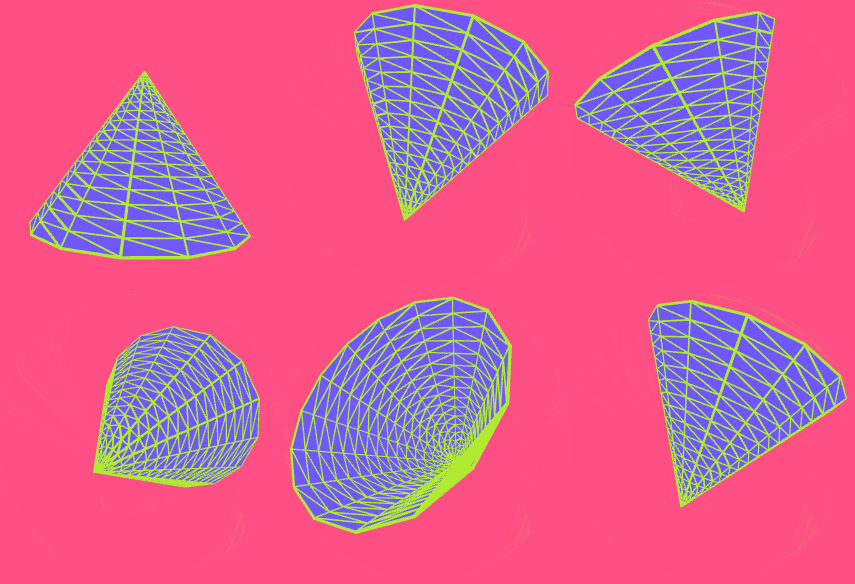
Because a 3D shape like a sphere is constructed from triangular faces, it is not perfectly curved. The level of curvature depends on the number of faces used. In all the functions used to create 3D shapes, there are two optional parameters: `detailX` and `detailY`. These parameters specify the number of faces that the shape is divided into in the X or Y direction.

```python
sphere([radius], [detailX], [detailY])
```

<div><figure><img src="https://768248463-files.gitbook.io/~/files/v0/b/gitbook-x-prod.appspot.com/o/spaces%2Fqbs7pgU3AVBY06Rl9M31%2Fuploads%2FZg3Jc36uHKFDlSyypTwd%2Fspheredetailx.gif?alt=media&amp;token=c86f1c99-176f-4bc4-95f3-563b0c0bcaea" alt=""><figcaption><p>maximum = 24</p></figcaption></figure> <figure><img src="https://768248463-files.gitbook.io/~/files/v0/b/gitbook-x-prod.appspot.com/o/spaces%2Fqbs7pgU3AVBY06Rl9M31%2Fuploads%2FYlP5NqxKQgLKOKChPQsJ%2Fspheredetaily.gif?alt=media&amp;token=0323c2c4-1e8b-4278-ac02-e6cde66781c9" alt=""><figcaption><p>maximum = 24</p></figcaption></figure></div>

```python
cone([radius], [height], [detailX], [detailY], [cap])
```

<div><figure><img src="https://768248463-files.gitbook.io/~/files/v0/b/gitbook-x-prod.appspot.com/o/spaces%2Fqbs7pgU3AVBY06Rl9M31%2Fuploads%2F4kLwcsGUT6KSquBaVf7R%2Fconedetaily.gif?alt=media&amp;token=d2b3d3e4-7073-419d-b2d5-00b2d8e1d0b6" alt=""><figcaption><p>maximum = 16</p></figcaption></figure> <figure><img src="https://768248463-files.gitbook.io/~/files/v0/b/gitbook-x-prod.appspot.com/o/spaces%2Fqbs7pgU3AVBY06Rl9M31%2Fuploads%2Fyj7cGXXcTDMyEb8XxByn%2Fconedetailx.gif?alt=media&amp;token=78872305-5669-4ae8-aad8-79ac4137c232" alt=""><figcaption><p>maximum = 24</p></figcaption></figure></div>

## Translated Shapes

Methods introduced in this following pages all draw the shapes **at the origin** `(0, 0, 0)` by default, and they don't have parameters to specify their position. \
The common practice is to [translate()](/p5-python-web/reference/built-in-functions/translate) **the origin to where you want to the shape to be drawn**, and draw it at that new origin. To not disturb the positions of other shapes, use push() and pop().

Hence, a common block of code in `WEBGL` mode looks like

```python
push()
translate(100, 0, 0)
sphere(50)
pop()
```

{% hint style="info" %}
Find these documents helpful? Let the people who made them help your child learn to code at [**Strivemath**](https://www.strivemath.com/)<mark style="color:blue;">**!**</mark>

We'd love to hear your Feedback/Comments [here](https://docs.google.com/forms/d/e/1FAIpQLSeqorBAGTya-YBRI-VFjJxtgQtCz3ucGDI96K96sNyuaGuvdw/viewform?usp=sf_link).
{% endhint %}


# plane()

Plane - Draws a flat 2D bounded surface in 3D

## Example

<figure><img src="https://768248463-files.gitbook.io/~/files/v0/b/gitbook-x-prod.appspot.com/o/spaces%2Fqbs7pgU3AVBY06Rl9M31%2Fuploads%2F2p5VWTOTlvK7b7UNidCI%2Fplane%20simple.PNG?alt=media&amp;token=12c0f219-08b6-4507-a664-da8a1f4ccb51" alt=""><figcaption></figcaption></figure>

## Syntax

```python
plane([width], [height], [detailX], [detailY])
```

<table><thead><tr><th width="140">Parameter</th><th>Description</th></tr></thead><tbody><tr><td>width</td><td>width of the plane</td></tr><tr><td>height</td><td>height of the plane</td></tr></tbody></table>

<details>

<summary>Example Full Code</summary>

```python
def setup():
  createCanvas(300,300, WEBGL)

def draw():
  background(255, 79, 132)
  orbitControl()
  stroke(176, 235, 51)
  fill(112, 88, 255)
  strokeWeight(2)

  r = frameCount
  rotateX(r)
  rotateY(-r)
  rotateZ(r)
  plane(200, 100)
```

</details>

<figure><img src="https://768248463-files.gitbook.io/~/files/v0/b/gitbook-x-prod.appspot.com/o/spaces%2Fqbs7pgU3AVBY06Rl9M31%2Fuploads%2F2Ubvqf7dyc8leC8e1XZI%2Fplane%20full.gif?alt=media&amp;token=0e16318d-ace0-45f1-af12-508a417ec895" alt=""><figcaption></figcaption></figure>

## Description

draws a plane of a specified width and height **in the x-y plane.** So, the width is the length in the x-direction, where the height is the length in the y-direction.

{% hint style="info" %}
Find these documents helpful? Let the people who made them help your child learn to code at [**Strivemath**](https://www.strivemath.com/)<mark style="color:blue;">**!**</mark>

We'd love to hear your Feedback/Comments [here](https://docs.google.com/forms/d/e/1FAIpQLSeqorBAGTya-YBRI-VFjJxtgQtCz3ucGDI96K96sNyuaGuvdw/viewform?usp=sf_link).
{% endhint %}


# box()

Box - Draws a cuboid/rectangular prism

## Example

<figure><img src="https://768248463-files.gitbook.io/~/files/v0/b/gitbook-x-prod.appspot.com/o/spaces%2Fqbs7pgU3AVBY06Rl9M31%2Fuploads%2F0ToASUYfLrjrbgKF7dXj%2Fbox%20simple.PNG?alt=media&amp;token=5880c5fd-2920-4a94-8118-67bb09271ced" alt=""><figcaption></figcaption></figure>

## Syntax

```python
box([width], [height], [depth], [detailX], [detailY])
```

<table><thead><tr><th width="140">Parameter</th><th>Description</th></tr></thead><tbody><tr><td>width</td><td>length of the box in the x-direction</td></tr><tr><td>height</td><td>length of the box in the y-direction</td></tr><tr><td>depth</td><td>length of the box in the z-direction</td></tr></tbody></table>

<details>

<summary>Example Full Code</summary>

```python
def setup():
  createCanvas(300,300, WEBGL)

def draw():
  background(255, 79, 132)
  orbitControl()
  stroke(176, 235, 51)
  fill(112, 88, 255)
  strokeWeight(2)

  r = frameCount
  rotateX(r)
  rotateY(-r)
  rotateZ(r)
  box(150, 100, 50)
```

</details>

<figure><img src="https://768248463-files.gitbook.io/~/files/v0/b/gitbook-x-prod.appspot.com/o/spaces%2Fqbs7pgU3AVBY06Rl9M31%2Fuploads%2FquIzQshSe2XyI8DalWcN%2Fbox%20full.gif?alt=media&amp;token=813d93a8-83b5-40e2-8d25-7a53edb59949" alt=""><figcaption></figcaption></figure>

## Description

draws a box of a specified width, height, and depth.

{% hint style="info" %}
Find these documents helpful? Let the people who made them help your child learn to code at [**Strivemath**](https://www.strivemath.com/)<mark style="color:blue;">**!**</mark>

We'd love to hear your Feedback/Comments [here](https://docs.google.com/forms/d/e/1FAIpQLSeqorBAGTya-YBRI-VFjJxtgQtCz3ucGDI96K96sNyuaGuvdw/viewform?usp=sf_link).
{% endhint %}


# sphere()

Sphere - Draws a 2-sphere (sphere in 3D space)

## Example

<figure><img src="https://768248463-files.gitbook.io/~/files/v0/b/gitbook-x-prod.appspot.com/o/spaces%2Fqbs7pgU3AVBY06Rl9M31%2Fuploads%2FvlhCPhU6ZAGn8sghu8HU%2Fsphere%20simple.PNG?alt=media&amp;token=e0d52244-2750-4f7d-8c22-be14d2c650b4" alt=""><figcaption></figcaption></figure>

## Syntax

```python
sphere([radius], [detailX], [detailY])
```

<table><thead><tr><th width="140">Parameter</th><th>Description</th></tr></thead><tbody><tr><td>radius</td><td>radius of the sphere</td></tr></tbody></table>

<details>

<summary>Example Full Code</summary>

```python
def setup():
  createCanvas(300,300, WEBGL)

def draw():
  background(255, 79, 132)
  orbitControl()
  stroke(176, 235, 51)
  fill(112, 88, 255)
  strokeWeight(2)

  r = frameCount
  rotateX(r)
  rotateY(-r)
  rotateZ(r)
  sphere(100)
```

</details>

<figure><img src="https://768248463-files.gitbook.io/~/files/v0/b/gitbook-x-prod.appspot.com/o/spaces%2Fqbs7pgU3AVBY06Rl9M31%2Fuploads%2Fb6zF6ECSWGychunqInPj%2Fsphere%20full.gif?alt=media&amp;token=c7321cdb-1890-4e75-98aa-98fbdb7e0712" alt=""><figcaption></figcaption></figure>

## Description

draws a **UV** sphere with a specified radius.

{% hint style="info" %}
Find these documents helpful? Let the people who made them help your child learn to code at [**Strivemath**](https://www.strivemath.com/)<mark style="color:blue;">**!**</mark>

We'd love to hear your Feedback/Comments [here](https://docs.google.com/forms/d/e/1FAIpQLSeqorBAGTya-YBRI-VFjJxtgQtCz3ucGDI96K96sNyuaGuvdw/viewform?usp=sf_link).
{% endhint %}


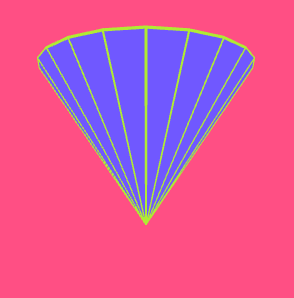
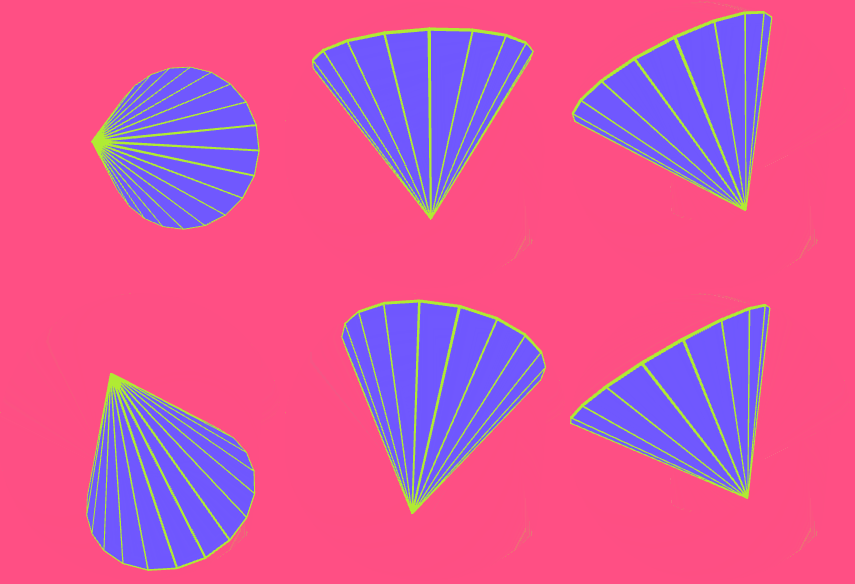
# cone()

Cone - Draws a cone in 3D space

## Example

<figure><img src="https://768248463-files.gitbook.io/~/files/v0/b/gitbook-x-prod.appspot.com/o/spaces%2Fqbs7pgU3AVBY06Rl9M31%2Fuploads%2F7m8og64xcubcfvvWKhT9%2Fcone%20simple.PNG?alt=media&amp;token=711aa2cc-654c-4492-8dee-3b46bb5adde2" alt=""><figcaption></figcaption></figure>

## Syntax

```python
cone([radius], [height], [detailX], [detailY], [cap])
```

<table><thead><tr><th width="140">Parameter</th><th>Description</th></tr></thead><tbody><tr><td>radius</td><td>radius of the cone</td></tr><tr><td>height</td><td>height of the cone</td></tr><tr><td>cap</td><td>a boolean to specify whether or not the cone should be closed with a cap</td></tr></tbody></table>

<details>

<summary>Example Full Code</summary>

```python
def setup():
  createCanvas(300,300, WEBGL)

def draw():
  background(255, 79, 132)
  orbitControl()
  stroke(176, 235, 51)
  fill(112, 88, 255)
  strokeWeight(2)

  r = frameCount
  rotateX(r)
  rotateY(-r)
  rotateZ(r)
  cone(100, 150)
```

</details>

<figure><img src="https://768248463-files.gitbook.io/~/files/v0/b/gitbook-x-prod.appspot.com/o/spaces%2Fqbs7pgU3AVBY06Rl9M31%2Fuploads%2FyU5aYFTLYMWDYCSAYwSa%2Fcone%20full.gif?alt=media&amp;token=e66126bc-de5b-4a7c-adf6-5e398c4029b2" alt=""><figcaption></figcaption></figure>

<details>

<summary>Example Full Code</summary>

```python
def setup():
  createCanvas(300,300, WEBGL)

def draw():
  background(255, 79, 132)
  orbitControl()
  stroke(176, 235, 51)
  fill(112, 88, 255)
  strokeWeight(2)

  r = frameCount
  rotateX(r)
  rotateY(-r)
  rotateZ(r)
  cone(100, 150, 16, 16, False)
```

</details>

<figure><img src="https://768248463-files.gitbook.io/~/files/v0/b/gitbook-x-prod.appspot.com/o/spaces%2Fqbs7pgU3AVBY06Rl9M31%2Fuploads%2Fe4radszbm3p8Z2TWq4fU%2Fcone%20full%20no.gif?alt=media&amp;token=a33c8f2e-9419-4331-a2a9-0042270ea1d2" alt=""><figcaption></figcaption></figure>

## Description

draws a cone with a specified radius and height. A cap that closes the cone is drawn by default, and can be removed by setting `cap = False`

{% hint style="info" %}
Find these documents helpful? Let the people who made them help your child learn to code at [**Strivemath**](https://www.strivemath.com/)<mark style="color:blue;">**!**</mark>

We'd love to hear your Feedback/Comments [here](https://docs.google.com/forms/d/e/1FAIpQLSeqorBAGTya-YBRI-VFjJxtgQtCz3ucGDI96K96sNyuaGuvdw/viewform?usp=sf_link).
{% endhint %}


# cylinder()

Cylinder - draws a cylinder in 3D space

## Example

<figure><img src="https://768248463-files.gitbook.io/~/files/v0/b/gitbook-x-prod.appspot.com/o/spaces%2Fqbs7pgU3AVBY06Rl9M31%2Fuploads%2FVsXuXYFkhMtYB1cTMuzP%2Fcylinder%20simple.PNG?alt=media&amp;token=5b95ca9f-441d-43bf-a4d5-e87398605f64" alt=""><figcaption></figcaption></figure>

## Syntax

```python
cylinder([radius], [height], [detailX], [detailY], [bottomCap], [topCap])
```

<table><thead><tr><th width="140">Parameter</th><th>Description</th></tr></thead><tbody><tr><td>radius</td><td>radius of the cone</td></tr><tr><td>height</td><td>height of the cone</td></tr><tr><td>bottomCap</td><td>a boolean to specify whether or not the cylinder's bottom should be closed with a cap</td></tr><tr><td>topCap</td><td>a boolean to specify whether or not the cylinder's bottom should be closed with a cap</td></tr></tbody></table>

<details>

<summary>Example Full Code</summary>

```python
def setup():
  createCanvas(300,300, WEBGL)

def draw():
  background(255, 79, 132)
  orbitControl()
  stroke(176, 235, 51)
  fill(112, 88, 255)
  strokeWeight(2)

  r = frameCount
  rotateX(r)
  rotateY(-r)
  rotateZ(r)
  cylinder(100, 150)
```

</details>

<figure><img src="https://768248463-files.gitbook.io/~/files/v0/b/gitbook-x-prod.appspot.com/o/spaces%2Fqbs7pgU3AVBY06Rl9M31%2Fuploads%2Fo0ref2lzhcTeeYJfy7aK%2Fcylinder%20full%202.gif?alt=media&amp;token=80e214a9-27fe-4a7d-926a-f07000812cf6" alt=""><figcaption></figcaption></figure>

<details>

<summary>Example Full Code</summary>

```python
def setup():
  createCanvas(300,300, WEBGL)

def draw():
  background(255, 79, 132)
  orbitControl()
  stroke(176, 235, 51)
  fill(112, 88, 255)
  strokeWeight(2)

  r = frameCount
  rotateX(r)
  rotateY(-r)
  rotateZ(r)
  cylinder(100, 150, 16, 16, False)ex
```

</details>

<figure><img src="https://768248463-files.gitbook.io/~/files/v0/b/gitbook-x-prod.appspot.com/o/spaces%2Fqbs7pgU3AVBY06Rl9M31%2Fuploads%2FhbAAkKxbiYa2d7GVrziz%2Fcylinder%20full%20no.gif?alt=media&amp;token=5a74a5d1-0d99-4dab-8904-45fc52ac4830" alt=""><figcaption></figcaption></figure>

<details>

<summary>Example Full Code</summary>

```python
def setup():
  createCanvas(300,300, WEBGL)

def draw():
  background(255, 79, 132)
  orbitControl()
  stroke(176, 235, 51)
  fill(112, 88, 255)
  strokeWeight(2)

  r = frameCount
  rotateX(r)
  rotateY(-r)
  rotateZ(r)
  cylinder(100, 150, 16, 16, False, False)
```

</details>

<figure><img src="https://768248463-files.gitbook.io/~/files/v0/b/gitbook-x-prod.appspot.com/o/spaces%2Fqbs7pgU3AVBY06Rl9M31%2Fuploads%2FGOoyMeBRa1VKwFC37x03%2Fcylinder%20full%20no%20no.gif?alt=media&amp;token=7ab73229-7e96-4ddc-848f-96036e46f9d0" alt=""><figcaption></figcaption></figure>

## Description

draws a cylinder with a specified radius and height. A top or bottom cap that closes the cone is drawn by default, and can be removed by setting `topCap` or `bottomCap` to `False`

{% hint style="info" %}
Find these documents helpful? Let the people who made them help your child learn to code at [**Strivemath**](https://www.strivemath.com/)<mark style="color:blue;">**!**</mark>

We'd love to hear your Feedback/Comments [here](https://docs.google.com/forms/d/e/1FAIpQLSeqorBAGTya-YBRI-VFjJxtgQtCz3ucGDI96K96sNyuaGuvdw/viewform?usp=sf_link).
{% endhint %}


# ellipsoid()

Ellipsoid - Draws an ellipsoid/deformed sphere in 3D s\[ace

## Example

<figure><img src="https://768248463-files.gitbook.io/~/files/v0/b/gitbook-x-prod.appspot.com/o/spaces%2Fqbs7pgU3AVBY06Rl9M31%2Fuploads%2Fug57wNZM93IkghBnUcnD%2Fellipsoid%20simple.PNG?alt=media&amp;token=6a6b5ee1-e5ca-4d68-86e2-a280b95e7359" alt=""><figcaption></figcaption></figure>

## Syntax

```python
ellipsoid([radiusx], [radiusy], [radiusz], [detailX], [detailY])
```

<table><thead><tr><th width="140">Parameter</th><th>Description</th></tr></thead><tbody><tr><td>radiusX</td><td>radius of the ellipsoid in the x-direction</td></tr><tr><td>radiusY</td><td>radius of the ellipsoid in the y-direction</td></tr><tr><td>radiusZ</td><td>radius of the ellipsoid in the z-direction</td></tr></tbody></table>

<details>

<summary>Example Full Code</summary>

```python
def setup():
  createCanvas(300,300, WEBGL)

def draw():
  background(255, 79, 132)
  orbitControl()
  stroke(176, 235, 51)
  fill(112, 88, 255)
  strokeWeight(2)

  r = frameCount
  rotateX(r)
  rotateY(-r)
  rotateZ(r)
  ellipsoid(50, 75, 50)
```

</details>

<figure><img src="https://768248463-files.gitbook.io/~/files/v0/b/gitbook-x-prod.appspot.com/o/spaces%2Fqbs7pgU3AVBY06Rl9M31%2Fuploads%2F8KEAQmKEdzQL2GjlxILa%2Fellipsoid%20full.gif?alt=media&amp;token=c60e9158-d35d-4167-81fa-83f7649004ea" alt=""><figcaption></figcaption></figure>

## Description

draws a **UV** **deformed sphere** with a specified radius.

{% hint style="info" %}
Find these documents helpful? Let the people who made them help your child learn to code at [**Strivemath**](https://www.strivemath.com/)<mark style="color:blue;">**!**</mark>

We'd love to hear your Feedback/Comments [here](https://docs.google.com/forms/d/e/1FAIpQLSeqorBAGTya-YBRI-VFjJxtgQtCz3ucGDI96K96sNyuaGuvdw/viewform?usp=sf_link).
{% endhint %}


# torus()

Torus - Draws a Torus or Donut-like shape in 3D space

## Example

<figure><img src="https://768248463-files.gitbook.io/~/files/v0/b/gitbook-x-prod.appspot.com/o/spaces%2Fqbs7pgU3AVBY06Rl9M31%2Fuploads%2F3fD22FDKqfN8gQaNShMG%2Ftorus%20simple.PNG?alt=media&amp;token=2968ab01-5e5c-4b14-b5b9-6a98523dd2db" alt=""><figcaption></figcaption></figure>

## Syntax

```python
torus([radius], [tubeRadius], [detailX], [detailY])
```

<table><thead><tr><th width="140">Parameter</th><th>Description</th></tr></thead><tbody><tr><td>radius</td><td>radius of the ring</td></tr><tr><td>tubeRadius</td><td>radius of the tube</td></tr></tbody></table>

<details>

<summary>Example Full Code</summary>

```python
def setup():
  createCanvas(300,300, WEBGL)

def draw():
  background(255, 79, 132)
  orbitControl()
  stroke(176, 235, 51)
  fill(112, 88, 255)
  strokeWeight(2)

  r = frameCount
  rotateX(r)
  rotateY(-r)
  rotateZ(r)
  torus(75, 35)
```

</details>

<figure><img src="https://768248463-files.gitbook.io/~/files/v0/b/gitbook-x-prod.appspot.com/o/spaces%2Fqbs7pgU3AVBY06Rl9M31%2Fuploads%2FUjbwRubKv3xqf8Z2hcVF%2Ftorus%20full.gif?alt=media&amp;token=14df4ec0-dc80-4b90-97ad-ce5308866727" alt=""><figcaption></figcaption></figure>

## Description

draws a torus (donut-like shape) with a specified radius of its ring and a specified radius of the circular cross section if its tube.

{% hint style="info" %}
Find these documents helpful? Let the people who made them help your child learn to code at [**Strivemath**](https://www.strivemath.com/)<mark style="color:blue;">**!**</mark>

We'd love to hear your Feedback/Comments [here](https://docs.google.com/forms/d/e/1FAIpQLSeqorBAGTya-YBRI-VFjJxtgQtCz3ucGDI96K96sNyuaGuvdw/viewform?usp=sf_link).
{% endhint %}


# Controlling the environment

These functions control other aspects of the canvas, or the modes of various drawing functions

{% hint style="info" %}
Find these documents helpful? Let the people who made them help your child learn to code at [**Strivemath**](https://www.strivemath.com/)<mark style="color:blue;">**!**</mark>

We'd love to hear your Feedback/Comments [here](https://docs.google.com/forms/d/e/1FAIpQLSeqorBAGTya-YBRI-VFjJxtgQtCz3ucGDI96K96sNyuaGuvdw/viewform?usp=sf_link).
{% endhint %}


# coordinateMode()

changes where the coordinates originate from

### Examples

```python
coordinateMode(TOP_LEFT)
```

![](https://768248463-files.gitbook.io/~/files/v0/b/gitbook-x-prod.appspot.com/o/spaces%2Fqbs7pgU3AVBY06Rl9M31%2Fuploads%2FWpmPNB2b70Q54ZpKXbBO%2Funtitled.png?alt=media\&token=51a7f76d-cdf8-4bd9-b286-a357eefa8da4)

```python
coordinateMode(BOTTOM_LEFT)
```

![](https://768248463-files.gitbook.io/~/files/v0/b/gitbook-x-prod.appspot.com/o/spaces%2Fqbs7pgU3AVBY06Rl9M31%2Fuploads%2FiWv9hC55CAZGS1aOsVK9%2Funtitled%20\(1\).png?alt=media\&token=5404ead8-85bc-4448-a3c8-6b1b45672467)

Sets the coordinate mode to TOP\_LEFT or BOTTOM\_LEFT. Coordinate mode is set to BOTTOM\_LEFT by default. BOTTOM\_LEFT mode mimics the standard mathematical setup where coordinate (0,0) is in the bottom left and the y-axis increases upwards.

```python
coordinateMode(MODE)
```

<table><thead><tr><th width="109">Input</th><th width="265">Description</th><th>Value(s)</th><th>Default</th></tr></thead><tbody><tr><td>MODE</td><td>coordinate mode to be set</td><td>TOP_LEFT<br>BOTTOM_LEFT</td><td>BOTTOM_LEFTpy</td></tr></tbody></table>

see [drawTickAxes](/p5-python-web/reference/math/drawtickaxes) for more info.

{% hint style="info" %}
Find these documents helpful? Let the people who made them help your child learn to code at [**Strivemath**](https://www.strivemath.com/)<mark style="color:blue;">**!**</mark>

We'd love to hear your Feedback/Comments [here](https://docs.google.com/forms/d/e/1FAIpQLSeqorBAGTya-YBRI-VFjJxtgQtCz3ucGDI96K96sNyuaGuvdw/viewform?usp=sf_link).
{% endhint %}


# rectMode()

changes the way a rectangle is drawn from the inputs

By default, the **x** and **y** inputs refer to the bottom left corner of the rectangle.

This can be changed using `rectMode()`, with an input of **CORNER**, **CORNERS**, **RADIUS** or **CENTER.**

#### rectMode(CORNER)

This is the default mode. The code:

```python
rect(x, y, width, height)
```

will use **(x,y)** as the bottom left corner coordinates and **width** and **height** as the dimensions.

![](https://768248463-files.gitbook.io/~/files/v0/b/gitbook-x-prod.appspot.com/o/spaces%2Fqbs7pgU3AVBY06Rl9M31%2Fuploads%2FH7jnWwV1HrCuiLhMKYZf%2Fimage.png?alt=media\&token=d359c24f-f9ba-48ae-ae2d-e40186b83c0a)

#### rectMode(CORNERS)

This mode is for specifying the coordinates of opposite corners. The code:

```python
rect(x1, y2, x2, y2)
```

will use **(x1,y1)** as the bottom left corner coordinates and **(x2,y2)** as the top right (diagonally opposite) corner coordinates.

![](https://768248463-files.gitbook.io/~/files/v0/b/gitbook-x-prod.appspot.com/o/spaces%2Fqbs7pgU3AVBY06Rl9M31%2Fuploads%2Ff8nM5e2QGvkKSTqcBCv6%2Fimage%20\(1\).png?alt=media\&token=7f95123f-0849-4db6-8d2e-d2fa50ed0f50)

#### rectMode(CENTER)

This mode is for specifying the **center** of the rectangle together with the **width** and **height**. The code:

```python
rect(x, y, width, height)
```

will use **(x,y)** as the center coordinates and **width** and **height** as the dimensions.

![](https://768248463-files.gitbook.io/~/files/v0/b/gitbook-x-prod.appspot.com/o/spaces%2Fqbs7pgU3AVBY06Rl9M31%2Fuploads%2FJ1FmcfCIdaaSCnFmX8NF%2Fimage%20\(2\).png?alt=media\&token=bbe1c159-f4ce-44fb-b885-aecb3ca9500f)

#### rectMode(RADIUS)

This mode is for specifying the **center** of the rectangle together with **half the width** and **half the height**. The code:

**See** [**rect()**](/p5-python-web/reference/shapes/2d/rect#modes) **for examples and more info.**

{% hint style="info" %}
Find these documents helpful? Let the people who made them help your child learn to code at [**Strivemath**](https://www.strivemath.com/)<mark style="color:blue;">**!**</mark>

We'd love to hear your Feedback/Comments [here](https://docs.google.com/forms/d/e/1FAIpQLSeqorBAGTya-YBRI-VFjJxtgQtCz3ucGDI96K96sNyuaGuvdw/viewform?usp=sf_link).
{% endhint %}


# ellipseMode()

changes the way an ellipse is drawn from the inputs

By default, the **x** and **y** inputs refer to the center of the ellipse.

This can be changed using `ellipseMode()`, with an input of **CENTER**, **CORNERS**, **CORNER**, or **RADIUS**.

#### ellipseMode(CENTER)

This is the default mode. The code:

```python
ellipse(x, y, width, height)
```

will use **(x,y)** as the center coordinates and **width** and **height** as the dimensions.

![](https://768248463-files.gitbook.io/~/files/v0/b/gitbook-x-prod.appspot.com/o/spaces%2Fqbs7pgU3AVBY06Rl9M31%2Fuploads%2F63welyH6mKdMX7szquxJ%2Fspaces_qbs7pgU3AVBY06Rl9M31_uploads_QlBjjeydULcgrVfjyiQd_image.png?alt=media\&token=5df566ae-ec92-41ac-9b20-cc98abb99cb9)

#### ellipseMode(CORNERS)

This mode is for specifying the coordinates of opposite corners of the ellipse's bounding box. The code:

```python
ellipse(x1, y2, x2, y2)
```

![](https://768248463-files.gitbook.io/~/files/v0/b/gitbook-x-prod.appspot.com/o/spaces%2Fqbs7pgU3AVBY06Rl9M31%2Fuploads%2FIE51W2lNUm7iIUjeOHyj%2Fimage.png?alt=media\&token=3ca8d785-d2fc-4cd1-84d7-b310c364adfe)

#### ellipseMode(CORNER)

This mode is for specifying the **corner** of the ellipse's bounding box together with the **width** and **height**. The code:

```python
ellipse(x, y, width, height)
```

will use **(x,y)** as the bottom left corner of the ellipse's bounding box and **width** and **height** as the dimensions.

![](https://768248463-files.gitbook.io/~/files/v0/b/gitbook-x-prod.appspot.com/o/spaces%2Fqbs7pgU3AVBY06Rl9M31%2Fuploads%2FgnKfQUhEVamsguTXMRuv%2Fimage%20\(1\).png?alt=media\&token=720ba19a-fa60-4854-b6db-4878f3a649bd)

#### ellipseMode(RADIUS)

This mode is for specifying the **center** of the ellipse together with **half the width** and **half the height**. The code:

```python
ellipse(x, y, wRadius, hRadius)
```

will use **(x,y)** as the center coordinates and **wRadius \* 2** and **hRadius \* 2** as the dimensions.

![](https://768248463-files.gitbook.io/~/files/v0/b/gitbook-x-prod.appspot.com/o/spaces%2Fqbs7pgU3AVBY06Rl9M31%2Fuploads%2FJx8kQKzQqPyvD5WqGErQ%2Fimage%20\(2\).png?alt=media\&token=e791c9ce-747c-4ba8-84b9-32b4942c3a38)

**See** [**ellipse()**](/p5-python-web/reference/shapes/2d/ellipse) **for examples and more info.**

{% hint style="info" %}
Find these documents helpful? Let the people who made them help your child learn to code at [**Strivemath**](https://www.strivemath.com/)<mark style="color:blue;">**!**</mark>

We'd love to hear your Feedback/Comments [here](https://docs.google.com/forms/d/e/1FAIpQLSeqorBAGTya-YBRI-VFjJxtgQtCz3ucGDI96K96sNyuaGuvdw/viewform?usp=sf_link).
{% endhint %}


# frameRate()

changes the number of frames drawn per second

## Example

```python
frameRate(10)
```

10 frames are drawn per second so the image refreshes quite slowly

![](https://768248463-files.gitbook.io/~/files/v0/b/gitbook-x-prod.appspot.com/o/spaces%2Fqbs7pgU3AVBY06Rl9M31%2Fuploads%2FqhDdpWeIcQOxgx107Qzz%2Fslowfps.gif?alt=media\&token=52e4651a-67ba-412e-b3d5-219932d96e7e)

```python
frameRate(60)
```

60 frames are drawn per second so the image refreshes very rapidly

![](https://768248463-files.gitbook.io/~/files/v0/b/gitbook-x-prod.appspot.com/o/spaces%2Fqbs7pgU3AVBY06Rl9M31%2Fuploads%2FE82S8sYJ808ZLjp1ReO8%2Ffastfps.gif?alt=media\&token=ab161e5b-d231-479d-8acd-ae46c8c6202e)

Sets the number of frames to draw every second on the canvas. For example, frameRate(10) will cause the canvas to attempt to refresh 10 times per second.&#x20;

The default frame rate is 60 frames per second (fps), if the device cannot draw at the specified fps, it will draw at the highest fps possible.&#x20;

```python
frameRate(fps)
```

<table><thead><tr><th width="100">Input</th><th>Description</th></tr></thead><tbody><tr><td>fps</td><td>number of frames per second to be set</td></tr></tbody></table>

{% hint style="info" %}
Find these documents helpful? Let the people who made them help your child learn to code at [**Strivemath**](https://www.strivemath.com/)<mark style="color:blue;">**!**</mark>

We'd love to hear your Feedback/Comments [here](https://docs.google.com/forms/d/e/1FAIpQLSeqorBAGTya-YBRI-VFjJxtgQtCz3ucGDI96K96sNyuaGuvdw/viewform?usp=sf_link).
{% endhint %}


# setup()

Initializes the canvas

### Example

<figure><img src="https://768248463-files.gitbook.io/~/files/v0/b/gitbook-x-prod.appspot.com/o/spaces%2Fqbs7pgU3AVBY06Rl9M31%2Fuploads%2FbssqByAGomo6kW83FFkz%2Fsetup2().gif?alt=media&amp;token=9312cb96-4fa4-4e7d-9957-a29a73682f53" alt=""><figcaption></figcaption></figure>

```python
def setup():
 background("grey")

def draw():
  fill(255,79,132)
  circle(mouseX,mouseY,100)
```

### Syntax

`setup()`

### Description

The setup() function is called only **once at the beginning** of the program. Its purpose is to set up the **initial environment** of the program, such as canvas size, background color, to load media such as images and fonts as the program starts and any other initial values that the program needs.&#x20;

The `setup()` function takes no arguments, and must be defined in the program before the `draw()` function.

{% hint style="info" %}
Find these documents helpful? Let the people who made them help your child learn to code at [**Strivemath**](https://www.strivemath.com/)<mark style="color:blue;">**!**</mark>

We'd love to hear your Feedback/Comments [here](https://docs.google.com/forms/d/e/1FAIpQLSeqorBAGTya-YBRI-VFjJxtgQtCz3ucGDI96K96sNyuaGuvdw/viewform?usp=sf_link).
{% endhint %}


# draw()

Renders to the canvas repeatedly, frame by frame

### Example

<figure><img src="https://768248463-files.gitbook.io/~/files/v0/b/gitbook-x-prod.appspot.com/o/spaces%2Fqbs7pgU3AVBY06Rl9M31%2Fuploads%2FGivJM4zXE7RcA6ewq1vf%2Fdraw().gif?alt=media&amp;token=f960aca7-9870-4336-8863-71e6c7f91e45" alt=""><figcaption></figcaption></figure>

```python
def setup():
  createCanvas(400,400)

def draw():
  background("grey")
  fill(255,79,132)
  circle(mouseX,mouseY,100)
```

### Syntax

`draw()`

### Description

The `draw()` function is automatically called **continuously** at a fixed time interval (by default, 60 times per second) as long as the program is running. It is first called immediately after the **setup()** function.

The number of times draw() executes in each second may be controlled with the **frameRate()** function.

Inside the `draw()` function, you can use a variety of p5 Python functions to draw shapes, lines, and text on the canvas, as well as manipulate the color, position, and size of these elements. You can also use variables to create animations or interactive elements that respond to user input.

{% hint style="info" %}
Find these documents helpful? Let the people who made them help your child learn to code at [**Strivemath**](https://www.strivemath.com/)<mark style="color:blue;">**!**</mark>

We'd love to hear your Feedback/Comments [here](https://docs.google.com/forms/d/e/1FAIpQLSeqorBAGTya-YBRI-VFjJxtgQtCz3ucGDI96K96sNyuaGuvdw/viewform?usp=sf_link).
{% endhint %}


# Built-in Variables

These variables are automatically available in all p5 sketches

{% hint style="info" %}
Find these documents helpful? Let the people who made them help your child learn to code at [**Strivemath**](https://www.strivemath.com/)<mark style="color:blue;">**!**</mark>

We'd love to hear your Feedback/Comments [here](https://docs.google.com/forms/d/e/1FAIpQLSeqorBAGTya-YBRI-VFjJxtgQtCz3ucGDI96K96sNyuaGuvdw/viewform?usp=sf_link).
{% endhint %}


# Environment

These variables keep track of attributes of the p5 environment

## `frameCount`

This variable stores how many frames have been drawn since the sketch (most recently) started.

![](https://768248463-files.gitbook.io/~/files/v0/b/gitbook-x-prod.appspot.com/o/spaces%2Fqbs7pgU3AVBY06Rl9M31%2Fuploads%2FtvCysxmuOOtgJUKVdmm9%2FframeCount.gif?alt=media\&token=2ed39558-1002-4de0-bc55-9c04e7cc8321)

For example - if the frame rate is set to 60 (which is the default) - after 3 seconds, frameCount = 180 because this is how many frames have been drawn during that time.

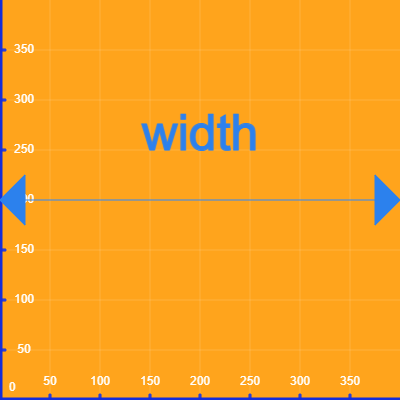
## `width`

This variable stores the width of the **canvas in pixels**, not to be confused with the width of the window, `windowWidth`

<figure><img src="https://768248463-files.gitbook.io/~/files/v0/b/gitbook-x-prod.appspot.com/o/spaces%2Fqbs7pgU3AVBY06Rl9M31%2Fuploads%2FMaoURCNqJgUdzcfgVgIT%2Fwidth.png?alt=media&amp;token=7883e2c1-5ac6-4b17-ab5e-05b48f2a1ad2" alt=""><figcaption></figcaption></figure>

## `height`

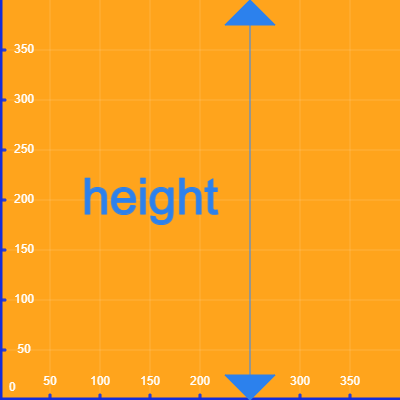
This variable stores the height of the **canvas in pixels**, not to be confused with the height of the window, `windowHeight`

<figure><img src="https://768248463-files.gitbook.io/~/files/v0/b/gitbook-x-prod.appspot.com/o/spaces%2Fqbs7pgU3AVBY06Rl9M31%2Fuploads%2FsYghywZu2GYBcWEl80NT%2Fheight.png?alt=media&amp;token=139f5f6b-27a3-410c-9d51-6df867cb8224" alt=""><figcaption></figcaption></figure>

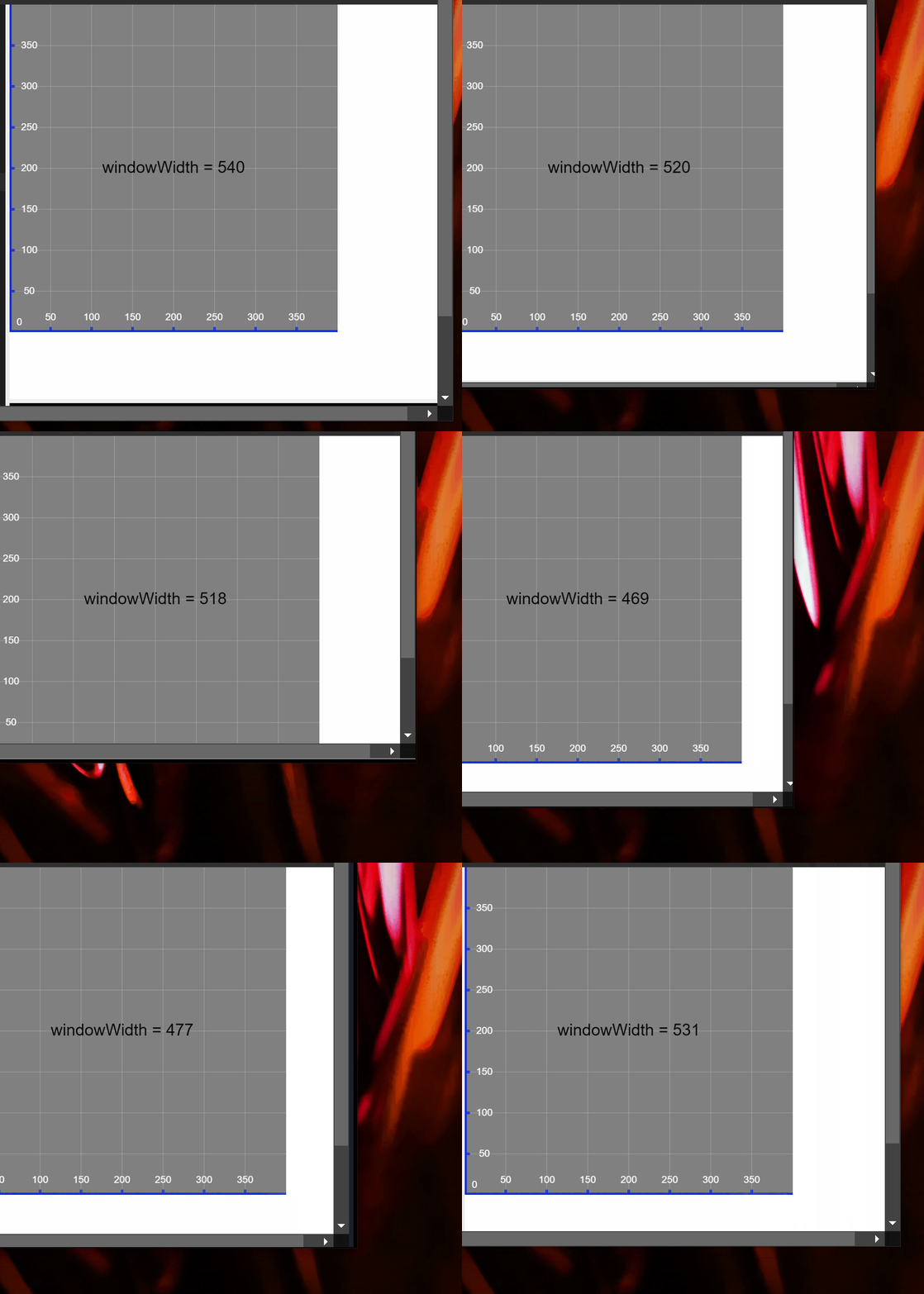
## `windowWidth`

This variable stores the width of the **window**, not to be confused with the width of the canvas `width`.\
This variable changes as the window size changes.

<img src="https://768248463-files.gitbook.io/~/files/v0/b/gitbook-x-prod.appspot.com/o/spaces%2Fqbs7pgU3AVBY06Rl9M31%2Fuploads%2FKGT7rbrtn0h3ucBAiWyh%2FwindowWidth.gif?alt=media&amp;token=03756cec-7c28-4610-b586-1d559798ea15" alt="" data-size="original">

## `windowHeight`

This variable stores the height of the **window**, not to be confused with the height of the canvas `height`.\
This variable changes as the window size changes.

![](https://768248463-files.gitbook.io/~/files/v0/b/gitbook-x-prod.appspot.com/o/spaces%2Fqbs7pgU3AVBY06Rl9M31%2Fuploads%2FAKbTsSkXq596IsPLaaFZ%2FwindowHeight.gif?alt=media\&token=6b234618-0968-4d48-ac96-c23516fdf9d9)

{% hint style="info" %}
Find these documents helpful? Let the people who made them help your child learn to code at [**Strivemath**](https://www.strivemath.com/)<mark style="color:blue;">**!**</mark>

We'd love to hear your Feedback/Comments [here](https://docs.google.com/forms/d/e/1FAIpQLSeqorBAGTya-YBRI-VFjJxtgQtCz3ucGDI96K96sNyuaGuvdw/viewform?usp=sf_link).
{% endhint %}


# Keyboard

These built-in variables will give you information about the keyboard.

## `key`

This built-in variable stores the **value** of the **most recently pressed key.** For example, if the user presses **'m'**, then **'b'** :&#x20;

**key** will be equal to **'b'**&#x20;

## `keyIsPressed`

&#x20;This built-in variable has the value `True` **if any key is pressed at the moment**. It has the value `False` otherwise. (Boolean datatype)

## `keyCode`

This built-in variable stores the **key code** of the **last key** that was pressed.

Here are some **built-in constants** that can be used

```python
ENTER = 13
SHIFT = 16
UP_ARROW = 38
DOWN_ARROW = 40
LEFT_ARROW = 37
RIGHT_ARROW = 39
```

In general, you can search the web for: `key code of ###` or look at [this website](https://www.toptal.com/developers/keycode).

{% hint style="info" %}
Find these documents helpful? Let the people who made them help your child learn to code at [**Strivemath**](https://www.strivemath.com/)<mark style="color:blue;">**!**</mark>

We'd love to hear your Feedback/Comments [here](https://docs.google.com/forms/d/e/1FAIpQLSeqorBAGTya-YBRI-VFjJxtgQtCz3ucGDI96K96sNyuaGuvdw/viewform?usp=sf_link).
{% endhint %}


# Mouse

## `mouseX`

It tells the **x-coordinate** of the mouse relative to the **default origin** (either `TOP_LEFT` or `BOTTOM_LEFT`) in the **current** frame.

![](https://768248463-files.gitbook.io/~/files/v0/b/gitbook-x-prod.appspot.com/o/spaces%2Fqbs7pgU3AVBY06Rl9M31%2Fuploads%2F5TKmV64bSn8VKEpbpW5w%2FmouseX.gif?alt=media\&token=c3606b45-b39e-4138-b967-4c1851dd5b7b)

## `mouseY`

It tells the **y-coordinate** of the mouse relative to the **default origin** (either `TOP_LEFT` or `BOTTOM_LEFT`) in the **current** frame.

![](https://768248463-files.gitbook.io/~/files/v0/b/gitbook-x-prod.appspot.com/o/spaces%2Fqbs7pgU3AVBY06Rl9M31%2Fuploads%2FPQjLqHL3rCdipZ8AlIFl%2FmouseY.gif?alt=media\&token=fc1e5cf7-b3ec-4700-b667-b270f9192805)

## `pmouseX`

It tells the **x-coordinate** of the mouse relative to the **default origin** (either `TOP_LEFT` or `BOTTOM_LEFT`) in the **previous** frame.

## `pmouseY`

It tells the **y-coordinate** of the mouse relative to the **default origin** (either `TOP_LEFT` or `BOTTOM_LEFT`) in the **previous** frame.

## `mouseMovedX`

It tells us how much did the **mouse move horizontally** since the last frame. It's then equivalent to the value `mouseX - pmouseX`

## `mouseMovedY`

It tells us how much did the **mouse move vertically** since the last frame. It's then equivalent to the value `mouseY - pmouseY`

## `winMouseX`

This built-in variable contains the current horizontal position of the mouse, relative to origin of the window.

## `winMouseY`

This built-in variable contains the current vertical position of the mouse, relative to origin of the window.

## `pwinMouseX`

This built-in variable contains the horizontal position of the mouse in the previous frame, relative to origin of the window.

## `pwinMouseY`

This built-in variable contains the vertical position of the mouse in the previous frame, relative to origin of the window.

## `mouseButton`

It stores the **label** of the last mouse button that was pressed. It returns one of three values `"left"`, `"right"`, `"center"`.\
When the sketch is run and nothing is pressed yet, it takes the value `0`.

You can use these **built-in constants** instead

```python
LEFT = "left"
RIGHT = "right"
CENTER = "center"
```

## `mouseIsPressed`

It returns the value `True` if **any** mouse button is **currently** pressed. It returns `False` otherwise.

{% hint style="info" %}
Find these documents helpful? Let the people who made them help your child learn to code at [**Strivemath**](https://www.strivemath.com/)<mark style="color:blue;">**!**</mark>

We'd love to hear your Feedback/Comments [here](https://docs.google.com/forms/d/e/1FAIpQLSeqorBAGTya-YBRI-VFjJxtgQtCz3ucGDI96K96sNyuaGuvdw/viewform?usp=sf_link).
{% endhint %}


# Built-in Functions

These functions are automatically available in any p5 sketch

{% hint style="info" %}
Find these documents helpful? Let the people who made them help your child learn to code at [**Strivemath**](https://www.strivemath.com/)<mark style="color:blue;">**!**</mark>

We'd love to hear your Feedback/Comments [here](https://docs.google.com/forms/d/e/1FAIpQLSeqorBAGTya-YBRI-VFjJxtgQtCz3ucGDI96K96sNyuaGuvdw/viewform?usp=sf_link).
{% endhint %}


# keyIsDown()

Checks whether a certain key is down

### Example

<figure><img src="https://768248463-files.gitbook.io/~/files/v0/b/gitbook-x-prod.appspot.com/o/spaces%2Fqbs7pgU3AVBY06Rl9M31%2Fuploads%2FGlwmy3q0shJVlTgCDv4Z%2FKeyIsdown1().gif?alt=media&amp;token=821241c6-7f5e-4d3c-997f-2c0785922392" alt=""><figcaption></figcaption></figure>

```python
# W keyCode = 87
if keyIsDown(87):
    # move square up
    # ...
    
# S keyCode = 83
if keyIsDown(83):
    # move square down
    # ...
    
# A keyCode = 65
if keyIsDown(83):
    # move square left
    # ...
    
# D keyCode = 68
if keyIsDown(83):
    # move square right
    # ...
```

<details>

<summary>Example Full Code</summary>

```
def setup():
  createCanvas(400,400)
  textAlign(CENTER, CENTER)
  textSize(20)
  

squareX = 175
squareY = 100
squareSize = 50

def draw():
  global squareX, squareY, squareSize
  background("hotpink")

  fill(255, 255, 28)
  noStroke()

  if keyIsDown(87):
    squareY += 1
    text('"W" is Down(Pressed) now',200,350)
    
  if keyIsDown(83):
    squareY -= 1
    text('"S" is Down(Pressed) now',200,350)

  if keyIsDown(65):
    squareX -= 1
    text('"A" is Down(Pressed) now',200,350)

  if keyIsDown(68):
    squareX += 1
    text('"D" is Down(Pressed) now',200,350) 

  stroke('black')
  fill (112,88,255) 
  square(squareX,squareY,squareSize)
```

</details>

### Default inputs

```python
keyIsDown(VALUE)
```

| Input | Description                       |
| ----- | --------------------------------- |
| VALUE | key code of the key being checked |

### Description

The **keyIsDown()** function checks if a certain key is currently **down (Pressed)**. It returns `True` if that key is down, and `False` if it does not.  (Boolean datatype)

For example, `keyIsDown(`**`38`**`)`checks whether the **up arrow** is being pushed, since **38** is its keycode.

Similarly, `keyIsDown(`**`UP_ARROW`**`)`checks for the same thing, because **UP\_ARROW** is a constant that stores the key code of the up arrow, other such constants include **DOWN\_ARROW**, **ENTER** and **SHIFT**.

In general, you can search the web for: `key code of ###` or look at [this website](https://www.toptal.com/developers/keycode).

{% hint style="info" %}
Find these documents helpful? Let the people who made them help your child learn to code at [**Strivemath**](https://www.strivemath.com/)<mark style="color:blue;">**!**</mark>

We'd love to hear your Feedback/Comments [here](https://docs.google.com/forms/d/e/1FAIpQLSeqorBAGTya-YBRI-VFjJxtgQtCz3ucGDI96K96sNyuaGuvdw/viewform?usp=sf_link).
{% endhint %}


# millis()

Gets system's milliseconds

### Example

<figure><img src="https://768248463-files.gitbook.io/~/files/v0/b/gitbook-x-prod.appspot.com/o/spaces%2Fqbs7pgU3AVBY06Rl9M31%2Fuploads%2FTE8nEdowCwbdB4G8BY8L%2Fmillis1().gif?alt=media&amp;token=c867da6b-c9ed-44fd-815f-3600e5fb900e" alt=""><figcaption></figcaption></figure>

```python
text('Milliseconds since starting this sketch:',200,250)
text(millis(), width/2, height/2)
```

### **Syntax**

`millis()`

### **Description**

The `millis()` function works by keeping track of the number of **milliseconds** that have passed since the program **started running**.

You can use this in your program to create time-based behaviors.

{% hint style="info" %}
Find these documents helpful? Let the people who made them help your child learn to code at [**Strivemath**](https://www.strivemath.com/)<mark style="color:blue;">**!**</mark>

We'd love to hear your Feedback/Comments [here](https://docs.google.com/forms/d/e/1FAIpQLSeqorBAGTya-YBRI-VFjJxtgQtCz3ucGDI96K96sNyuaGuvdw/viewform?usp=sf_link).
{% endhint %}


# second()

Gets system's second

### **Example**

<figure><img src="https://768248463-files.gitbook.io/~/files/v0/b/gitbook-x-prod.appspot.com/o/spaces%2Fqbs7pgU3AVBY06Rl9M31%2Fuploads%2FSsiMjaC1XuBLv5vsd0TA%2FSecond1().gif?alt=media&amp;token=548349d5-c372-439a-b4d5-97660abb1334" alt=""><figcaption></figcaption></figure>

```python
text('Computer Seconds:',200,250)
text(second(), width/2, height/2)
```

### Syntax

`second()`

### Description

It communicates with the clock on your computer and returns the **current second** of the minute as an integer, ranging from **0 to 59**.

{% hint style="info" %}
Find these documents helpful? Let the people who made them help your child learn to code at [**Strivemath**](https://www.strivemath.com/)<mark style="color:blue;">**!**</mark>

We'd love to hear your Feedback/Comments [here](https://docs.google.com/forms/d/e/1FAIpQLSeqorBAGTya-YBRI-VFjJxtgQtCz3ucGDI96K96sNyuaGuvdw/viewform?usp=sf_link).
{% endhint %}


# minute()

Gets system's minute

### Example

<figure><img src="https://768248463-files.gitbook.io/~/files/v0/b/gitbook-x-prod.appspot.com/o/spaces%2Fqbs7pgU3AVBY06Rl9M31%2Fuploads%2Fi0ogAvxEyeeJJ6P8vKiM%2Fminute().gif?alt=media&amp;token=5c4b4b5e-8cbd-4801-9f12-8a310e86bf7e" alt=""><figcaption></figcaption></figure>

```python
text('Current Minute:',200,250)
text(minute(), width/2, height/2)
```

### **Syntax**

```
minute()
```

### **Description**

The `minute()` function  returns the **current minute** of the hour as an integer ranging from **0 to 59**. It takes no arguments, and simply returns the current minute of the system clock.

{% hint style="info" %}
Find these documents helpful? Let the people who made them help your child learn to code at [**Strivemath**](https://www.strivemath.com/)<mark style="color:blue;">**!**</mark>

We'd love to hear your Feedback/Comments [here](https://docs.google.com/forms/d/e/1FAIpQLSeqorBAGTya-YBRI-VFjJxtgQtCz3ucGDI96K96sNyuaGuvdw/viewform?usp=sf_link).
{% endhint %}


# hour()

Get system's hour

### Example

<figure><img src="https://768248463-files.gitbook.io/~/files/v0/b/gitbook-x-prod.appspot.com/o/spaces%2Fqbs7pgU3AVBY06Rl9M31%2Fuploads%2Ft5AqRKnasHJ3GsOwwatD%2Fhour().gif?alt=media&amp;token=afa35b48-731c-4d51-9049-049439cf32ad" alt=""><figcaption></figcaption></figure>

```python
text('Current Hour:',200,250)
text(hour(), width/2, height/2)
```

### Syntax

```
hour()
```

### Description

It returns the **current hour** of the day as an integer, ranging from **0 to 23**.

{% hint style="info" %}
Find these documents helpful? Let the people who made them help your child learn to code at [**Strivemath**](https://www.strivemath.com/)<mark style="color:blue;">**!**</mark>

We'd love to hear your Feedback/Comments [here](https://docs.google.com/forms/d/e/1FAIpQLSeqorBAGTya-YBRI-VFjJxtgQtCz3ucGDI96K96sNyuaGuvdw/viewform?usp=sf_link).
{% endhint %}


# translate()

Shifts the entire coordinate system by a horizontal and vertical amount

### Examples

![](https://768248463-files.gitbook.io/~/files/v0/b/gitbook-x-prod.appspot.com/o/spaces%2Fqbs7pgU3AVBY06Rl9M31%2Fuploads%2FU9bxFNEgxHwJbFc8FE2z%2Fimage.png?alt=media\&token=b789dbc4-cd4e-436f-9704-80fe762e2230)

```python
translate(100,100)
square(50,100,100)
```

![](https://768248463-files.gitbook.io/~/files/v0/b/gitbook-x-prod.appspot.com/o/spaces%2Fqbs7pgU3AVBY06Rl9M31%2Fuploads%2FrpwNAqEkSTLS3kC3IVu5%2FtranslateGIF.gif?alt=media\&token=25007e11-d2af-4c34-994d-148853f66e79)

```python
translate(mouseX,mouseY)
square(50,100,100)
```

### Syntax

```python
translate(x,y)
```

<table><thead><tr><th>Input</th><th>Description</th><th data-hidden></th><th data-hidden></th></tr></thead><tbody><tr><td>x</td><td>Horizontal translation (left/right)</td><td></td><td></td></tr><tr><td>y</td><td>Vertical translation(up/down)</td><td></td><td></td></tr></tbody></table>

<figure><img src="https://768248463-files.gitbook.io/~/files/v0/b/gitbook-x-prod.appspot.com/o/spaces%2Fqbs7pgU3AVBY06Rl9M31%2Fuploads%2FPKSQqjpE6FfL2eGCydNI%2Ftran%203.drawio.png?alt=media&amp;token=c4ccc384-c7a5-4710-85e7-9543004b651b" alt=""><figcaption><p><strong>a) Translated tick axes</strong>     <strong>b) Square moved to new position (150,200)</strong></p></figcaption></figure>

### Description

The `translate()` function is used to **move the origin point of the coordinate system** to a new location.&#x20;

When you call the `translate()` function, all subsequent drawing commands will be relative to the new origin point. This means that if you draw a shape or line at position `(50, 50)` after calling `translate(100, 100)`, it will actually appear at position `(150, 150)` on the canvas.

{% hint style="info" %}
Find these documents helpful? Let the people who made them help your child learn to code at [**Strivemath**](https://www.strivemath.com/)<mark style="color:blue;">**!**</mark>

We'd love to hear your Feedback/Comments [here](https://docs.google.com/forms/d/e/1FAIpQLSeqorBAGTya-YBRI-VFjJxtgQtCz3ucGDI96K96sNyuaGuvdw/viewform?usp=sf_link).
{% endhint %}


# rotate()

Rotates the entire coordinate system around the origin

### Example

<div align="left"><figure><img src="https://768248463-files.gitbook.io/~/files/v0/b/gitbook-x-prod.appspot.com/o/spaces%2Fqbs7pgU3AVBY06Rl9M31%2Fuploads%2FuX2kswacnL8x2DqviFGS%2Frotate1.gif?alt=media&amp;token=5c3380de-0647-46f3-801a-c608c47aff1a" alt=""><figcaption></figcaption></figure></div>

```python
translate(width/2, height/2)
rotate(frameCount * 0.5)
trect(50, 50, 100, 100)
```

### Syntax

`rotate(angle)`

<table><thead><tr><th width="231">Input</th><th>Description</th></tr></thead><tbody><tr><td>angle</td><td>the angle of rotation in radians/degrees depending on angle mode</td></tr></tbody></table>

What is actually happening in the above example is 👇

<figure><img src="https://768248463-files.gitbook.io/~/files/v0/b/gitbook-x-prod.appspot.com/o/spaces%2Fqbs7pgU3AVBY06Rl9M31%2Fuploads%2FDOWmBHts29EFYc1XfBk6%2Frotate2.gif?alt=media&amp;token=08a38259-26ba-4060-b6af-c065ca05efde" alt=""><figcaption></figcaption></figure>

### Description

The `rotate()` function is used to **rotate the coordinate system** by a specified angle **about the current origin**. This means that any subsequent drawing or transformation function will be affected by this rotation.

**Positive** angles will rotate the plane from **+x to +y**, so:

* In `BOTTOM_RIGHT` coordinate system, positive angles rotate counter-clockwise.
* In `BOTTOM_LEFT` coordinate system, positive angles rotate clockwise.

**Negative** angles rotate the plane from **+x to -y**

{% hint style="info" %}
Find these documents helpful? Let the people who made them help your child learn to code at [**Strivemath**](https://www.strivemath.com/)<mark style="color:blue;">**!**</mark>

We'd love to hear your Feedback/Comments [here](https://docs.google.com/forms/d/e/1FAIpQLSeqorBAGTya-YBRI-VFjJxtgQtCz3ucGDI96K96sNyuaGuvdw/viewform?usp=sf_link).
{% endhint %}


# createSlider()

Creates a HTML Slider element

### Example

<figure><img src="https://768248463-files.gitbook.io/~/files/v0/b/gitbook-x-prod.appspot.com/o/spaces%2Fqbs7pgU3AVBY06Rl9M31%2Fuploads%2F80SIr2QCmDJopKMBCr8h%2FcreateSlider.gif?alt=media&amp;token=1801a162-a2c1-415a-ba71-be16c945f4ac" alt=""><figcaption></figcaption></figure>

```python
def setup():
  global slider1,slider2,slider3
  slider1 = createSlider(0, 255,1)
  slider1.position(50,40)
  slider2 = createSlider(0,255,1)
  slider2.position(50,60)
  slider3 = createSlider(0,255,1)
  slider3.position(50,80)
  
def draw():
  global slider1,slider2,slider3
  fill(slider1.value(),slider2.value(),slider3.value())
  circle(200,200,200)
```

### Syntax

```
createSlider(minimum, maximum, [initial_value], [step])
```

<table><thead><tr><th width="210">Input</th><th>Description</th></tr></thead><tbody><tr><td>minimum</td><td>minimum value of the slider</td></tr><tr><td>maximum</td><td>maximum value of the slider</td></tr><tr><td>initial_value(optional)</td><td>initial value of the slider</td></tr><tr><td>step(optional)</td><td>step size between values on the slider.</td></tr></tbody></table>

### Description

`createSlider()` function can be used to create a slider control . A slider control is a **graphical user interface element** that **allows the user to select a value** within a specified range **by dragging a handle along a track.**

To draw the slider control on the canvas, you can use the `draw()` function and the `value()` method of the slider object

{% hint style="info" %}
Find these documents helpful? Let the people who made them help your child learn to code at [**Strivemath**](https://www.strivemath.com/)<mark style="color:blue;">**!**</mark>

We'd love to hear your Feedback/Comments [here](https://docs.google.com/forms/d/e/1FAIpQLSeqorBAGTya-YBRI-VFjJxtgQtCz3ucGDI96K96sNyuaGuvdw/viewform?usp=sf_link).
{% endhint %}


# createGraphics()

Creates an additional canvas that can be overlaid on any other existing canvases

### Example

![](https://768248463-files.gitbook.io/~/files/v0/b/gitbook-x-prod.appspot.com/o/spaces%2Fqbs7pgU3AVBY06Rl9M31%2Fuploads%2FxpKWkTYfm7YrWu0TnBpV%2Fimage.png?alt=media\&token=cea7d291-ef2a-4433-8da8-0f3e4fe07f1e)

```python
def setup():
  ...
  global canvas2
  canvas2 = createGraphics(200, 200)
  
def draw():
  ...
  
  canvas2.background(112, 88, 255)
  canvas2.fill(176, 235, 51)
  canvas2.circle(100,100,100)
  
  image(canvas2, 100, 100)
```

### Syntax

```python
createGraphics(w, h)
```

<figure><img src="https://768248463-files.gitbook.io/~/files/v0/b/gitbook-x-prod.appspot.com/o/spaces%2Fqbs7pgU3AVBY06Rl9M31%2Fuploads%2F8XKU09qVJSyHhWO1DaDr%2FcreateGraphics.drawio.png?alt=media&amp;token=d6dcede9-7b5f-48d6-a90b-91e1a9939c0d" alt=""><figcaption></figcaption></figure>

<table><thead><tr><th width="227">Inputs</th><th>Description</th></tr></thead><tbody><tr><td>w</td><td>width of the off-screen buffer</td></tr><tr><td>h</td><td>height of the off-screen buffer</td></tr><tr><td></td><td></td></tr></tbody></table>

### Description

the `createGraphics()` function is used to **create an off-screen graphics** buffer that can be manipulated and then displayed on the main canvas.

The buffer is displayed on the main canvas using `image(buffer, x, y)`.

Using `createGraphics()` allows you to create complex graphics that can be drawn off-screen before being displayed on the main canvas. This is particularly useful when you want to create more complex animations or drawings that would be difficult to create directly on the main canvas.

#### Example:&#x20;

*Below program uses one background under setup() and one under draw()*

<figure><img src="https://768248463-files.gitbook.io/~/files/v0/b/gitbook-x-prod.appspot.com/o/spaces%2Fqbs7pgU3AVBY06Rl9M31%2Fuploads%2F5w23tAiegHVIBrcLox0m%2FcreateGraphics.gif?alt=media&amp;token=a57efacb-1e17-4b49-b3a5-f74635a08b93" alt=""><figcaption></figcaption></figure>

<details>

<summary>Example full code</summary>

```python
def setup():
  createCanvas(400,400)
  frameRate(7)
  global buffer
  buffer = createGraphics(200, 200)
  background(255, 79, 132)
  
def draw():
  noStroke()
  fill(255, 164, 28,100)
  circle(random(width),random(height),50)
  # drawTickAxes()
  buffer.background(112, 88, 255)
  buffer.noStroke()
  # buffer.drawTickAxes()
  buffer.fill(176, 235, 51)
  buffer.circle(random(20,190),random(20,190),50)
  image(buffer, 100, 100)
```

</details>

{% hint style="info" %}
Find these documents helpful? Let the people who made them help your child learn to code at [**Strivemath**](https://www.strivemath.com/)<mark style="color:blue;">**!**</mark>

We'd love to hear your Feedback/Comments [here](https://docs.google.com/forms/d/e/1FAIpQLSeqorBAGTya-YBRI-VFjJxtgQtCz3ucGDI96K96sNyuaGuvdw/viewform?usp=sf_link).
{% endhint %}


# createVector()

Creates a 2D or 3D Geometric vector from coordinates

### Example

<figure><img src="https://768248463-files.gitbook.io/~/files/v0/b/gitbook-x-prod.appspot.com/o/spaces%2Fqbs7pgU3AVBY06Rl9M31%2Fuploads%2FFdLWSxRnqIU3TNUjkhaz%2FcreateVector.gif?alt=media&amp;token=899c7ce1-bd60-4114-a0cf-92a1a1cf7af4" alt=""><figcaption></figcaption></figure>

```python
point = createVector(200, 100)
circle(point.x, point.y,mouseX )
```

### Syntax

```
createVector([x], [y], [z])
```

<table><thead><tr><th width="219">Input</th><th>Description</th></tr></thead><tbody><tr><td>x</td><td>horizontal component of the vector</td></tr><tr><td>y</td><td>vertical component of the vector</td></tr><tr><td>z(optional)</td><td>depth component of the vector (in case of 3D)</td></tr></tbody></table>

### Description

The `createVector()` function  is used to **create a 2D or 3D vector**, which is essentially an object with `x`, `y`, and optionally `z` properties that represent a magnitude and direction in space.

Once you have created a vector using the `createVector()` function, you can access its components using the `x`, `y`, and `z` properties.

{% hint style="info" %}
Find these documents helpful? Let the people who made them help your child learn to code at [**Strivemath**](https://www.strivemath.com/)<mark style="color:blue;">**!**</mark>

We'd love to hear your Feedback/Comments [here](https://docs.google.com/forms/d/e/1FAIpQLSeqorBAGTya-YBRI-VFjJxtgQtCz3ucGDI96K96sNyuaGuvdw/viewform?usp=sf_link).
{% endhint %}


# Events

These functions will automatically trigger upon certain events

{% hint style="info" %}
Find these documents helpful? Let the people who made them help your child learn to code at [**Strivemath**](https://www.strivemath.com/)<mark style="color:blue;">**!**</mark>

We'd love to hear your Feedback/Comments [here](https://docs.google.com/forms/d/e/1FAIpQLSeqorBAGTya-YBRI-VFjJxtgQtCz3ucGDI96K96sNyuaGuvdw/viewform?usp=sf_link).
{% endhint %}


# Keyboard

<table data-view="cards"><thead><tr><th></th><th></th><th></th><th data-hidden data-card-target data-type="content-ref"></th><th data-hidden data-card-cover data-type="files"></th></tr></thead><tbody><tr><td>Key Press Event</td><td></td><td></td><td><a href="/p5-python-web/reference/events/keyboard/keyboard">keyPressed()</a></td><td><a href="https://768248463-files.gitbook.io/~/files/v0/b/gitbook-x-prod.appspot.com/o/spaces%2Fqbs7pgU3AVBY06Rl9M31%2Fuploads%2FBOvnaOnVyOcFZDCprvhk%2Fpress%20gif.gif?alt=media&amp;token=a8b22b71-e519-4908-af80-846081752a3a">press gif.gif</a></td></tr><tr><td>Key Release Event</td><td></td><td></td><td><a href="/p5-python-web/reference/events/keyboard/keyboard-1">keyReleased()</a></td><td><a href="https://768248463-files.gitbook.io/~/files/v0/b/gitbook-x-prod.appspot.com/o/spaces%2Fqbs7pgU3AVBY06Rl9M31%2Fuploads%2FF4RBlrNmEMBxfpwapONE%2Frelease%20gif.gif?alt=media&amp;token=a85bb7e6-0524-4d1d-9cb5-87b5933ae6e7">release gif.gif</a></td></tr><tr><td></td><td></td><td></td><td></td><td></td></tr></tbody></table>


# keyPressed()

## Example

<figure><img src="https://768248463-files.gitbook.io/~/files/v0/b/gitbook-x-prod.appspot.com/o/spaces%2Fqbs7pgU3AVBY06Rl9M31%2Fuploads%2FAwDsJdsFpUljES0xEvJC%2FkeyPressed%20example.gif?alt=media&amp;token=b43fe0a6-b272-4c31-ac94-93811beae859" alt=""><figcaption></figcaption></figure>

```python
def keyPressed():
  ...
  text(key,200,200)
```

## Syntax

```python
def keyPressed():
    # execute this code when any key is pressed
    ...
```

<figure><img src="https://768248463-files.gitbook.io/~/files/v0/b/gitbook-x-prod.appspot.com/o/spaces%2Fqbs7pgU3AVBY06Rl9M31%2Fuploads%2FMUeAdcH2Lf4RVtGLPIyt%2Fkeypressed2.gif?alt=media&amp;token=00b75d10-0143-49e3-88a0-06af2737b06a" alt=""><figcaption></figcaption></figure>

<details>

<summary>Full Code Example</summary>

```python
def setup():
  createCanvas(300, 300)
  frameRate(5)

  fill(255, 164, 28)
  stroke(44, 129, 237)
  strokeWeight(2)
  
w = 150
h = 150

def draw():
  background(255, 79, 132)
  
  ellipse(150, 150, w, h)

def keyPressed():
  global w, h
  
  if keyCode == 37:
    w -= 30
  elif keyCode == 38:
    h += 30
  elif keyCode == 39:
    w += 30
  elif keyCode == 40:
    h -= 30ython
```

</details>

## Description

Like [draw()](/p5-python-web/reference/controlling-the-environment/draw) and [setup()](/p5-python-web/reference/controlling-the-environment/setup) functions, this function is a built-in function that we override. That is, it **knows when** to run, but it **doesn't know what** do? That's why in the syntax, we just seem to define it, but not call it later.

So, this function runs **when a key is pressed (once it's hit, regardless if you hold it or release it later)**.

Built-in variables like [`keyCode`](/p5-python-web/reference/built-in-variables/keyboard#keycode) and [`key`](/p5-python-web/reference/built-in-variables/keyboard#key) can be used to know which key was pressed.

{% hint style="info" %}
Find these documents helpful? Let the people who made them help your child learn to code at [**Strivemath**](https://www.strivemath.com/)<mark style="color:blue;">**!**</mark>

We'd love to hear your Feedback/Comments [here](https://docs.google.com/forms/d/e/1FAIpQLSeqorBAGTya-YBRI-VFjJxtgQtCz3ucGDI96K96sNyuaGuvdw/viewform?usp=sf_link).
{% endhint %}


# keyReleased()

## Example

<figure><img src="https://768248463-files.gitbook.io/~/files/v0/b/gitbook-x-prod.appspot.com/o/spaces%2Fqbs7pgU3AVBY06Rl9M31%2Fuploads%2FN73tpKYxlea6zJDD88vr%2FmySketch%20(3).gif?alt=media&amp;token=b0e7d644-5b50-4044-b4ee-d307cb9fb982" alt=""><figcaption></figcaption></figure>

```python
def keyReleased():
  ...
  text(key,width/2,0.2*height)
```

## Syntax

```python
def keyReleased():
    # execute this code when any key is released
    ...
```

<figure><img src="https://768248463-files.gitbook.io/~/files/v0/b/gitbook-x-prod.appspot.com/o/spaces%2Fqbs7pgU3AVBY06Rl9M31%2Fuploads%2FnqxBXDX1eRuVbBqBlxnn%2Fkeyreleased%202.gif?alt=media&amp;token=85fb9ae7-c381-4135-8df0-45d9e9c1d0e5" alt=""><figcaption></figcaption></figure>

<details>

<summary>Full Code Example</summary>

```python
def setup():
  createCanvas(300, 300)
  frameRate(5)

  fill(255, 164, 28)
  stroke(44, 129, 237)
  strokeWeight(2)
  
w = 150
h = 150

def draw():
  background(255, 79, 132)
  
  ellipse(150, 150, w, h)

def keyReleased():
  global w, h
  
  if keyCode == 37:
    w -= 30
  elif keyCode == 38:
    h += 30
  elif keyCode == 39:
    w += 30
  elif keyCode == 40:
    h -= 30ython
```

</details>

## Description

Like [draw()](/p5-python-web/reference/controlling-the-environment/draw) and [setup()](/p5-python-web/reference/controlling-the-environment/setup) functions, this function is a built-in function that we override. That is, it **knows when** to run, but it **doesn't know what** do? That's why in the syntax, we just seem to define it, but not call it later.

So, this function runs **when a key is released (regardless if you were holding it or you just pressed it before that)**.

Built-in variables like [`keyCode`](/p5-python-web/reference/built-in-variables/keyboard#keycode) and [`key`](/p5-python-web/reference/built-in-variables/keyboard#key) can be used to know which key was released.

{% hint style="info" %}
Find these documents helpful? Let the people who made them help your child learn to code at [**Strivemath**](https://www.strivemath.com/)<mark style="color:blue;">**!**</mark>

We'd love to hear your Feedback/Comments [here](https://docs.google.com/forms/d/e/1FAIpQLSeqorBAGTya-YBRI-VFjJxtgQtCz3ucGDI96K96sNyuaGuvdw/viewform?usp=sf_link).
{% endhint %}


# Mouse

<table data-view="cards"><thead><tr><th></th><th></th><th></th><th data-hidden data-card-target data-type="content-ref"></th></tr></thead><tbody><tr><td>mouseMoved()</td><td></td><td></td><td><a href="/p5-python-web/reference/events/mouse/keyboard">mouseMoved()</a></td></tr><tr><td>mouseDragged()</td><td></td><td></td><td><a href="/p5-python-web/reference/events/mouse/keyboard-1">mouseDragged()</a></td></tr><tr><td>mousePressed()</td><td></td><td></td><td><a href="/p5-python-web/reference/events/mouse/keyboard-2">mousePressed()</a></td></tr><tr><td>doubleClicked()</td><td></td><td></td><td><a href="/p5-python-web/reference/events/mouse/keyboard-3">doubleClicked()</a></td></tr><tr><td>mouseWheel()</td><td></td><td></td><td><a href="/p5-python-web/reference/events/mouse/keyboard-4">mouseWheel()</a></td></tr></tbody></table>


# mouseMoved()

## Example

<figure><img src="https://768248463-files.gitbook.io/~/files/v0/b/gitbook-x-prod.appspot.com/o/spaces%2Fqbs7pgU3AVBY06Rl9M31%2Fuploads%2FH9BnGwUNRmtXXxYLR4G2%2Fmousemoved.gif?alt=media&amp;token=f64cfa80-5384-44ba-84fe-98bc4e2fb835" alt=""><figcaption></figcaption></figure>

## Syntax

```
def mouseMoved():
    # do stuff
```

<details>

<summary>Full Code Example</summary>

```python
def setup():
  createCanvas(300,300)

show = False

def draw():
  global show
  background(255, 79, 132)
  fill(255, 164, 28)
  stroke(44, 129, 237)
  strokeWeight(10)

  if show:
    circle(150, 150, 150)
  show = False

def mouseMoved():
  global show
  show = True
```

</details>

## Description

This function is called every time the **mouse moves** and **none** of the mouse buttons is pressed.

{% hint style="info" %}
Find these documents helpful? Let the people who made them help your child learn to code at [**Strivemath**](https://www.strivemath.com/)<mark style="color:blue;">**!**</mark>

We'd love to hear your Feedback/Comments [here](https://docs.google.com/forms/d/e/1FAIpQLSeqorBAGTya-YBRI-VFjJxtgQtCz3ucGDI96K96sNyuaGuvdw/viewform?usp=sf_link).
{% endhint %}


# mouseDragged()

## Example

<figure><img src="https://768248463-files.gitbook.io/~/files/v0/b/gitbook-x-prod.appspot.com/o/spaces%2Fqbs7pgU3AVBY06Rl9M31%2Fuploads%2FxpwZaXoV0UPZifR3Yvwd%2FmosueDragged.gif?alt=media&amp;token=74e268d9-be5a-4959-9030-3af338c4bd98" alt=""><figcaption><p>Pointer has a yellow circle</p></figcaption></figure>

## Syntax

```
def mouseDragged():
    # do stuff
```

<details>

<summary>Full Code Example</summary>

```python
def setup():
  createCanvas(300,300)

show = False

def draw():
  global show
  background(255, 79, 132)
  fill(255, 164, 28)
  stroke(44, 129, 237)
  strokeWeight(10)

  if show:
    circle(150, 150, 150)
  show = False

def mouseDragged():
  global show
  show = True
```

</details>

## Description

This function is called every time the **mouse moves** and **some** mouse button is pressed.

{% hint style="info" %}
Find these documents helpful? Let the people who made them help your child learn to code at [**Strivemath**](https://www.strivemath.com/)<mark style="color:blue;">**!**</mark>

We'd love to hear your Feedback/Comments [here](https://docs.google.com/forms/d/e/1FAIpQLSeqorBAGTya-YBRI-VFjJxtgQtCz3ucGDI96K96sNyuaGuvdw/viewform?usp=sf_link).
{% endhint %}


# mousePressed()

## Example

<figure><img src="https://768248463-files.gitbook.io/~/files/v0/b/gitbook-x-prod.appspot.com/o/spaces%2Fqbs7pgU3AVBY06Rl9M31%2Fuploads%2FxuTlThQjj8vQQCBUqcRa%2Fmousepressed.gif?alt=media&amp;token=91aa9c36-08c8-4da8-90ba-b5e9d04bf0de" alt=""><figcaption></figcaption></figure>

## Syntax

```
def mousePressed():
    # do stuff
```

<details>

<summary>Full Code Example</summary>

```python
def setup():
  createCanvas(300,300)
  frameRate(10)

show = False

def draw():
  global show
  background(255, 79, 132)
  fill(255, 164, 28)
  stroke(44, 129, 237)
  strokeWeight(10)

  if show:
    circle(150, 150, 150)
  show = False

def mousePressed():
  global show
  show = True
```

</details>

## Description

This function is called **once** after **any** mouse button is pressed.

{% hint style="info" %}
Find these documents helpful? Let the people who made them help your child learn to code at [**Strivemath**](https://www.strivemath.com/)<mark style="color:blue;">**!**</mark>

We'd love to hear your Feedback/Comments [here](https://docs.google.com/forms/d/e/1FAIpQLSeqorBAGTya-YBRI-VFjJxtgQtCz3ucGDI96K96sNyuaGuvdw/viewform?usp=sf_link).
{% endhint %}


# doubleClicked()

## Example

<figure><img src="https://768248463-files.gitbook.io/~/files/v0/b/gitbook-x-prod.appspot.com/o/spaces%2Fqbs7pgU3AVBY06Rl9M31%2Fuploads%2FdniXwjS9rwylJFRT8aZv%2Fmousedouble.gif?alt=media&amp;token=55c96928-dbcd-4cc2-acba-b4054b5349fa" alt=""><figcaption></figcaption></figure>

## Syntax

```
def doubleClicked():
    # do stuff
```

<details>

<summary>Full Code Example</summary>

```python
def setup():
  createCanvas(300,300)
  frameRate(10)

show = False

def draw():
  global show
  background(255, 79, 132)
  fill(255, 164, 28)
  stroke(44, 129, 237)
  strokeWeight(10)

  if show:
    circle(150, 150, 150)
  show = False

def doubleClicked():
  global show
  show = True
```

</details>

## Description

This function is called every time a `dblclick` event (part of the DOM L3 specification) is detected. The `dblclick` event is fired when a mouse is **clicked twice in a relatively short period of time.**

{% hint style="info" %}
Find these documents helpful? Let the people who made them help your child learn to code at [**Strivemath**](https://www.strivemath.com/)<mark style="color:blue;">**!**</mark>

We'd love to hear your Feedback/Comments [here](https://docs.google.com/forms/d/e/1FAIpQLSeqorBAGTya-YBRI-VFjJxtgQtCz3ucGDI96K96sNyuaGuvdw/viewform?usp=sf_link).
{% endhint %}


# mouseWheel()

## Example

<figure><img src="https://768248463-files.gitbook.io/~/files/v0/b/gitbook-x-prod.appspot.com/o/spaces%2Fqbs7pgU3AVBY06Rl9M31%2Fuploads%2FhwLdkFPHxdHthPcpaS3z%2Fwheel.gif?alt=media&amp;token=1a4b4761-bd03-44ab-8b14-a9394755666d" alt=""><figcaption><p>When the mouse wheel is scrolled</p></figcaption></figure>

## Syntax

```
def mouseWheel([event]):
    # do stuff
    # work with event with property delta, like event.delta
```

<details>

<summary>Full Code Example</summary>

```python
```

</details>

## Description

This function is called any time a **vertical mouse wheel** event is detected, either triggered by rolling an actual mouse wheel or by a touchpad.

{% hint style="info" %}
Find these documents helpful? Let the people who made them help your child learn to code at [**Strivemath**](https://www.strivemath.com/)<mark style="color:blue;">**!**</mark>

We'd love to hear your Feedback/Comments [here](https://docs.google.com/forms/d/e/1FAIpQLSeqorBAGTya-YBRI-VFjJxtgQtCz3ucGDI96K96sNyuaGuvdw/viewform?usp=sf_link).
{% endhint %}


# Text

These functions control the appearance of text on the canvas

{% hint style="info" %}
Find these documents helpful? Let the people who made them help your child learn to code at [**Strivemath**](https://www.strivemath.com/)<mark style="color:blue;">**!**</mark>

We'd love to hear your Feedback/Comments [here](https://docs.google.com/forms/d/e/1FAIpQLSeqorBAGTya-YBRI-VFjJxtgQtCz3ucGDI96K96sNyuaGuvdw/viewform?usp=sf_link).
{% endhint %}


# text()

Displays text on canvas

## Description

The text function draws a text on the canvas at the specified location. The object drawn on the canvas is a shape that has an internal region which can be colored with `fill()` and a boundary which can be colored by `stroke()`.

```
text(sentence, x, y)
```

<table><thead><tr><th width="132">Input</th><th>Description</th></tr></thead><tbody><tr><td>sentence</td><td>The content of the text. It can be any type of data, though we usually use strings.</td></tr><tr><td>x</td><td>the x-coordinate of the text box</td></tr><tr><td>y</td><td>the y-coordinate of the text box</td></tr></tbody></table>

## Examples

```python
    text("Hello, Strive!", 15, 25)
    text('This\'s been\n running for' , 15, 50)
    
    fill(255)
    text(f'{round(millis()/1000)} seconds', 15, 85)
```

<figure><img src="https://768248463-files.gitbook.io/~/files/v0/b/gitbook-x-prod.appspot.com/o/spaces%2Fqbs7pgU3AVBY06Rl9M31%2Fuploads%2F5kmYi4uZff64qNtfeBOe%2Ftext().gif?alt=media&amp;token=7a286419-086c-4212-8ea3-b49b2896d341" alt=""><figcaption></figcaption></figure>

{% hint style="info" %}
Find these documents helpful? Let the people who made them help your child learn to code at [**Strivemath**](https://www.strivemath.com/)<mark style="color:blue;">**!**</mark>

We'd love to hear your Feedback/Comments [here](https://docs.google.com/forms/d/e/1FAIpQLSeqorBAGTya-YBRI-VFjJxtgQtCz3ucGDI96K96sNyuaGuvdw/viewform?usp=sf_link).
{% endhint %}


# textSize()

Set size of text

This function **sets or gets the current font size**. This size will be used in all subsequent calls to the [text()](/p5-python-web/reference/text/text#description) function.

```
textSize(number)
```

| Input  | Description                    | Default |
| ------ | ------------------------------ | ------- |
| number | The size of the text in pixels | 10      |

## Examples  &#x20;

```python
    textSize(10)
    text("ABCD", 15, 25)

    textSize(20)
    text("ABCD", 15, 50)

    textSize(30)
    text("ABCD", 15, 75)
```

![](https://768248463-files.gitbook.io/~/files/v0/b/gitbook-x-prod.appspot.com/o/spaces%2Fqbs7pgU3AVBY06Rl9M31%2Fuploads%2FyuHuLYpMjx2jArRxlgEe%2Fimage.png?alt=media\&token=3b5974ee-46f5-407b-a666-b44690b8c858)

{% hint style="info" %}
Find these documents helpful? Let the people who made them help your child learn to code at [**Strivemath**](https://www.strivemath.com/)<mark style="color:blue;">**!**</mark>

We'd love to hear your Feedback/Comments [here](https://docs.google.com/forms/d/e/1FAIpQLSeqorBAGTya-YBRI-VFjJxtgQtCz3ucGDI96K96sNyuaGuvdw/viewform?usp=sf_link).
{% endhint %}


# textAlign()

Set how text is aligned

This function controls the **alignment** of the text you create with the [text()](/p5-python-web/reference/text/text) function. It basically tell the computer how to understand the `x, y` coordinates the `text` function takes as parameter,  since the text is not a point anyway.\
When you say `textAlign(RIGHT)` then call `text("Hello", x, y)` the **right edge** of the word "Hello" **becomes the** `x` value you give in the text function.\
Same thing with the vertical alignment, If you use `textAlign(RIGHT, TOP)`, the top right corner becomes the `x, y` coordinates you give in the text function.\
You need to use on the predefined constants specified below.

```
textAlign(horizAlign, [vertAlign])
```

| Input      | Description                                                                        |
| ---------- | ---------------------------------------------------------------------------------- |
| horizAlign | Specifies the horizontal alignment, takes values **`CENTER, RIGHT, LEFT`**         |
| vertAlign  | Specifies the vertical alignment, takes values **`CENTER, TOP, BOTTOM, BASELINE`** |

## Examples   &#x20;

```python
    textAlign(LEFT)
    text("ABCD", 50, 25)

    textAlign(RIGHT)
    text("ABCD", 50, 50)

    textAlign(CENTER)
    text("ABCD", 50, 75)

    stroke("red")
    strokeWeight(5)
    point(50, 25)
    point(50, 50)
    point(50, 75)
```

![](https://768248463-files.gitbook.io/~/files/v0/b/gitbook-x-prod.appspot.com/o/spaces%2Fqbs7pgU3AVBY06Rl9M31%2Fuploads%2FXHMdXsH2i9uZkhuAmfE5%2Fimage.png?alt=media\&token=ec08afda-59c5-4786-bf1f-f7046f5eedf3)

```python
    textAlign(CENTER, TOP)
    text("ABCD", 50, 15)

    textAlign(CENTER, CENTER)
    text("ABCD", 50, 40)

    textAlign(CENTER, BOTTOM)
    text("ABCD", 50, 65)

    textAlign(CENTER, BASELINE)
    text("ABCD", 50, 90)

    stroke("red")
    strokeWeight(5)
    point(50, 15)
    point(50, 40)
    point(50, 65)
    point(50, 90)
```

![](https://768248463-files.gitbook.io/~/files/v0/b/gitbook-x-prod.appspot.com/o/spaces%2Fqbs7pgU3AVBY06Rl9M31%2Fuploads%2FtLwKWP7gdxww22Wr8mDN%2Fimage.png?alt=media\&token=b557dafb-fa11-41e4-a8cd-e229b772dc67)

{% hint style="info" %}
Find these documents helpful? Let the people who made them help your child learn to code at [**Strivemath**](https://www.strivemath.com/)<mark style="color:blue;">**!**</mark>

We'd love to hear your Feedback/Comments [here](https://docs.google.com/forms/d/e/1FAIpQLSeqorBAGTya-YBRI-VFjJxtgQtCz3ucGDI96K96sNyuaGuvdw/viewform?usp=sf_link).
{% endhint %}


# Math

These functions give access to commonly used mathematical functions

{% hint style="info" %}
Find these documents helpful? Let the people who made them help your child learn to code at [**Strivemath**](https://www.strivemath.com/)<mark style="color:blue;">**!**</mark>

We'd love to hear your Feedback/Comments [here](https://docs.google.com/forms/d/e/1FAIpQLSeqorBAGTya-YBRI-VFjJxtgQtCz3ucGDI96K96sNyuaGuvdw/viewform?usp=sf_link).
{% endhint %}


# drawTickAxes()

Draws a grid of numbered horizontal and vertical lines showing the X and Y axes of the Cartesian plane

## Example

### *With* drawTickAxes()

![](https://768248463-files.gitbook.io/~/files/v0/b/gitbook-x-prod.appspot.com/o/spaces%2Fqbs7pgU3AVBY06Rl9M31%2Fuploads%2FZFwZUvcYZby1sv3pc1kJ%2FWITHaxes.png?alt=media\&token=842852c1-81d7-436b-97c8-205e89e99568)

```python
background("#0F1574")
drawTickAxes()
```

### *Without* drawTickAxes()

![](https://768248463-files.gitbook.io/~/files/v0/b/gitbook-x-prod.appspot.com/o/spaces%2Fqbs7pgU3AVBY06Rl9M31%2Fuploads%2FQpTofaVikbKFpcNowANV%2FWITHOUTaxes.png?alt=media\&token=8ebe86b3-f924-439c-b0d5-65643c33d64c)

```python
background("#0F1574")
```

### Syntax

```
drawTickAxes(
  [scaleFactor],
  [spacing],
  [axisColor],
  [gridColor],
  [labelColor],
  [labelSize],
  [axisThickness],
  [tickThickness],
  [gridThickness]
);
```

<table><thead><tr><th width="160">Input</th><th>Description</th></tr></thead><tbody><tr><td>scaleFactor</td><td>the scale factor applied to the coordinate system prior to drawing the axes</td></tr><tr><td>spacing</td><td>the spacing between tick marks / gridlines</td></tr><tr><td>axisColor</td><td>the color to draw the axes</td></tr><tr><td>gridColor</td><td>the color to draw the gridlines</td></tr><tr><td>labelColor</td><td>the color to draw the labels</td></tr><tr><td>labelSize</td><td>the size of the labels</td></tr><tr><td>axisThickness</td><td>the thickness to draw the axes</td></tr><tr><td>tickThickness</td><td>the thickness to draw the tick marks</td></tr><tr><td>gridThickness</td><td>the thickness to draw the gridlines</td></tr></tbody></table>

### Description

This function draws x and y-axes with tick marks, labels, and gridlines. They are the standard cartesian coordinates

{% hint style="info" %}
Find these documents helpful? Let the people who made them help your child learn to code at [**Strivemath**](https://www.strivemath.com/)<mark style="color:blue;">**!**</mark>

We'd love to hear your Feedback/Comments [here](https://docs.google.com/forms/d/e/1FAIpQLSeqorBAGTya-YBRI-VFjJxtgQtCz3ucGDI96K96sNyuaGuvdw/viewform?usp=sf_link).
{% endhint %}


# random()

Generate a random number between two values based on a uniform probability distribution

## Example

<figure><img src="https://768248463-files.gitbook.io/~/files/v0/b/gitbook-x-prod.appspot.com/o/spaces%2Fqbs7pgU3AVBY06Rl9M31%2Fuploads%2FdV1bqtOnx0zlVDOYLm6L%2Frandom(min%2C%20max).gif?alt=media&amp;token=a4418201-ce15-49a8-a0ac-eb24b448f0c7" alt=""><figcaption></figcaption></figure>

```python
    circle(random(0, width), random(0, height), 25)
```

### Syntax

#### Pick a random number between two values

```
random([min], [max])
```

| Input | Description                     |
| ----- | ------------------------------- |
| min   | the minimum number of the range |
| max   | the maximum number of the range |

#### Pick a random value from a list

```
random(choices)
```

| Input   | Description                   |
| ------- | ----------------------------- |
| choices | a list of values to pick from |

<figure><img src="https://768248463-files.gitbook.io/~/files/v0/b/gitbook-x-prod.appspot.com/o/spaces%2Fqbs7pgU3AVBY06Rl9M31%2Fuploads%2FKvO402ARpAoyfWkLciEF%2Frandom%20names%20and%20likes%20on%20pink%20background.gif?alt=media&amp;token=e615b55b-71ea-4632-a416-b2365d1fe04b" alt=""><figcaption></figcaption></figure>

<details>

<summary>Example Full Code</summary>

```
def draw():
    background(255,79,132)
    names = ["John", "Ali", "Tamir", "Ibrahim"]
    actions = ["plays", "watches", "doesn't like"]
    things = ["football", "basketball", "chess"]

    orange = (255,164,28)
    purple = (112,88,255)
    blue = (44,129,237)

    colors = [orange,purple,blue]

    fill(random(colors))
    text(random(names), 75, 250)
    fill(random(colors))
    text(random(actions), 150, 150)
    fill(random(colors))
    text(random(things), 225, 50)
```

</details>

### Description

This function returns a **random decimal (float/double)** value out of a **continuous** range of numbers, between a minimum and maximum, or returns a random value out of a **discrete** list of any data types.

{% hint style="info" %}
Find these documents helpful? Let the people who made them help your child learn to code at [**Strivemath**](https://www.strivemath.com/)<mark style="color:blue;">**!**</mark>

We'd love to hear your Feedback/Comments [here](https://docs.google.com/forms/d/e/1FAIpQLSeqorBAGTya-YBRI-VFjJxtgQtCz3ucGDI96K96sNyuaGuvdw/viewform?usp=sf_link).
{% endhint %}


# randomGaussian()

Generate a random number based on a Gaussian probablity distribution

## Example

<figure><img src="https://768248463-files.gitbook.io/~/files/v0/b/gitbook-x-prod.appspot.com/o/spaces%2Fqbs7pgU3AVBY06Rl9M31%2Fuploads%2FD9fUjkgbYPKDHnz089Ze%2F150%2C15.gif?alt=media&amp;token=cedceb35-4e90-4c49-8f16-fd0b97d94d8f" alt=""><figcaption></figcaption></figure>

```python
    circle(randomGaussian(150, 15), randomGaussian(150, 15), 25)
```

### Syntax

```
randomGaussian([mean], [std])
```

| Input | Description                                |
| ----- | ------------------------------------------ |
| mean  | the mean of the distribution               |
| std   | the standard deviation of the distribution |

<figure><img src="https://768248463-files.gitbook.io/~/files/v0/b/gitbook-x-prod.appspot.com/o/spaces%2Fqbs7pgU3AVBY06Rl9M31%2Fuploads%2FgU3ScC6ZJuEEyVGC6xEx%2F150%2C50.gif?alt=media&amp;token=a804e54c-abac-4310-973d-2d11e45020c2" alt=""><figcaption></figcaption></figure>

```python
    circle(randomGaussian(150, 50), randomGaussian(150, 50), 25)a
```

### Description

This function picks a **random value from a gaussian distribution** of a specified mean `µ` and standard deviation `σ`. \
The gaussian distribution prefers those points around the mean more that others. The farther the point is from the mean the less likely it is to be picked. But how far? the standard deviation parameter specifies that.

<figure><img src="https://768248463-files.gitbook.io/~/files/v0/b/gitbook-x-prod.appspot.com/o/spaces%2Fqbs7pgU3AVBY06Rl9M31%2Fuploads%2F7fLJutJwwJYcTTQQR3bY%2Fgaussian.gif?alt=media&amp;token=06384dcc-0453-4e9e-be65-16cebff2862f" alt=""><figcaption></figcaption></figure>

$$
f(x) =\frac 1 {\sigma \sqrt {2\pi}}\  e^{-\frac 1 2 (\frac {x-\mu} {\sigma})^2}
$$

{% hint style="info" %}
Find these documents helpful? Let the people who made them help your child learn to code at [**Strivemath**](https://www.strivemath.com/)<mark style="color:blue;">**!**</mark>

We'd love to hear your Feedback/Comments [here](https://docs.google.com/forms/d/e/1FAIpQLSeqorBAGTya-YBRI-VFjJxtgQtCz3ucGDI96K96sNyuaGuvdw/viewform?usp=sf_link).
{% endhint %}


# dist()

Calculate the distance between 2 points

## Example

<figure><img src="https://768248463-files.gitbook.io/~/files/v0/b/gitbook-x-prod.appspot.com/o/spaces%2Fqbs7pgU3AVBY06Rl9M31%2Fuploads%2F6J770whEK4hCaec9f5bo%2Fdist()2d.gif?alt=media&amp;token=0d281b5f-f272-4d11-b8c9-4d4ab748a2c7" alt=""><figcaption></figcaption></figure>

### Syntax

#### In two dimensions

```
dist(x1, y1, x2, y2)
```

<table><thead><tr><th width="94">Input</th><th>Description</th></tr></thead><tbody><tr><td>x1</td><td>the x-coordinate of the first point</td></tr><tr><td>y1</td><td>the y-coordinate of the first point</td></tr><tr><td>x2</td><td>the x-coordinate of the second point</td></tr><tr><td>y2</td><td>the y-coordinate of the second point</td></tr></tbody></table>

#### In three dimensions

```
dist(x1, y1, x2, y2, z1, z2)
```

<table><thead><tr><th width="110">Input</th><th>Description</th></tr></thead><tbody><tr><td>z1</td><td>the z-coordinate of the first point</td></tr><tr><td>z2</td><td>the z-coordinate of the second point</td></tr></tbody></table>

```python
    text(round(dist(x1, y1, x2, y2)), 50, 50)
```

```python
  sphere(dist(0, 0, 0, x, y, z))
  
  x+=3*noise(2*frameCount)*random([-1, 1])
  y+=4*noise(frameCount)*random([im-1, 1])
  z+=noise(0.5*frameCount)*random([-1, 1])
```

<figure><img src="https://768248463-files.gitbook.io/~/files/v0/b/gitbook-x-prod.appspot.com/o/spaces%2Fqbs7pgU3AVBY06Rl9M31%2Fuploads%2FRcm0OPjkS0IeCDk3IMwN%2Fdist()3d.gif?alt=media&amp;token=62437e04-00de-437c-9c52-fad8c6a9650c" alt=""><figcaption></figcaption></figure>

### Description

Calculates the distance between two points, in either two or three dimensions. This uses the Euclidean distance, usually called the Pythagorean distance

{% hint style="info" %}
Find these documents helpful? Let the people who made them help your child learn to code at [**Strivemath**](https://www.strivemath.com/)<mark style="color:blue;">**!**</mark>

We'd love to hear your Feedback/Comments [here](https://docs.google.com/forms/d/e/1FAIpQLSeqorBAGTya-YBRI-VFjJxtgQtCz3ucGDI96K96sNyuaGuvdw/viewform?usp=sf_link).
{% endhint %}


# linmap()

Re-maps a number from one range to another.

## Example

<figure><img src="https://768248463-files.gitbook.io/~/files/v0/b/gitbook-x-prod.appspot.com/o/spaces%2Fqbs7pgU3AVBY06Rl9M31%2Fuploads%2FmlAlEUAEaKrYvi7psjjb%2Flinmap().gif?alt=media&amp;token=e930a5d8-2dbc-445d-9cae-1a700f1d9d4e" alt=""><figcaption></figcaption></figure>

```python
  # value to be mapped from the first range
  x1 = round(min1+(max1-min1)*sin(frameCount/10)**2)
  line(x1, 25, x1, 75)
  text(str(x1), x1, 15)

  # mapping the value to the second range
  x2 = linmap(x1, min1, max1, min2, max2)
  text(str(round(x2,2)), x2, 285)
  line(x2, 225, x2, 275)
```

### Syntax

```
linmap(value, start1, stop1, start2, stop2, [withinBounds])
```

<table><thead><tr><th width="162">Input</th><th>Description</th></tr></thead><tbody><tr><td>value</td><td>the incoming value to be converted</td></tr><tr><td>start1</td><td>lower bound of the current range</td></tr><tr><td>stop1</td><td>higher bound of the current range</td></tr><tr><td>start2</td><td>lower bound of the newly mapped range</td></tr><tr><td>stop2</td><td>higher bound of the newly mapped range</td></tr><tr><td>withinBounds</td><td>boolean that specifies the behavior of the method if the mapped value is out of the bounds [start2, stop2]</td></tr></tbody></table>

### Description

**Maps** a value from one range to another, such that the **proportions are the same.**&#x20;

For example, number 2.5 is mapped from the range \[0, 10] to number 25 in the range \[0, 100]. Why? Because **in both cases, the value is fourth the distance away from the starting point of the range, and three fourths away from the ending point.**

Mapping 2.5 from the range \[0, 10] to the range \[10, 20] would give 12.5 for the same reason.

mapping 2.5 from the range \[0, 10] to the range \[10, 30] would give 15 for the same reason.

{% hint style="info" %}
Find these documents helpful? Let the people who made them help your child learn to code at [**Strivemath**](https://www.strivemath.com/)<mark style="color:blue;">**!**</mark>

We'd love to hear your Feedback/Comments [here](https://docs.google.com/forms/d/e/1FAIpQLSeqorBAGTya-YBRI-VFjJxtgQtCz3ucGDI96K96sNyuaGuvdw/viewform?usp=sf_link).
{% endhint %}


# bounce()

Returns a value that varies back and forth between 2 given limits with time. The movement is linear.

## Example

![](https://768248463-files.gitbook.io/~/files/v0/b/gitbook-x-prod.appspot.com/o/spaces%2Fqbs7pgU3AVBY06Rl9M31%2Fuploads%2Fup9jF7kvUsq0F7SWhKBg%2FNEWbounce%20\(1\).gif?alt=media\&token=7651f1db-2cce-4a48-8b31-2c7397bf3e03)

```python
def draw():
  ...  
  y = bounce(0,height,10)
  circle(200,y,20)
```

![](https://768248463-files.gitbook.io/~/files/v0/b/gitbook-x-prod.appspot.com/o/spaces%2Fqbs7pgU3AVBY06Rl9M31%2Fuploads%2FKYxAEEjCa0mpTO890Zt3%2Fbounce-2.gif?alt=media\&token=31c6b499-95ca-47a8-97a9-57c2bf2f0a2a)

```python
def draw():
  ...
  y = bounce(0,height,10)
  x = x + 1
  circle(x,y,20)
```

### Syntax

```python
bounce(edge1, edge2, speed)
```

<table><thead><tr><th width="162">Input</th><th>Description</th></tr></thead><tbody><tr><td>edge1</td><td>value for the start/first limit of the motion</td></tr><tr><td>edge2</td><td>value for the end/second limit of the motion</td></tr><tr><td>speed</td><td>the speed of motion</td></tr></tbody></table>

### Description

The `bounce` function provides a method for generating a value that changes or "varies" over time between two specific values: `edge1` and `edge2`.

`edge1` and `edge2` act as boundaries. `edge1` represents the smallest value that can be returned, and `edge2` represents the largest. The function will consistently generate a new value that is somewhere between these two boundaries.

The rate at which this value changes is determined by the `speed` parameter. A higher `speed` will cause the value to change more rapidly between `edge1` and `edge2`, while a lower `speed` will cause it to change more slowly.

This function is useful for cases where you need a value that continuously adjusts within a specific range, such as for animations, simulations, or other dynamic processes.

{% hint style="info" %}
Find these documents helpful? Let the people who made them help your child learn to code at [**Strivemath**](https://www.strivemath.com/)<mark style="color:blue;">**!**</mark>

We'd love to hear your Feedback/Comments [here](https://docs.google.com/forms/d/e/1FAIpQLSeqorBAGTya-YBRI-VFjJxtgQtCz3ucGDI96K96sNyuaGuvdw/viewform?usp=sf_link).
{% endhint %}


# wave()

Returns a value that varies back and forth between 2 given limits with time. The motion is wave-like, NOT linear.

## Example

![](https://768248463-files.gitbook.io/~/files/v0/b/gitbook-x-prod.appspot.com/o/spaces%2Fqbs7pgU3AVBY06Rl9M31%2Fuploads%2FtHhdB25yOWPOIr394yBn%2Fwave.gif?alt=media\&token=ffe70ae4-10d3-41b2-9eca-c3436657daac)

```python
def draw():
  ...  
  y = wave(0,height,10)
  circle(200,y,20)
```

![](https://768248463-files.gitbook.io/~/files/v0/b/gitbook-x-prod.appspot.com/o/spaces%2Fqbs7pgU3AVBY06Rl9M31%2Fuploads%2F5TUKk0KMU2XtL4cwYiAv%2Fwave3.gif?alt=media\&token=121556e6-7cc1-444a-af41-066e55d4c466)

```python
def draw():
  ...
  y = wave(0,height,10)
  x = x + 1
  circle(x,y,20)
```

### Syntax

```python
wave(edge1, edge2, speed)
```

<table><thead><tr><th width="162">Input</th><th>Description</th></tr></thead><tbody><tr><td>edge1</td><td>value for the start/first limit of the wave motion</td></tr><tr><td>edge2</td><td>value for the end/second limit of the wave motion</td></tr><tr><td>speed</td><td>the speed of wave motion</td></tr></tbody></table>

### Description

The `wave` function provides a method for generating a value that changes over time in a sinusoidal (wave-like) manner between two specific values: `edge1` and `edge2`.

`edge1` and `edge2` act as boundaries. `edge1` is the lowest value that can be returned, and `edge2` is the highest. The function will continuously generate a new value that lies somewhere between these two boundaries, following the pattern of a wave.

The rate at which this value changes follows a pendulum-like pattern and is controlled by the `speed` parameter. A higher `speed` will cause the wave to oscillate more rapidly between `edge1` and `edge2`, while a lower `speed` will make the oscillation slower.

Unlike a function that changes values linearly, `wave` produces values in a smooth, cyclic pattern, similar to the rise and fall of waves on the ocean, or the swinging of a pendulum. This is especially useful for simulations, animations, or other dynamic processes where a smooth, natural, and periodic variation is needed.

{% hint style="info" %}
Find these documents helpful? Let the people who made them help your child learn to code at [**Strivemath**](https://www.strivemath.com/)<mark style="color:blue;">**!**</mark>

We'd love to hear your Feedback/Comments [here](https://docs.google.com/forms/d/e/1FAIpQLSeqorBAGTya-YBRI-VFjJxtgQtCz3ucGDI96K96sNyuaGuvdw/viewform?usp=sf_link).
{% endhint %}


# Colour and Outline

These functions control colors and outlines of shapes

{% hint style="info" %}
Find these documents helpful? Let the people who made them help your child learn to code at [**Strivemath**](https://www.strivemath.com/)<mark style="color:blue;">**!**</mark>

We'd love to hear your Feedback/Comments [here](https://docs.google.com/forms/d/e/1FAIpQLSeqorBAGTya-YBRI-VFjJxtgQtCz3ucGDI96K96sNyuaGuvdw/viewform?usp=sf_link).
{% endhint %}


# colorMode()

Changes how colors are specified - using (Red, Green, Blue) or (Hue, Saturation, Brightness)

Example

#### RGB Mode (Red, Green, Blue)

<figure><img src="https://768248463-files.gitbook.io/~/files/v0/b/gitbook-x-prod.appspot.com/o/spaces%2Fqbs7pgU3AVBY06Rl9M31%2Fuploads%2F8gO5Mg9SdKumJhank5qw%2FcolorModeRGB.gif?alt=media&amp;token=38dbc997-a3a5-4c65-bc74-909f7cf10378" alt=""><figcaption></figcaption></figure>

#### HSB Mode (Hue, Saturation, Brightness)

<figure><img src="https://768248463-files.gitbook.io/~/files/v0/b/gitbook-x-prod.appspot.com/o/spaces%2Fqbs7pgU3AVBY06Rl9M31%2Fuploads%2FCU1xZSpTpPSsxU6Ms9zu%2FHSB%20gif.gif?alt=media&amp;token=799c29e2-8738-4761-9a7a-90b9206915c1" alt=""><figcaption></figcaption></figure>

### Syntax

```
colorMode(mode, [max])
```

or

```
colorMode(mode, max1, max2, max3, [maxA])
```

<table><thead><tr><th width="249">Input</th><th>Description</th></tr></thead><tbody><tr><td>mode</td><td><strong>RGB</strong>(Red/Green/Blue) or <strong>HSB</strong>(Hue/Saturation/Brightness)</td></tr><tr><td>max(optional)</td><td>maximum value for each color component</td></tr><tr><td>max1</td><td>maximum value for red/hue component</td></tr><tr><td>max2</td><td>maximum value for green/saturation component</td></tr><tr><td>max3</td><td>maximum value for blue/brightness component</td></tr><tr><td>maxA(optional)</td><td>maximum value for alpha component</td></tr></tbody></table>

### Full Example

<details>

<summary>Example Full Code - RGB Mode</summary>

```python
#RGB Mode

def setup():
  createCanvas(400,400)
  colorMode(RGB)
  global slider1,slider2,slider3
  slider1 = createSlider(0, 255,1)
  slider1.position(50,40)
  slider2 = createSlider(0,255,1)
  slider2.position(50,60)
  slider3 = createSlider(0,255,1)
  slider3.position(50,80)
  
def draw():
  global slider1,slider2,slider3
  background("grey")
  textSize(15)
  stroke('black')
  fill(0)
  text("Red",200,25)
  text("Green",200,45)
  text("Blue",200,65)
  fill(slider1.value(),slider2.value(),slider3.value())
  triangle(100,100,200,300,300,100)
```

</details>

<details>

<summary>Example Full Code - HSB Mode</summary>

```
#HSB Mode

def setup():
  createCanvas(400,400)

  colorMode(HSB)
  global slider1,slider2,slider3
  slider1 = createSlider(0, 360,1)
  slider1.position(50,height - 40)
  slider2 = createSlider(0,100,1)
  slider2.position(50,height - 60)
  slider3 = createSlider(0,100,1)
  slider3.position(50,height - 80)

  noStroke()
  

def draw():
  translate(width/2,height/2)
  global slider1,slider2,slider3

  h = slider1.value()
  s = slider2.value()
  b = slider3.value()

  background(h,s,b)

  push()
  textSize(15)
  stroke(0, 0, 100-b)
  fill(0, 0, 100-b)
  
  text("Hue",0,-175)
  text("Saturation",0,-155)
  text("Brightness",0,-135)
  pop()
  
  for r in range(100, -10,-10):
    for theta in range(0,360,2):
      fill(theta,100*(r/100),100)
      size = 10
      circle(r*cos(theta),r*sin(theta),size)

  push()
  fill(h,100*(s/100),100)
  stroke('grey')
  circle(s*cos(h),s*sin(h),50)
  pop()
```

</details>

### Description

The `colorMode()` function is used to **set the range and mode for color** values in a sketch. It determines how colors are represented and displayed in the canvas.

When the color mode is set to **RGB**, the **maximum values** for red, green, and blue are typically **255**, which represents the maximum intensity of each color channel. When the color mode is set to **HSB**, the maximum values for hue, saturation, and brightness are typically **360, 100, and 100** respectively.

By default, the color mode is set to RGB with a maximum value of 255 for each color channel.

{% hint style="info" %}
Find these documents helpful? Let the people who made them help your child learn to code at [**Strivemath**](https://www.strivemath.com/)<mark style="color:blue;">**!**</mark>

We'd love to hear your Feedback/Comments [here](https://docs.google.com/forms/d/e/1FAIpQLSeqorBAGTya-YBRI-VFjJxtgQtCz3ucGDI96K96sNyuaGuvdw/viewform?usp=sf_link).
{% endhint %}


# fill()

Changes color of shape interiors

### Example

<figure><img src="https://768248463-files.gitbook.io/~/files/v0/b/gitbook-x-prod.appspot.com/o/spaces%2Fqbs7pgU3AVBY06Rl9M31%2Fuploads%2FURE6hGjmH9F7fcM2n553%2Ffill.png?alt=media&amp;token=fe4b555b-916a-4cb6-9bbc-67991096d842" alt=""><figcaption></figcaption></figure>

```python
fill('purple')
circle(width/2,height/2,200)
```

### Syntax

```python
fill('NAME')
```

or

```python
fill(a,b,c)
```

or

```python
fill(VALUE)
```

| Input | Description                                                                                      |
| ----- | ------------------------------------------------------------------------------------------------ |
| NAME  | the name of any HTML color, for example: **blue**, **green**, **lightgrey**, **skyblue**, etc... |
| a,b,c | RGB or HSB values - see Description below                                                        |
| VALUE | a number from 0 - 255, greyscale with 0 being black and 255 being white                          |

### Description

Changes the color of the **interior** of all following shapes, until another fill() is called. Shapes have borders and interiors - [stroke()](/p5-python-web/reference/colour-and-outline/stroke) changes the border, while fill() changes the interior. Input can either be the name of an HTML color, a value **0 - 255** for greyscale values with **0 being black** and **255 being white**. Input can also be three numbers for the RGB or HSB color scale - see [colorMode()](/p5-python-web/reference/colour-and-outline/colormode).

{% hint style="info" %}
Find these documents helpful? Let the people who made them help your child learn to code at [**Strivemath**](https://www.strivemath.com/)<mark style="color:blue;">**!**</mark>

We'd love to hear your Feedback/Comments [here](https://docs.google.com/forms/d/e/1FAIpQLSeqorBAGTya-YBRI-VFjJxtgQtCz3ucGDI96K96sNyuaGuvdw/viewform?usp=sf_link).
{% endhint %}


# stroke()

Changes color of lines or shape borders

### Example

<figure><img src="https://768248463-files.gitbook.io/~/files/v0/b/gitbook-x-prod.appspot.com/o/spaces%2Fqbs7pgU3AVBY06Rl9M31%2Fuploads%2FuRt6xUU3s8ZB5bWvvz5a%2Funtitled%20(1).png?alt=media&amp;token=502ea34e-bb0c-44e3-8e61-f667b72e9eec" alt=""><figcaption></figcaption></figure>

```python
stroke('purple')
circle(width/2,height/2,200)
line(50,50,350,50)
```

### Syntax

```python
stroke('NAME')
```

or

```python
stroke(a,b,c)
```

or

```python
stroke(VALUE)
```

| Input | Description                                                                                      |
| ----- | ------------------------------------------------------------------------------------------------ |
| NAME  | the name of any HTML color, for example: **blue**, **green**, **lightgrey**, **skyblue**, etc... |
| a,b,c | RGB or HSB values - see Description below                                                        |
| VALUE | a number from 0 - 255, greyscale with 0 being black and 255 being white                          |

### Description

Changes the color of the **border** of all following **shapes** or **lines**, until another stroke() is called. Shapes have borders and interiors - stroke() changes the border, while [fill()](/p5-python-web/reference/colour-and-outline/fill) changes the interior. Input can either be the name of an HTML color, a value **0 - 255** for greyscale values with **0 being black** and **255 being white**. Input can also be three numbers for the RGB or HSB color scale - see [colorMode()](/p5-python-web/reference/colour-and-outline/colormode).

{% hint style="info" %}
Find these documents helpful? Let the people who made them help your child learn to code at [**Strivemath**](https://www.strivemath.com/)<mark style="color:blue;">**!**</mark>

We'd love to hear your Feedback/Comments [here](https://docs.google.com/forms/d/e/1FAIpQLSeqorBAGTya-YBRI-VFjJxtgQtCz3ucGDI96K96sNyuaGuvdw/viewform?usp=sf_link).
{% endhint %}


# strokeWeight()

Changes thickness of lines

### Example

<figure><img src="https://768248463-files.gitbook.io/~/files/v0/b/gitbook-x-prod.appspot.com/o/spaces%2Fqbs7pgU3AVBY06Rl9M31%2Fuploads%2FQtuE46wkko7wwZ5WbCtR%2Funtitled%20(2).png?alt=media&amp;token=0f234ff8-4338-4a0b-9544-3e96dd446b51" alt=""><figcaption></figcaption></figure>

```python
strokeWeight(5)

circle(width/2,height/2,200)
line(50,50,350,50)
```

<figure><img src="https://768248463-files.gitbook.io/~/files/v0/b/gitbook-x-prod.appspot.com/o/spaces%2Fqbs7pgU3AVBY06Rl9M31%2Fuploads%2FFUgPAp0fpDY37okkEKNC%2Funtitled%20(3).png?alt=media&amp;token=0513ef6b-b7e1-4731-b6f5-3019c09d7999" alt=""><figcaption></figcaption></figure>

```python
strokeWeight(25)

circle(width/2,height/2,200)
line(50,50,350,50)
```

### Syntax

```
strokeWeight(w)
```

| Input | Description                           | Default |
| ----- | ------------------------------------- | ------- |
| w     | The thickness of any lines or borders | 1       |

{% hint style="info" %}
Find these documents helpful? Let the people who made them help your child learn to code at [**Strivemath**](https://www.strivemath.com/)<mark style="color:blue;">**!**</mark>

We'd love to hear your Feedback/Comments [here](https://docs.google.com/forms/d/e/1FAIpQLSeqorBAGTya-YBRI-VFjJxtgQtCz3ucGDI96K96sNyuaGuvdw/viewform?usp=sf_link).
{% endhint %}


# background()

Sets the background color of the canvas

### Example

<figure><img src="https://768248463-files.gitbook.io/~/files/v0/b/gitbook-x-prod.appspot.com/o/spaces%2Fqbs7pgU3AVBY06Rl9M31%2Fuploads%2FCxB7TMeEQ8ZfuQw0JDY6%2Fbackground.png?alt=media&amp;token=bbbe2c40-b56a-4632-a963-adc6a8cfbbc3" alt=""><figcaption></figcaption></figure>

```python
background('hotpink')
```

### Syntax

```python
background('NAME')
```

or

```python
background(a,b,c)
```

or

```python
background(VALUE)
```

or

```
background(IMAGE)
```

| Input | Description                                                                                                                                                             |
| ----- | ----------------------------------------------------------------------------------------------------------------------------------------------------------------------- |
| NAME  | the name of any HTML color, for example: **blue**, **green**, **lightgrey**, **skyblue**, etc...                                                                        |
| a,b,c | RGB or HSB values - see Description below                                                                                                                               |
| VALUE | a number from 0 - 255, greyscale with 0 being black and 255 being white                                                                                                 |
| IMAGE | variable name of a loaded image (see [loadImage()](/p5-python-web/reference/images-and-audio/loadimage-and-image)) to be used as an entire background across the canvas |

### Description

Changes the color of the **background** of the entire canvas. Input can either be the name of an HTML color, a value **0 - 255** for greyscale values with **0 being black** and **255 being white**. Input can also be three numbers for the RGB or HSB color scale - see [colorMode()](/p5-python-web/reference/colour-and-outline/colormode). Finally, input can be the name of a loaded **image**, which will be stretched to cover the entire canvs.

{% hint style="info" %}
Find these documents helpful? Let the people who made them help your child learn to code at [**Strivemath**](https://www.strivemath.com/)<mark style="color:blue;">**!**</mark>

We'd love to hear your Feedback/Comments [here](https://docs.google.com/forms/d/e/1FAIpQLSeqorBAGTya-YBRI-VFjJxtgQtCz3ucGDI96K96sNyuaGuvdw/viewform?usp=sf_link).
{% endhint %}


# Images & Audio

These functions allow external images or audio to be used in p5 sketches

{% hint style="info" %}
Find these documents helpful? Let the people who made them help your child learn to code at [**Strivemath**](https://www.strivemath.com/)<mark style="color:blue;">**!**</mark>

We'd love to hear your Feedback/Comments [here](https://docs.google.com/forms/d/e/1FAIpQLSeqorBAGTya-YBRI-VFjJxtgQtCz3ucGDI96K96sNyuaGuvdw/viewform?usp=sf_link).
{% endhint %}


# loadImage() and image()

Loads an image into the code's assets

### Example

<figure><img src="https://768248463-files.gitbook.io/~/files/v0/b/gitbook-x-prod.appspot.com/o/spaces%2Fqbs7pgU3AVBY06Rl9M31%2Fuploads%2F8HKVUvxnHMwNTWzm4uvy%2Funtitled.png?alt=media&amp;token=914069b9-e09d-450f-bb34-6b5dfa8aecb1" alt=""><figcaption></figcaption></figure>

```python
def setup():
    ...
    loadImage("http://donkeyImage.png",'donkey')

def draw():
    ...
    image(assets['donkey'],50,50,300,300)
```

### Syntax

```python
def setup():
    ...
    loadImage("sourceURL",'NAME')

def draw():
    ...
    image(assets['NAME'],x,y,w,h)
```

| Input     | Description                                  |
| --------- | -------------------------------------------- |
| sourceURL | web or local URL of **image** to be loaded   |
| NAME      | name for **variable** of image in code       |
| x         | x co-ordinate of bottom left corner of image |
| y         | y co-ordinate of bottom left corner of image |
| w         | width of image                               |
| h         | height of image                              |

### Description

Loads an image into memory from an external source so that it can be used in code. The **sourceURL** can be a web address (for example **"<http://donkeyImage.png>"**) - this is the usual situation - or the local address if the file is stored with the rest of your code.&#x20;

Once an image is loaded, **image(assets\['NAME'], x, y, w, h)** can be called to draw the image at position **(x, y)** with width **w** and height **h**

{% hint style="info" %}
Find these documents helpful? Let the people who made them help your child learn to code at [**Strivemath**](https://www.strivemath.com/)<mark style="color:blue;">**!**</mark>

We'd love to hear your Feedback/Comments [here](https://docs.google.com/forms/d/e/1FAIpQLSeqorBAGTya-YBRI-VFjJxtgQtCz3ucGDI96K96sNyuaGuvdw/viewform?usp=sf_link).
{% endhint %}


# loadSound()

Loads a sound into the code's assets

### Example

click the link below to play the sound.

{% file src="/files/KS6VwKSQKHZL6oEEM9kO" %}
Sound Effect by [UNIVERSFIELD](https://pixabay.com/users/universfield-28281460/?utm_source=link-attribution\&utm_medium=referral\&utm_campaign=music\&utm_content=121578) from [Pixabay](https://pixabay.com/sound-effects//?utm_source=link-attribution\&utm_medium=referral\&utm_campaign=music\&utm_content=121578)
{% endfile %}

```python
def setup():
    ...
    loadSound("/wow-121578.mp3",'WOW')

def draw():
    ...
    assets['WOW'].play()
```

### Syntax

```python
def setup():
    ...
    loadSound("sourceURL",'NAME')

def draw():
    ...
    assets['NAME'].play()
    ...
    assets['NAME'].stop()
```

| Input     | Description                                |
| --------- | ------------------------------------------ |
| sourceURL | web or local URL of **sound** to be loaded |
| NAME      | name for **variable** of sound in code     |

### Description

Loads a sound into memory from an external source so that it can be used in code. The **sourceURL** can be a web address (for example **"<http://wow-121578.mp3>"**) - this is the usual situation - or the local address if the file is stored with the rest of your code.&#x20;

Once a sound is loaded (in the example below, using the variable **'NAME'** in code), the following functions are available to call on the sound file:

| Function                      | Description                                                                                                                                                                                   |
| ----------------------------- | --------------------------------------------------------------------------------------------------------------------------------------------------------------------------------------------- |
| assets\['NAME'].play()        | starts playing the sound                                                                                                                                                                      |
| assets\['NAME'].stop()        | stops playing the sound and resets it                                                                                                                                                         |
| assets\['NAME'].pause()       | stops playing the sound and pauses it                                                                                                                                                         |
| assets\['NAME'].isPlaying()   | returns `True` or `False` depending on whether the sound is currently already playing                                                                                                         |
| assets\['NAME'].volume(**V**) | <p>adjusts the volume of the sound. <strong>V</strong> is a decimal value <strong>between 0 and 1</strong>. </p><p><strong>0</strong> is no volume, <strong>1</strong> is maximum volume </p> |

{% hint style="info" %}
Find these documents helpful? Let the people who made them help your child learn to code at [**Strivemath**](https://www.strivemath.com/)<mark style="color:blue;">**!**</mark>

We'd love to hear your Feedback/Comments [here](https://docs.google.com/forms/d/e/1FAIpQLSeqorBAGTya-YBRI-VFjJxtgQtCz3ucGDI96K96sNyuaGuvdw/viewform?usp=sf_link).
{% endhint %}


# 3D Controls

These controls allow for moving or navigating a 3D canvas (WEBGL enabled)

{% hint style="info" %}
Find these documents helpful? Let the people who made them help your child learn to code at [**Strivemath**](https://www.strivemath.com/)<mark style="color:blue;">**!**</mark>

We'd love to hear your Feedback/Comments [here](https://docs.google.com/forms/d/e/1FAIpQLSeqorBAGTya-YBRI-VFjJxtgQtCz3ucGDI96K96sNyuaGuvdw/viewform?usp=sf_link).
{% endhint %}


# orbitControl()

Allows the mouse to control the 3D camera

### Example
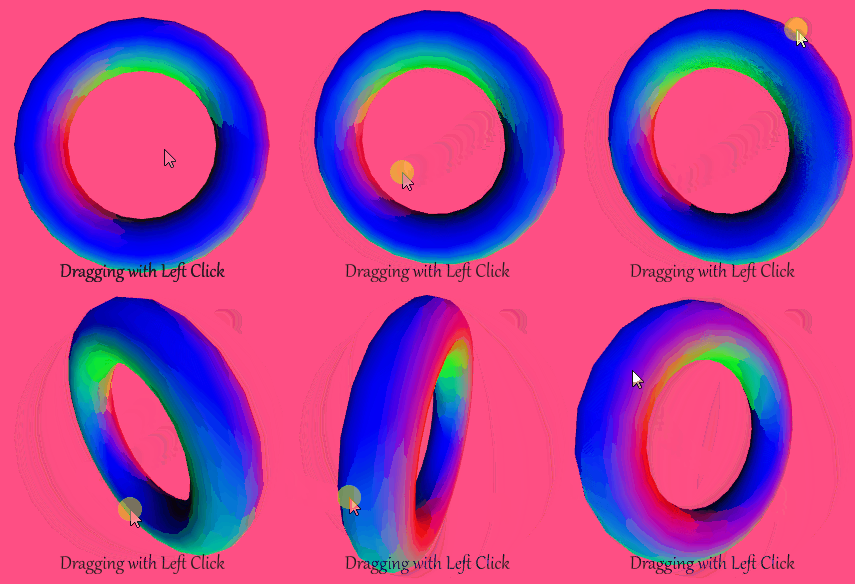
<div><figure><img src="https://768248463-files.gitbook.io/~/files/v0/b/gitbook-x-prod.appspot.com/o/spaces%2Fqbs7pgU3AVBY06Rl9M31%2Fuploads%2FpMEIbfb4b7C5KfaTvHg9%2Forbit%20rotate.gif?alt=media&amp;token=eceadd4f-ba41-4949-a312-a1a421fbd712" alt=""><figcaption></figcaption></figure> <figure><img src="https://768248463-files.gitbook.io/~/files/v0/b/gitbook-x-prod.appspot.com/o/spaces%2Fqbs7pgU3AVBY06Rl9M31%2Fuploads%2FLj51YD25aoeVEXd53SW6%2Forbit%20translate.gif?alt=media&amp;token=3dc70f8c-9d8a-440f-9690-d5e6835fc24b" alt=""><figcaption></figcaption></figure> <figure><img src="https://768248463-files.gitbook.io/~/files/v0/b/gitbook-x-prod.appspot.com/o/spaces%2Fqbs7pgU3AVBY06Rl9M31%2Fuploads%2FyxMuTDnvB2QQKXocj5n3%2Forbit%20zoom.gif?alt=media&amp;token=bb3c0310-f134-4fd9-9cce-fd641f1a2572" alt=""><figcaption></figcaption></figure></div>

### Syntax

```
orbitControl([sensitivityX], [sensitivityY], [sensitivityZ])
```

<table><thead><tr><th width="136">Parameter</th><th>Description</th></tr></thead><tbody><tr><td>sensitivityX</td><td>sensitivity to mouse movement along the x-axis</td></tr><tr><td>sensitivityY</td><td>sensitivity to mouse movement along the y-axis</td></tr><tr><td>sensitivityZ</td><td>sensitivity to mouse movement along the z-axis</td></tr></tbody></table>

### Description

Allows movement around a 3D sketch **using a mouse or trackpad**.

* **Left-clicking** and dragging will **rotate** the camera position **about the center of the canvas** (not necessarily `0, 0, 0`, as you might have moved your camera before)
* **Right-clicking** and dragging will **shift** the camera position without rotation
* **Rolling the mouse wheel or the trackpad** (scrolling) will move the camera **closer or further from the center of the canvas.**

This function can be called with parameters dictating sensitivity to mouse movement along the X and Y axes. Calling this function without parameters is equivalent to calling `orbitControl(1,1)`. **To reverse direction of movement** in either axis, enter a negative number for sensitivity.

{% hint style="info" %}
Find these documents helpful? Let the people who made them help your child learn to code at [**Strivemath**](https://www.strivemath.com/)<mark style="color:blue;">**!**</mark>

We'd love to hear your Feedback/Comments [here](https://docs.google.com/forms/d/e/1FAIpQLSeqorBAGTya-YBRI-VFjJxtgQtCz3ucGDI96K96sNyuaGuvdw/viewform?usp=sf_link).
{% endhint %}


# translate()

Translates the 3D coordinate system

### Example

<figure><img src="https://768248463-files.gitbook.io/~/files/v0/b/gitbook-x-prod.appspot.com/o/spaces%2Fqbs7pgU3AVBY06Rl9M31%2Fuploads%2Fcx9LOdyN2fBtrjZTQsOD%2Ftranslate.gif?alt=media&amp;token=2b8642d7-0219-456e-ae82-239c33fd5bde" alt=""><figcaption></figcaption></figure>

### Syntax

```
translate(x, y, [z])
```

<table><thead><tr><th width="134">Parameter</th><th>Description</th></tr></thead><tbody><tr><td>x</td><td>right-left translation</td></tr><tr><td>y</td><td>up-down translation</td></tr><tr><td>z</td><td>forward-backward translation (only in WEBGL mode)</td></tr></tbody></table>

### Full Example

<figure><img src="https://768248463-files.gitbook.io/~/files/v0/b/gitbook-x-prod.appspot.com/o/spaces%2Fqbs7pgU3AVBY06Rl9M31%2Fuploads%2FJyi2wXqXANeI6OGQ64Ud%2Ftranslate%20full.gif?alt=media&amp;token=e859e514-5e24-4898-821a-9f914625145b" alt=""><figcaption></figcaption></figure>

<details>

<summary>Example Full Code</summary>

```python
def setup():
  createCanvas(300,300, WEBGL)

def draw():
  background(255, 79, 132)
  fill(112, 88, 255)
  stroke(176, 235, 51)
  strokeWeight(2)

  torus(100, 25)
  translate(100*cos(frameCount), 0, 100*sin(frameCount))
  cone(50, 50)
```

</details>

### Description

It shifts the origin on the coordinate system. Calling `translate(50, 0, 0)` makes the point `(50, 0, 0)` the new origin. To illustrate:

* if one draws the point `(10, 0, 0)` **before** the translation, it appears 10 pixels to the right of the **original** center.
* if one draws the point `(10, 0, 0)` **after** the translation, it appears 10 pixels to the right of the **new** center, which is 60 pixels from the original center.

Like other transformations in the library ([rotateX()](/p5-python-web/reference/3d-controls/rotatex), [rotateY()](/p5-python-web/reference/3d-controls/rotatey), [rotateZ()](/p5-python-web/reference/3d-controls/rotatez)), this **effect is cumulative**. That is, calling `translate(10, 0, 0)` then `translate(20, 0, 0)` is the same as `translate(30, 0, 0)`

{% hint style="info" %}
Find these documents helpful? Let the people who made them help your child learn to code at [**Strivemath**](https://www.strivemath.com/)<mark style="color:blue;">**!**</mark>

We'd love to hear your Feedback/Comments [here](https://docs.google.com/forms/d/e/1FAIpQLSeqorBAGTya-YBRI-VFjJxtgQtCz3ucGDI96K96sNyuaGuvdw/viewform?usp=sf_link).
{% endhint %}


# rotateZ()

Rotates in 3D around the z-axis

### Example

<figure><img src="https://768248463-files.gitbook.io/~/files/v0/b/gitbook-x-prod.appspot.com/o/spaces%2Fqbs7pgU3AVBY06Rl9M31%2Fuploads%2FXy6sa1V1RVTWH04veLAz%2Frotatez.gif?alt=media&amp;token=87cf414c-a9b9-4342-8f35-8bb9048c237b" alt=""><figcaption></figcaption></figure>

### Syntax

```
rotateZ(angle)
```

<table><thead><tr><th width="114.33333333333331">Input</th><th>Description</th></tr></thead><tbody><tr><td>angle</td><td>angle of rotation</td></tr></tbody></table>

### Full Example

<figure><img src="https://768248463-files.gitbook.io/~/files/v0/b/gitbook-x-prod.appspot.com/o/spaces%2Fqbs7pgU3AVBY06Rl9M31%2Fuploads%2FDIfGOHaCxDuvJVMo3NGp%2Frotatez%20full.gif?alt=media&amp;token=bb59375b-9c5a-433a-846c-06a116ca3ea6" alt=""><figcaption></figcaption></figure>

<details>

<summary>Example Full Code</summary>

```python
def setup():
  createCanvas(300,300, WEBGL)

def draw():
  background(255, 79, 132)
  fill(112, 88, 255)
  stroke(176, 235, 51)
  strokeWeight(2)
  orbitControl()
  # draw3DAxes(100, (100, 50, 20))
  rotateZ(frameCount)
  torus(100, 25)
  rotateZ(-2*frameCount)
  cone(50, 50)
```

</details>

### Description

Rotates a shape around z-axis by the amount specified in angle parameter. The angles can be entered in either `RADIANS` or `DEGREES`, depending on the specified angleMode().

**Positive** angles rotates the space from **+x to +y** regardless of handedness. This is the actually the application of the function [rotate()](/p5-python-web/reference/built-in-functions/rotate) in 3D.

<details>

<summary>Why is this the direction of rotation?</summary>

The reason is hidden in the mathematical convention of setting up axes such that:

* if one **extends his fingers** of your **Right Hand** in the +x direction
* then **curls his fingers** into +y direction
* his **thumb points** into the +z direction

This is called the **Right Hand Convention** (as if you did it with your left hand, it would fail! it would give the opposite direction). We can write this convention as **+x => +y => +z**.

Extending the sequence with the same order **+x => +y => +z => +x => +y** gives us the convention for rotations about the x-axis and the y-axis as well:

* about x-axis: **+y => +z => +x**
* about y-axis: **+z => +x => +y**

</details>

{% hint style="info" %}
Find these documents helpful? Let the people who made them help your child learn to code at [**Strivemath**](https://www.strivemath.com/)<mark style="color:blue;">**!**</mark>

We'd love to hear your Feedback/Comments [here](https://docs.google.com/forms/d/e/1FAIpQLSeqorBAGTya-YBRI-VFjJxtgQtCz3ucGDI96K96sNyuaGuvdw/viewform?usp=sf_link).
{% endhint %}


# rotateX()

Rotates in 3D around the x-axis

### Example

<figure><img src="https://768248463-files.gitbook.io/~/files/v0/b/gitbook-x-prod.appspot.com/o/spaces%2Fqbs7pgU3AVBY06Rl9M31%2Fuploads%2F3FyFNki1SmRDL0rifX22%2Frotatex.gif?alt=media&amp;token=794a0d8b-dd83-40db-b8d6-fa9ef4259814" alt=""><figcaption></figcaption></figure>

### Syntax

```
rotateX(angle)
```

<table><thead><tr><th width="114.33333333333331">Input</th><th>Description</th></tr></thead><tbody><tr><td>angle</td><td>angle of rotation</td></tr></tbody></table>

### Full Example

<figure><img src="https://768248463-files.gitbook.io/~/files/v0/b/gitbook-x-prod.appspot.com/o/spaces%2Fqbs7pgU3AVBY06Rl9M31%2Fuploads%2F5WSS6rAAUtuTmOE3vSNx%2Frotatex%20full.gif?alt=media&amp;token=d7897486-f402-40a1-b4e4-3592ddaa82de" alt=""><figcaption></figcaption></figure>

<details>

<summary>Example Full Code</summary>

```python
def setup():
  createCanvas(300,300, WEBGL)

def draw():
  background(255, 79, 132)
  fill(112, 88, 255)
  stroke(176, 235, 51)
  strokeWeight(2)
  orbitControl()
  # draw3DAxes(100, (100, 50, 20))
  rotateX(frameCount)
  torus(100, 25)
  rotateX(-2*frameCount)
  cone(50, 50)
```

</details>

### Description

Rotates a shape around x-axis by the amount specified in angle parameter. The angles can be entered in either `RADIANS` or `DEGREES`, depending on the specified angleMode().

**Positive** angles rotates the space from **+z to +y** regardless of handedness.

<details>

<summary>Why is this the direction of rotation?</summary>

The reason is hidden in the mathematical convention of setting up axes such that:

* if one **extends his fingers** of your **Right Hand** in the +x direction
* then **curls his fingers** into +y direction
* his **thumb points** into the +z direction

This is called the **Right Hand Convention** (as if you did it with your left hand, it would fail! it would give the opposite direction). We can write this convention as **+x => +y => +z**.

Extending the sequence with the same order **+x => +y => +z => +x => +y** gives us the convention for rotations about the x-axis and the y-axis as well:

* about x-axis: **+y => +z => +x**
* about y-axis: **+z => +x => +y**

</details>

{% hint style="info" %}
Find these documents helpful? Let the people who made them help your child learn to code at [**Strivemath**](https://www.strivemath.com/)<mark style="color:blue;">**!**</mark>

We'd love to hear your Feedback/Comments [here](https://docs.google.com/forms/d/e/1FAIpQLSeqorBAGTya-YBRI-VFjJxtgQtCz3ucGDI96K96sNyuaGuvdw/viewform?usp=sf_link).
{% endhint %}


# rotateY()

Rotates in 3D around the y-axis

### Example

<figure><img src="https://768248463-files.gitbook.io/~/files/v0/b/gitbook-x-prod.appspot.com/o/spaces%2Fqbs7pgU3AVBY06Rl9M31%2Fuploads%2FEi4Q67CnfxQCidFtRlR6%2Frotatey.gif?alt=media&amp;token=4acbc8f2-a392-4d12-9c9c-29e01dbe921b" alt=""><figcaption></figcaption></figure>

### Syntax

```
rotateY(angle)
```

<table><thead><tr><th width="114.33333333333331">Input</th><th>Description</th></tr></thead><tbody><tr><td>angle</td><td>angle of rotation</td></tr></tbody></table>

### Full Example

<figure><img src="https://768248463-files.gitbook.io/~/files/v0/b/gitbook-x-prod.appspot.com/o/spaces%2Fqbs7pgU3AVBY06Rl9M31%2Fuploads%2FHW8AfGjdstzZP3yMZkGA%2Frotatey%20full.gif?alt=media&amp;token=cba39925-5796-4a4b-b306-2bf7eeef2155" alt=""><figcaption></figcaption></figure>

<details>

<summary>Example Full Code</summary>

```python
def setup():
  createCanvas(300,300, WEBGL)

def draw():
  background(255, 79, 132)
  fill(112, 88, 255)
  stroke(176, 235, 51)
  strokeWeight(2)
  orbitControl()
  # draw3DAxes(100, (100, 50, 20))
  rotateY(frameCount)
  torus(100, 25)
  rotateY(-2*frameCount)
  cone(50, 50)
```

</details>

### Description

Rotates a shape around y-axis by the amount specified in angle parameter. The angles can be entered in either `RADIANS` or `DEGREES`, depending on the specified angleMode().

**Positive** angles rotates the space from **+z to +x** regardless of handedness.

<details>

<summary>Why is this the direction of rotation?</summary>

The reason is hidden in the mathematical convention of setting up axes such that:

* if one **extends his fingers** of your **Right Hand** in the +x direction
* then **curls his fingers** into +y direction
* his **thumb points** into the +z direction

This is called the **Right Hand Convention** (as if you did it with your left hand, it would fail! it would give the opposite direction). We can write this convention as **+x => +y => +z**.

Extending the sequence with the same order **+x => +y => +z => +x => +y** gives us the convention for rotations about the x-axis and the y-axis as well:

* about x-axis: **+y => +z => +x**
* about y-axis: **+z => +x => +y**

</details>

{% hint style="info" %}
Find these documents helpful? Let the people who made them help your child learn to code at [**Strivemath**](https://www.strivemath.com/)<mark style="color:blue;">**!**</mark>

We'd love to hear your Feedback/Comments [here](https://docs.google.com/forms/d/e/1FAIpQLSeqorBAGTya-YBRI-VFjJxtgQtCz3ucGDI96K96sNyuaGuvdw/viewform?usp=sf_link).
{% endhint %}


# scale()

Scales Object in 3D from the Origin

### Example

<div><figure><img src="https://768248463-files.gitbook.io/~/files/v0/b/gitbook-x-prod.appspot.com/o/spaces%2Fqbs7pgU3AVBY06Rl9M31%2Fuploads%2FUpchQOBOlbxWUWHh17IL%2Foriginal.png?alt=media&amp;token=08da1259-199f-43e7-94da-edeffb176a7f" alt=""><figcaption><p>Original Shape (Front View)</p></figcaption></figure> <figure><img src="https://768248463-files.gitbook.io/~/files/v0/b/gitbook-x-prod.appspot.com/o/spaces%2Fqbs7pgU3AVBY06Rl9M31%2Fuploads%2FpsA9AXkrwFlEWG47HMCJ%2Foriginalz.png?alt=media&amp;token=40c13fd8-9f5a-46e9-8cc2-96a550534c52" alt=""><figcaption><p>Original Shape (Side View)</p></figcaption></figure></div>

<div><figure><img src="https://768248463-files.gitbook.io/~/files/v0/b/gitbook-x-prod.appspot.com/o/spaces%2Fqbs7pgU3AVBY06Rl9M31%2Fuploads%2FPjARJ9CesPyuMkIcP8Q4%2F1.5x.png?alt=media&amp;token=710d31c9-e988-40ca-972b-5def9b4e89a1" alt=""><figcaption><p>scaling by <strong>1.5</strong> in x-direction</p></figcaption></figure> <figure><img src="https://768248463-files.gitbook.io/~/files/v0/b/gitbook-x-prod.appspot.com/o/spaces%2Fqbs7pgU3AVBY06Rl9M31%2Fuploads%2FvaktsIl5L1UdwyNX5VRF%2F0.5y.png?alt=media&amp;token=19cf3587-83f1-41c6-a86c-37b2712e4dcb" alt=""><figcaption><p>scaling by <strong>0.5</strong> in y-direction</p></figcaption></figure> <figure><img src="https://768248463-files.gitbook.io/~/files/v0/b/gitbook-x-prod.appspot.com/o/spaces%2Fqbs7pgU3AVBY06Rl9M31%2Fuploads%2FbIh2kT6XvrKEKypLzxwF%2Fz3.png?alt=media&amp;token=044d89e2-0145-41bf-b631-05057e7dd395" alt=""><figcaption><p>scaling by <strong>3</strong> in z-direction</p></figcaption></figure></div>

### Syntax

```
scale(x, y, z)
```

<table><thead><tr><th width="114.33333333333331">Input</th><th>Description</th></tr></thead><tbody><tr><td>x</td><td>scaling factor of edges and faces in the x-direction</td></tr><tr><td>y</td><td>scaling factor of edges and faces in the y-direction</td></tr><tr><td>z</td><td>scaling factor of edges and faces in the z-direction</td></tr></tbody></table>

### Full Example

<figure><img src="https://768248463-files.gitbook.io/~/files/v0/b/gitbook-x-prod.appspot.com/o/spaces%2Fqbs7pgU3AVBY06Rl9M31%2Fuploads%2FqZ4wkWJEMacaZn32NriS%2Fscale%20full.gif?alt=media&amp;token=7aab5f62-ae44-4339-b2a9-39e7010ba3b4" alt=""><figcaption></figcaption></figure>

<details>

<summary>Example Full Code</summary>

```python
def setup():
  createCanvas(300,300, WEBGL)

def draw():
  background(255, 79, 132)
  fill(112, 88, 255)
  stroke(176, 235, 51)
  strokeWeight(2)
  orbitControl()
  # draw3DAxes(100, (100, 50, 20))
  rotateX(frameCount/2)
  rotateZ(frameCount)
  sX = 1+0.75*cos(frameCount)
  sY = 1+0.25*sin(frameCount)
  sZ = 1+0.5*sin(frameCount)
  scale(sX, sY, sZ)
  torus(75, 15)
  # rotateY(-2*frameCount)
  cone(30, 30)
```

</details>

### Description

Increases or decreases the size of a shape by **expanding or contracting its edges and faces in a specific direction**. Objects always scale **from their relative origin** to the coordinate system. Scale values are specified as decimal percentages. For example, the function call `scale(2.0, 1, 1)` increases the x dimension of a shape by 200%.

If a **negative** number was specified, the shape will **flip, then scale.** For example, `scale(-2.0, 1, 1)` first flips the shape, then increases the dimensions by 200%.

{% hint style="info" %}
Find these documents helpful? Let the people who made them help your child learn to code at [**Strivemath**](https://www.strivemath.com/)<mark style="color:blue;">**!**</mark>

We'd love to hear your Feedback/Comments [here](https://docs.google.com/forms/d/e/1FAIpQLSeqorBAGTya-YBRI-VFjJxtgQtCz3ucGDI96K96sNyuaGuvdw/viewform?usp=sf_link).
{% endhint %}